Data Mappings Interface
An activity has access to the output data from the trigger to which the flow is attached in addition to the output from any of the activities that precede it in the same flow provided that the trigger or activity has an output. This data is displayed in a tree structure under Upstream Output in the Mapper. The input schema for the activity is displayed in the pane to the left of the Upstream Output pane. You can map data coming from the upstream output to the input fields of the activity. Activities also have access to the input fields of a flow to which the activity belongs. You enter the flow input schema in the Input Settings tab of the Flow Inputs and Outputs accordion tab.
When you click an activity or trigger on the flow details page, the configuration page for that activity or trigger opens. The following image is an example of the configuration page that opens if you clicked on the InvokeRESTService activity. The image describes the areas of the Mapper.
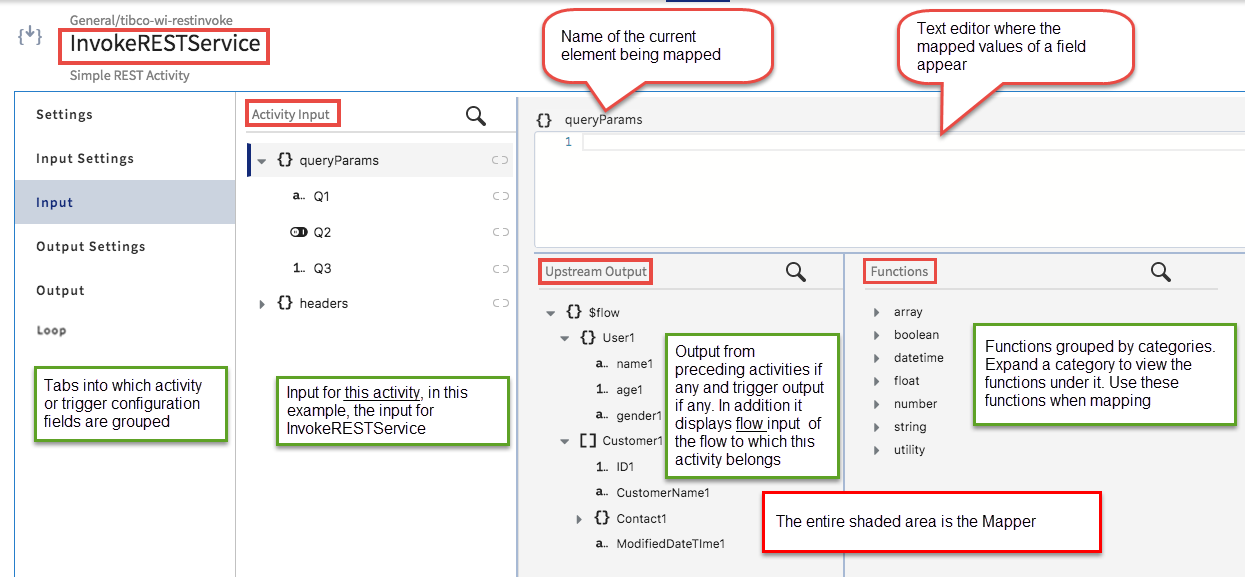
The left most pane displays the tabs for the configuration fields for that activity or trigger. Each activity or trigger has one or more of the following tabs:
- Settings
For triggers, this tab displays the Trigger settings and Handler settings. Trigger settings are specific to that particular trigger and Handler settings are settings applicable to a specific flow attached to that trigger. Each flow attached to that trigger can have its own handler settings.
- Input Settings
This tab allows you to enter the schema for the flow or activity input.
- Input
This tab displays the schema you entered in the Input Settings tab in a tree format. You can manually enter values for any elements in the input schema or map any input element to the output from previous activities or triggers in this tab.
- Output Settings
This tab allows you to enter the schema for the flow or activity output.
- Output
This tab displays the schema you entered in the Output Settings tab in a tree format. The schema displayed in this tab is set to read-only as it is for informational purposes only.
- Reply Settings
This tab is applicable only to triggers that send replies back to the caller, such as the REST or GraphQL triggers. You enter the trigger reply schema in this tab.
- Map to Flow Inputs
This tab is applicable only to triggers that have an output, such as the REST or GraphQL triggers. You manually enter or map the elements from the trigger output (schema set in Output Settings tab) to the flow input elements (schema entered in Input Settings tab of the Flow Inputs & Outputs accordion tab). This allows the output from the trigger to become the input to the flow.
- Map from Flow Outputs
This tab is specific to triggers that need to send a reply to the caller, such as the REST or GraphQL triggers. You manually enter or map the elements from the output of the flow (schema set in Reply Settings tab) to the flow output elements (schema entered in Output Settings tab of the Flow Inputs & Outputs). This allows the output of the flow to become the reply that the trigger sends back to the request that it receives.
- Loop
Use this tab to enter the iteration details for activities that you want to iterate.
When mapping, you can use data from the following sources:
- Literal values - Literal values can be strings or numeric values. These values can either be manually typed in or mapped to a value from the output of the trigger or a preceding activity in the same flow. To specify a string, enclose the string in double quotes. To specify a number, type the number into the text box for the field. Constants and literal values can also be used as input to functions and expressions.
- Direct mapping of an input element to an element of the same type in the Upstream Output.
- Mapping using functions - The mapper provides commonly used functions that you can use in conjunction with the data to be mapped. The functions are categorized into groups. Click a function to use its output in your input data. When you use a function, placeholders are displayed for the function parameters. You click a placeholder parameter within the function, then click an element from the Upstream Output to replace the placeholder. Functions are grouped into logical categories. Refer to Using Functions section for more details.
- Expressions - You can enter an expression whose evaluated value is mapped to the input field. Refer to Using Expressions for more details.
In case of errors in mapping (such as, empty mandatory fields and incorrect mapping at activity or trigger level), an error icon  is displayed on the activity tile. A warning icon
  is displayed if your changes are not saved or discarded, input and output are not mapped in triggers, or mappings are removed for mandatory fields.