Executions Page
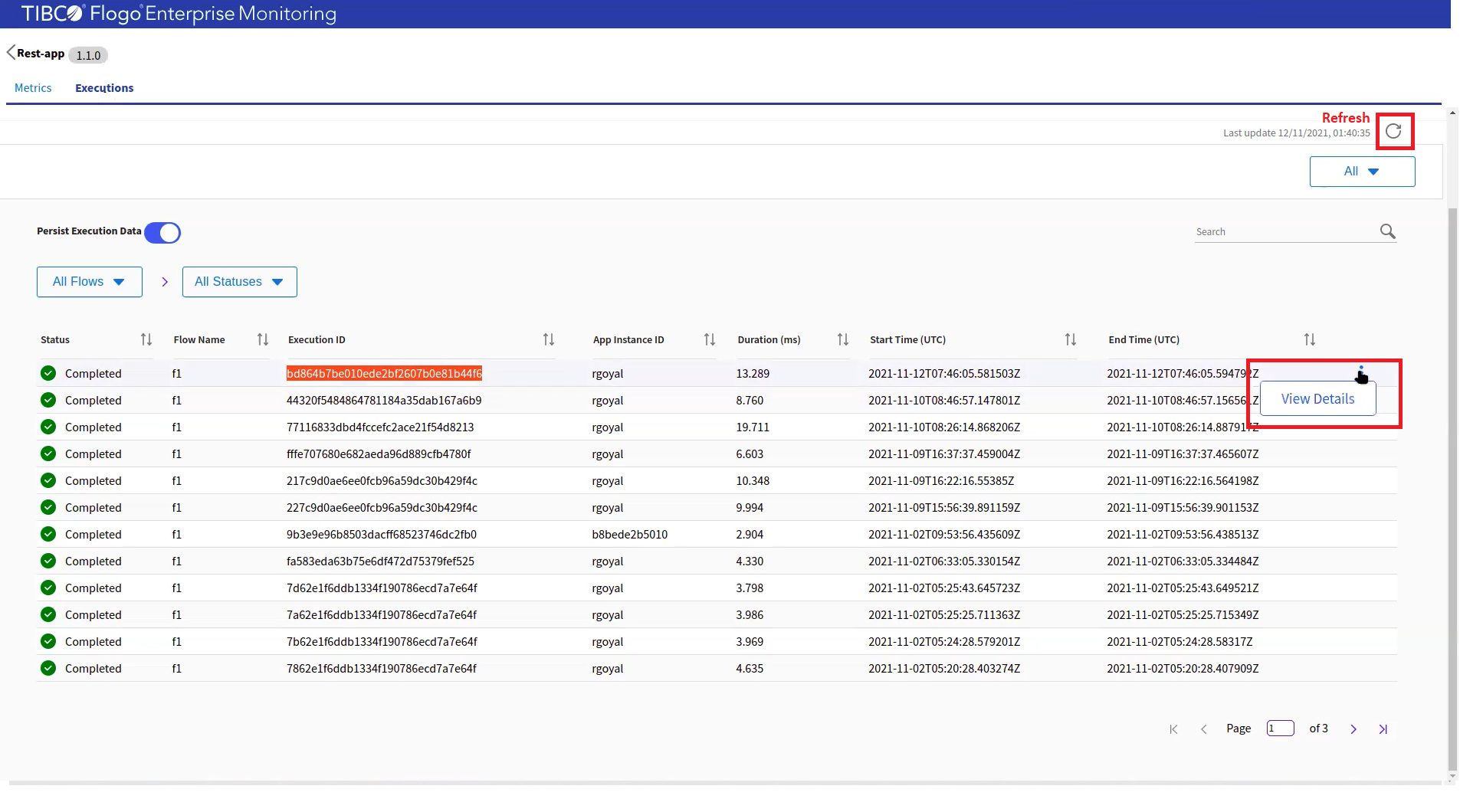
The Executions page displays information about the state of all executed flows of a Flogo app. Details of a trigger are not captured.
From this page, you can:
- Persist execution data: Select Persist Execution Data toggle button to persist execution data to the supported database (currently, PostgreSQL). Note: If Persist execution data is disabled, any new execution data is not saved to the database. The Rerun flow from this activity feature is also disabled for all flow executions.
- Filter based on time frame: Use the All dropdown to filter based on time frame. For example: in the last one hour, last week, last 30 days and so on.
- Filter based on flow: If you have multiple flows, use the All Flows dropdown to filter based on flows.
- Filter based on status: Use the All Statuses dropdown to filter based on the status of the flow.
- Refresh data: Use the
 button to refresh the data in the table.
 - View execution data: The following data is displayed in a tabular format.
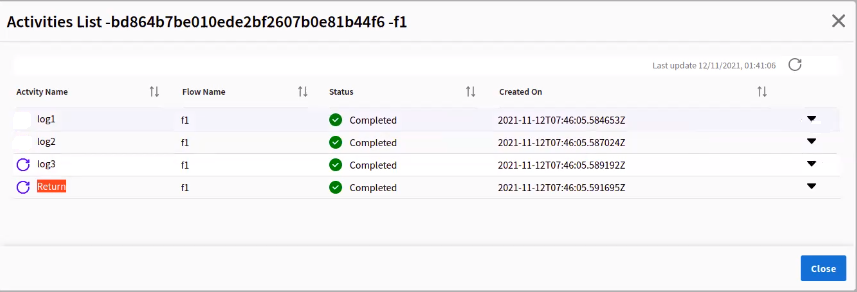
Name Description Status Status Flow Name Name of the flow. Execution ID Instance ID of the flow. App Instance ID Instance ID of the app. Duration (ms) Duration for which the flow was running. Start Time (UTC) Time when the flow was started, based on Coordinated Universal Time (UTC). End Time (UTC) Time when the flow ended, based on Coordinated Universal Time (UTC). - View details of a flow: For each flow, you can view its details by clicking View Details. A list of activities executed is displayed:
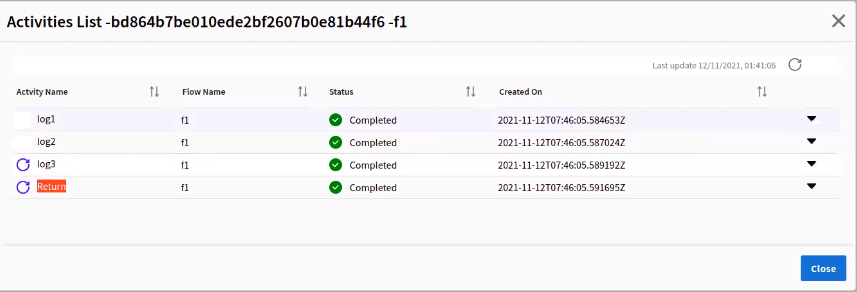
- Rerun the flow from a specific activity: You can rerun the flow from a specific activity. You cannot modify the input data; you can only rerun the activity.
-
Note: If you rerun an activity, the previous execution record for the activity is overwritten in the database. Past execution records of the activity that was rerun and all subsequent activities in the flow is deleted.Important: Exercise caution while re-running a flow attached to the App Startup Trigger and App Shutdown Trigger. These triggers, typically, include logic for creating data or cleaning up of data. Such flows might impact the running instances of the app.
To rerun the flow from a specific activity:
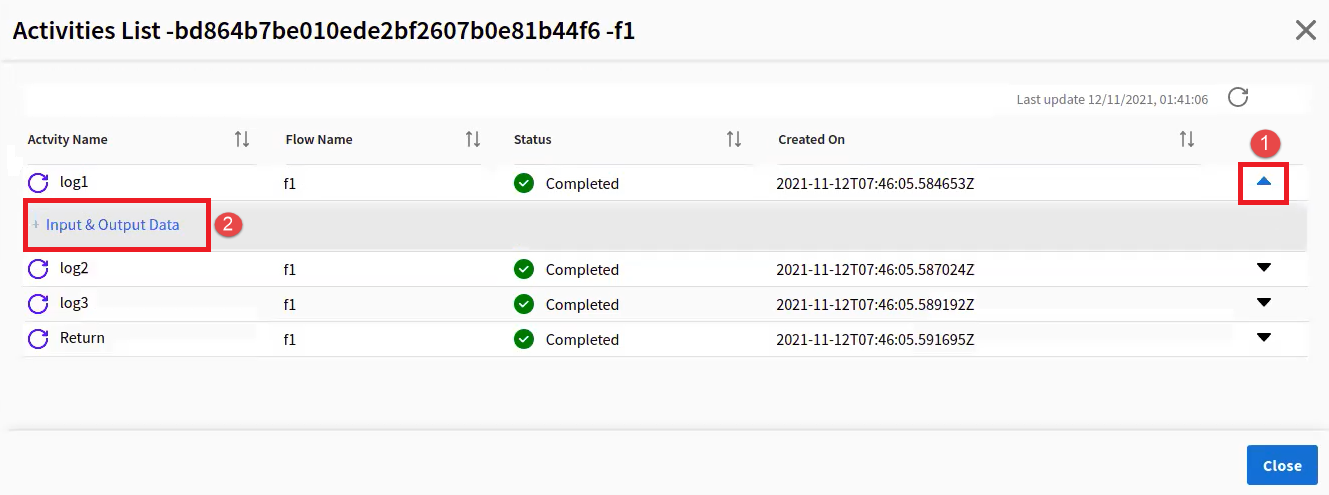
- On the View Details page, click the expand icon and then click Input & Output Data.
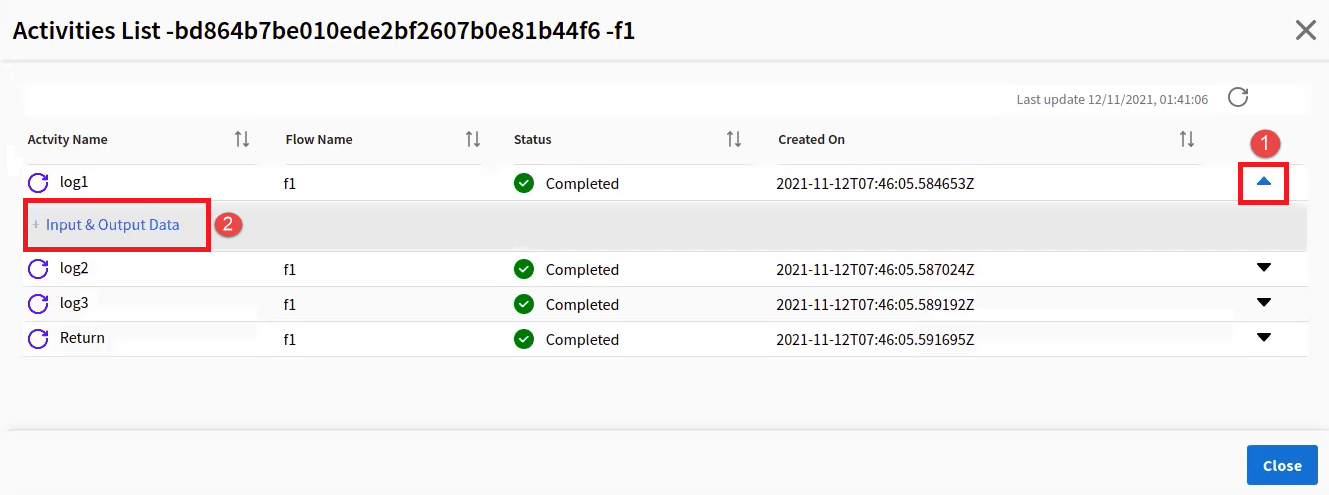
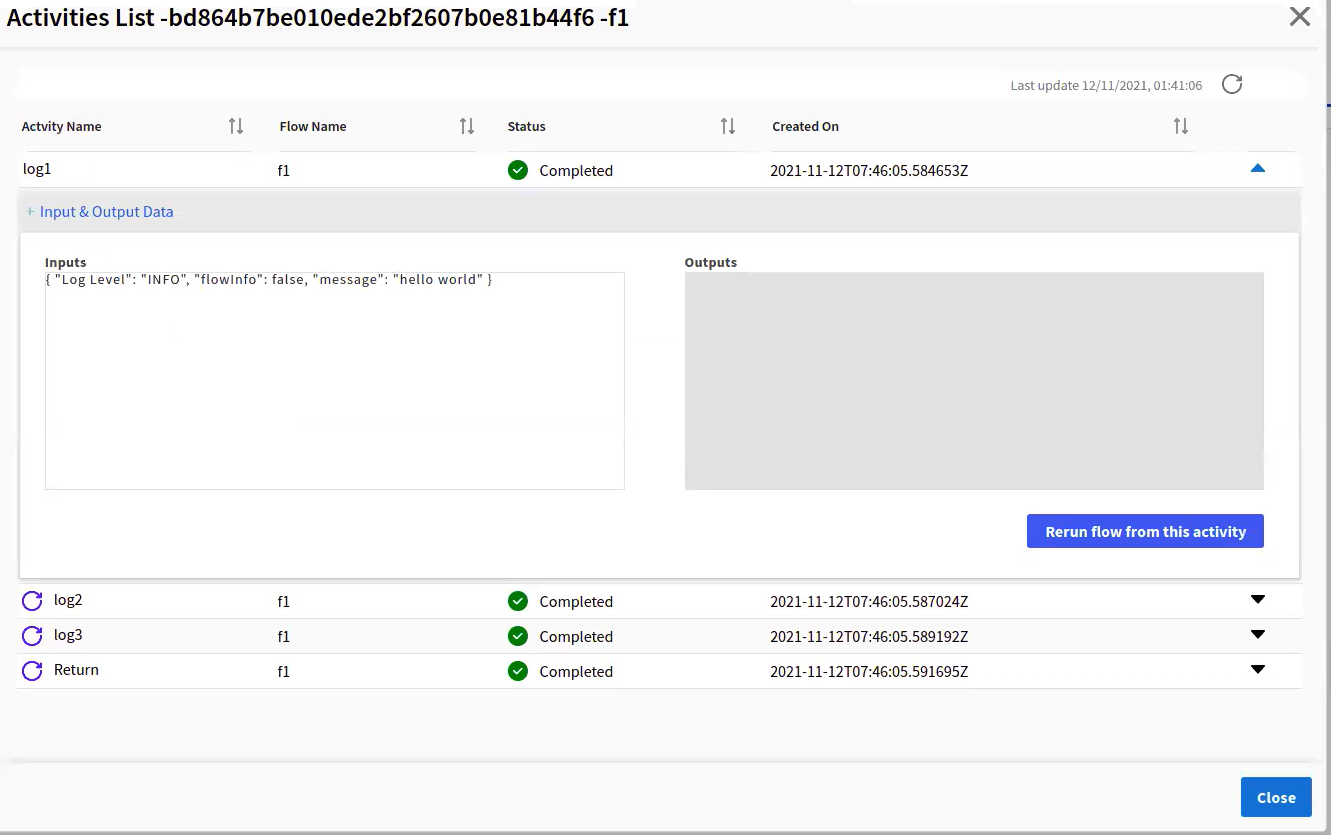
The input and output for the selected activity is displayed.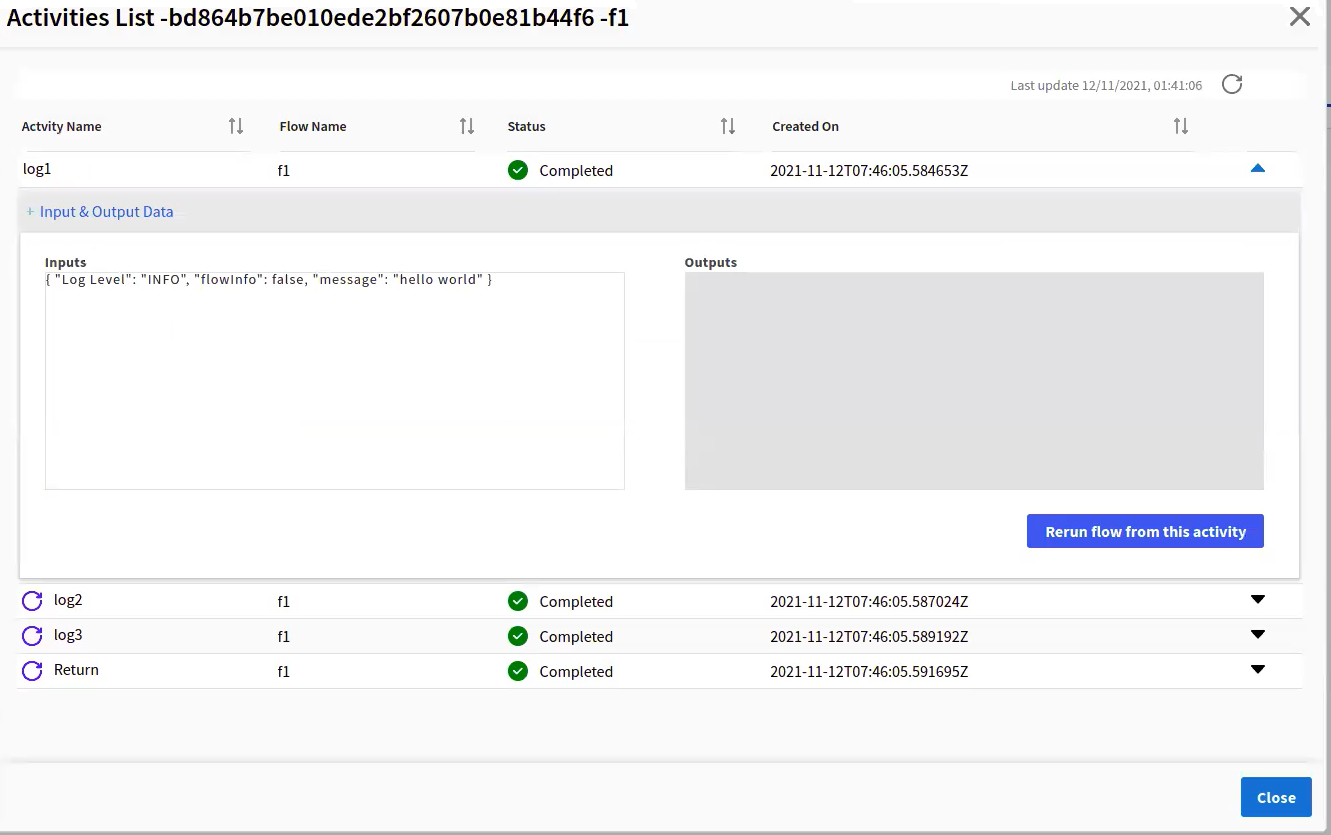
- Click Rerun flow from this activity.Note: The Rerun flow from this activity button is disabled for activities which are a part of subflows. This button is also disabled if the Persist Execution Data toggle is disabled.
After the rerun of an activity, the rerun is indicated by a
 icon. The Executions page is also updated with the latest data. Click to refresh the changes on the Executions page.
- On the View Details page, click the expand icon and then click Input & Output Data.