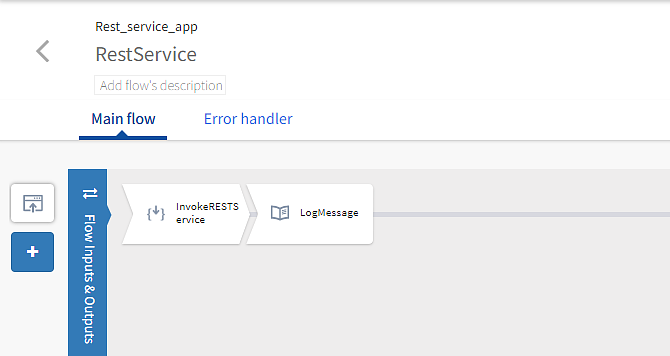
Step 6: Add invoke REST Service and Log message activity to the flow
Activities perform specific tasks within the flow. A flow typically contains multiple activities. Here, you configure three simple activities such as the Invoke REST Service activity to invoke an external service, a log message activity to register a message about the status of the first activity and a return activity to produce the results of the flow executed.
To invoke a rest service, configure the activity and map the status of the same to the log message activity.
Configure Invoke Rest service activity
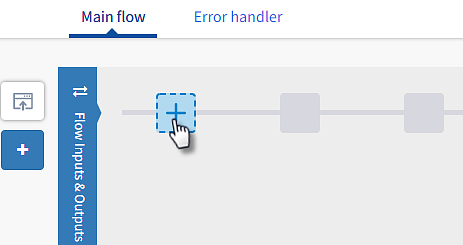
- On the right of the Flow Inputs & Outputs tab, click
 on the plus tab.
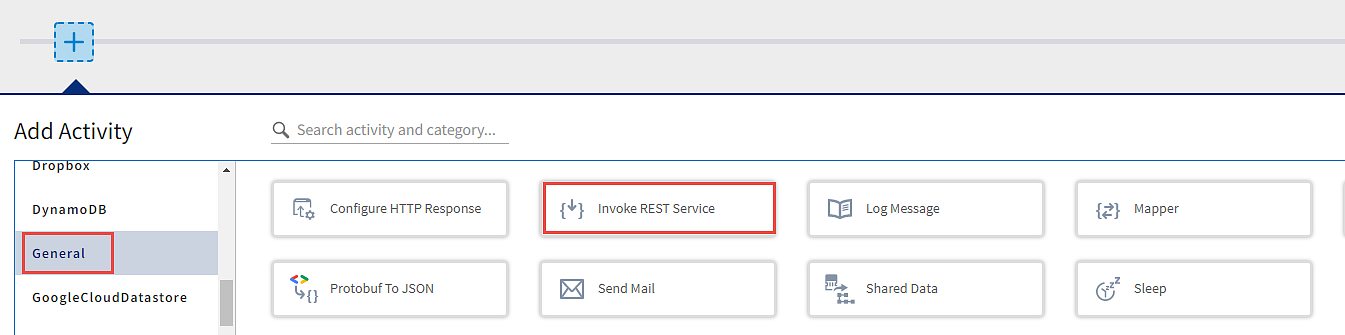
- In the Add Activity dialog, go to the General tab and select the Invoke Rest Service activity.

-
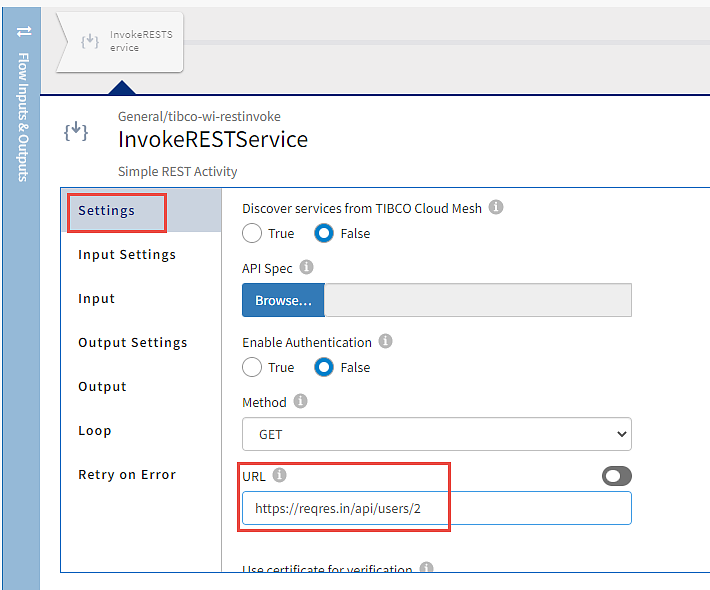
On the Settings page, in the URL field, provide the URL for the Rest API that is to be invoked, set the method as GET, and click save.
Here, the URL is set as
https://reqres.in/api/users/2

The Invoke Rest Service activity’s configuration window opens with the Settings tab selected by default.
Add a Log Message activity
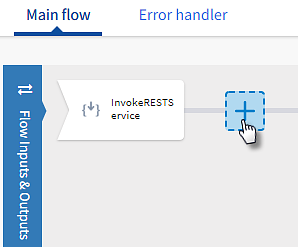
- Beside the Invoke REST Service activity, click on the plus tab.

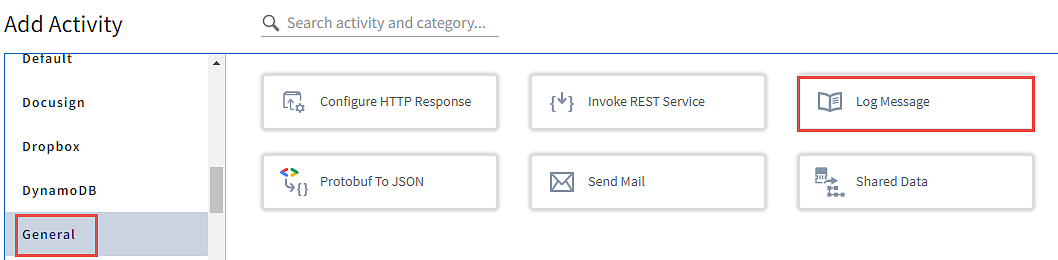
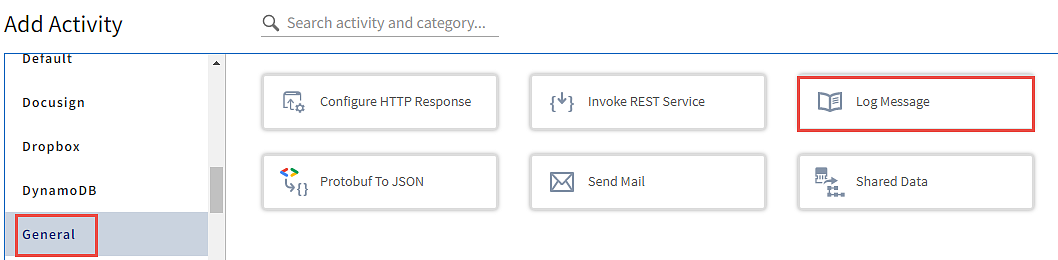
- On the Add Activity page, go to the General tab and click the Log Message.
- To configure the LogMessage activity with a message to log when it receives an incoming request from the ReceiveHTTPMessage trigger about the status of the Invoke rest service:
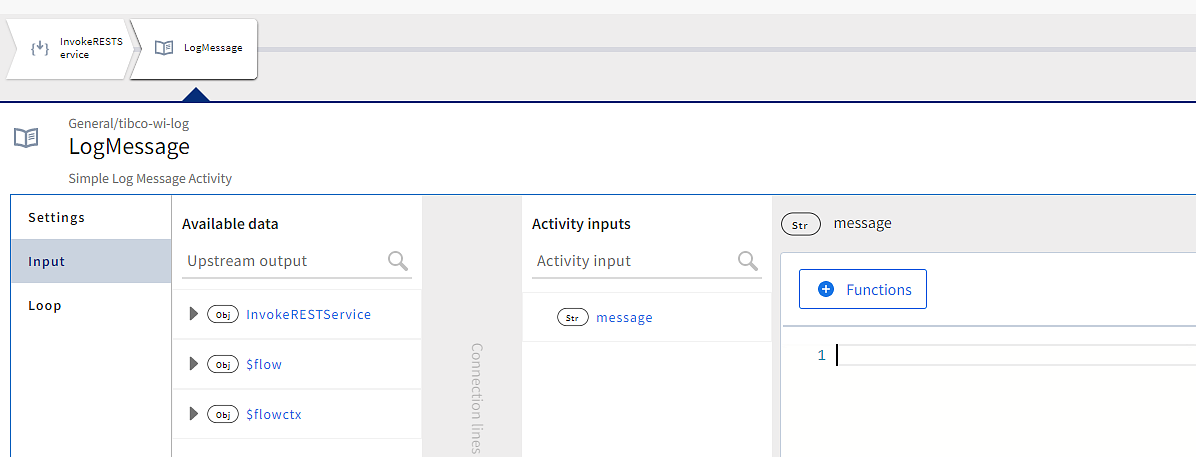
- Click the Input tab. The Available data and Activity inputs columns are displayed on the right side of the LogMessage activity tabs.
- Select the message in the Activity Inputs column. Configure the message to print in the logs. This will open the text editor of the message.
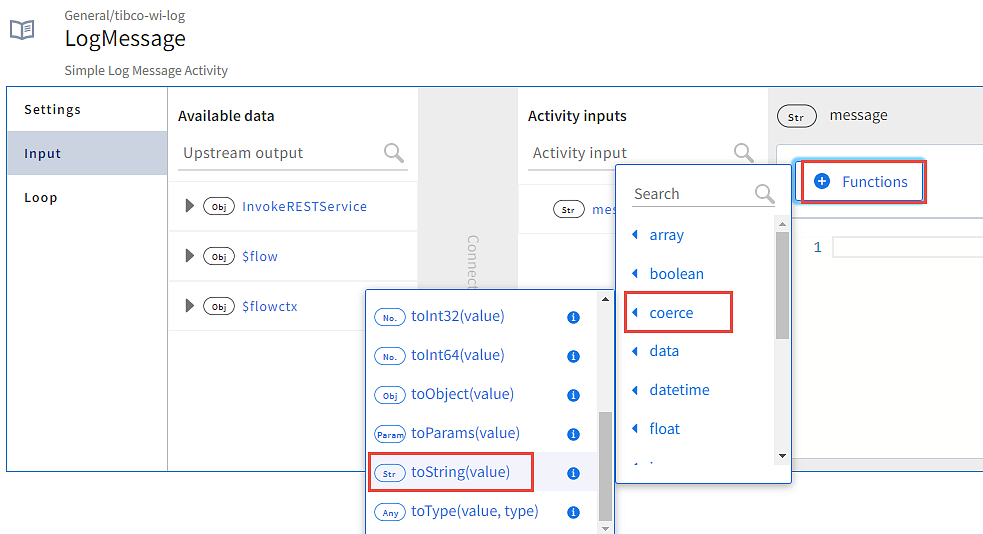
- Configure this log message activity to log the status code received from the InvokeRESTService activity. To use a function in the editor, click the Functions button, expand the string and select coerce.tostring(value).

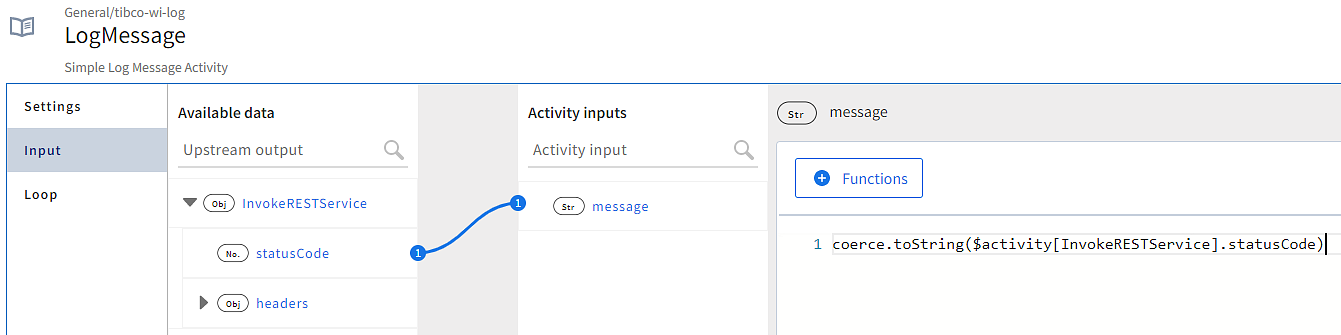
- The newly added function appears in the editor with a default placeholder (value) as an argument. Replace the placeholder with the status code:
In the Available data pane, expand InvokeRESTService, drag StatusCode and drop it in place of Value, and click Save.

- Close the LogMessage dialog box.
Now, the flow has two configured activities:

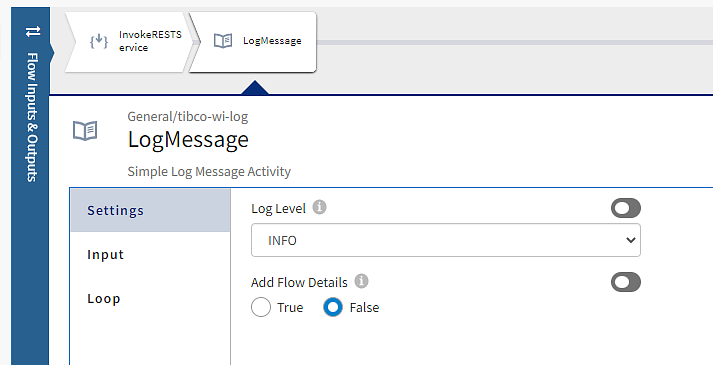
The LogMessage activity’s configuration window opens automatically after its creation. By default, the Settings tab is selected.