Step 7: Configure a return activity to display the status of the trigger
Add a return activity
-
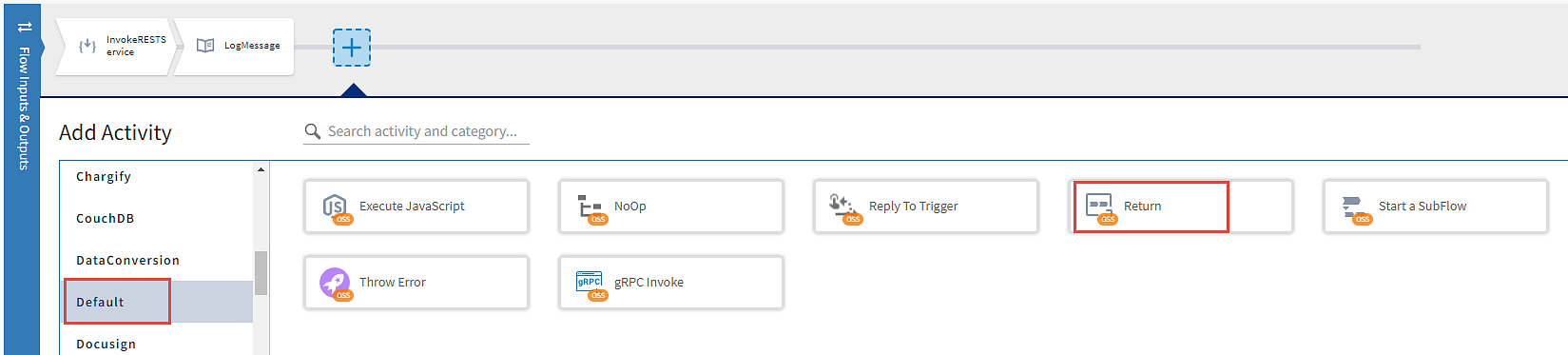
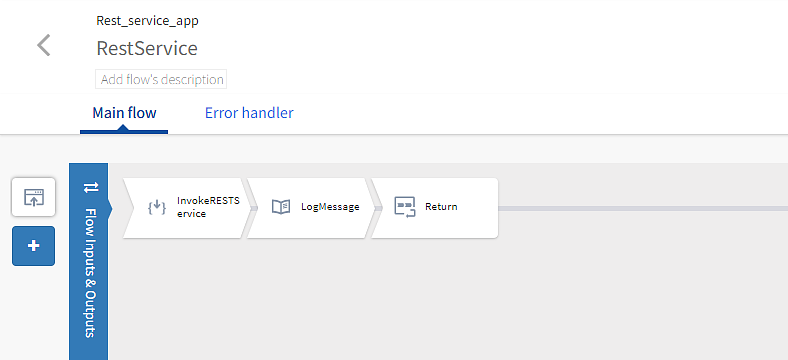
To open the activity palette and add a return activity as the final activity of this flow, beside the LogMessage activity, click
 on the plus tab.
 - Scroll to the Default category and select it. Click Return to add the activity. The Return activity configuration window opens by default.
-
Configure the Returnactivity to produce the flow results.
To configure the Return activity:
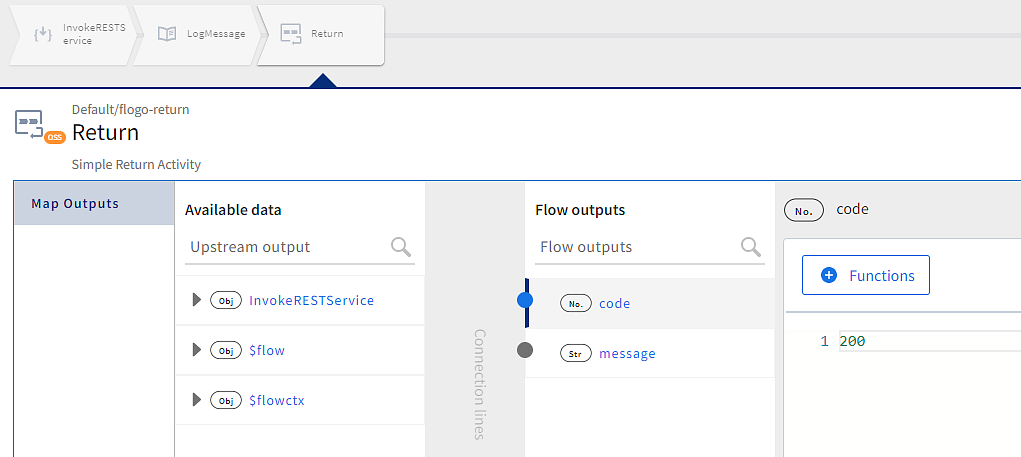
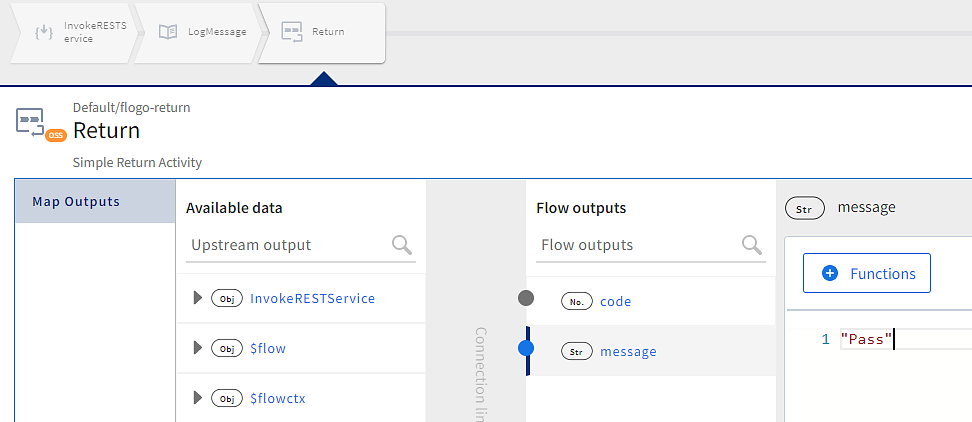
- Click code under Flow outputs to open the mapper and type
200in the editor to manually assign a constant value to code as an HTTP success code - Select the message in the Flow Outputs column to manually assign a constant value. Type 'Pass' which states the output of the flow result on successful execution.
- Click Save and then close the dialog box.

Tip: Flow execution branch: A business logic can be more complex by using conditional branching, loops, and conditional mapping to execute actions based on conditions.