InvokeRESTService
This Activity is used to request a REST service. It also accepts the reply returned by the service.
Settings
| Field | Description |
|---|---|
| API Spec | (Optional) Click
Browse and browse to the file location on the machine. Select a JSON file.
Supported specifications are Swagger Specification 2.0 and OpenAPI Specification 3.0. Click the Use app level spec toggle to select an API uploaded on the SPECS tab. Once you select the API Spec, the other fields, such as Path and Method, are populated per the spec. |
| Resource Path |
Note: This field is only displayed if you upload a JSON file in the
API Spec field.
All resource paths available in the JSON file (that is, the Swagger 2.0 or OpenAPI 3.0 specification file you uploaded) are listed in the dropdown menu. Depending on the resource path you select, the supported operations are listed in the Method field. |
| Enable Authentication |
Select True if you want to enable authentication and authorization for your apps using the HTTP Client Authorization Configuration connection. Default: False |
| Authentication Connection |
Note: This field is displayed only if the Enable Authentication field is set to True.
Select a connection that you have set up from the dropdown list. For information on setting up a connection, refer to HTTP Client Authorization Configuration. |
| Method | Select an operation for the request. For example: GET, POST, PUT, DELETE, or PATCH. |
| URL |
An absolute path to the REST service that you want to invoke. For example:
Note: If you upload an OpenAPI 3.0 JSON specification file in the
API Spec field, the
URL is a dropdown list. This lists the server URLs mentioned in the JSON file. Select a server URL from the list.
Tip: To dynamically override the path provided in the URL, you can enter the URL as:
http://<host-url>:port/{path}Here, {path} is the parameter that can be modified. You can map this parameter in the Input section and assign values to it from the previous activities or the app properties. |
| Use certificate for verification |
This field is displayed if you enter an absolute path beginning with
Default: False |
| Use mTLS |
Set to True to enable mutual authentication for a secure connection to the server. Default: False |
| Client Certificate |
This field is displayed only if Use mTLS is set to True. This certificate is used to identify the client by the servers over TLS. The certificate must be PEM encoded. Click Browse and select the client certificate. Alternatively, you can configure the app property by using the Bind an Application Property toggle |
| Client Key |
This field is displayed only if Use mTLS is set to True. Click Browse and select the client key. The key file must be PEM encoded. Alternatively, you can configure the app property by using the Bind an Application Property toggle |
| CA/Server Certificate |
Click Browse and select a certificate authority (CA) certificate that verifies the client's certificate or the server certificate to establish a secure connection during the TLS handshake. The certificate must be PEM encoded. Alternatively, you can configure the app property by using the Bind an Application Property toggle You can copy the server/root certificate under the system CA certificates. The activity loads all system certificates and appends any user-configured certificates. Providing a certificate in the CA/Server certificate field is not mandatory. |
| Disable SSL Verification |
Set to True to disable SSL verification when invoking SSL and mTLS-enabled services. Note: It is not a best practice to enable this field for a production environment.
Default: False |
| Close Connection | Select True if you want to terminate the connection to the server after the response is processed. This affects the performance as the connection is no longer cached. Default: False |
| Follow Redirects |
If set to false, the HTTP client does not follow any redirects automatically. It returns the initial response. Default: True |
| Timeout |
Specify the timeout period (in milliseconds) for invoking a service. If a timeout value is specified, the Activity waits for the specified time. If the response is not received by the specified time, the request expires with an error. Default: 0 milliseconds (that is, there is no timeout for invoking a service) |
| Request Type |
Note: This field is displayed only for the POST, PUT, and PATCH methods.
The Request content type of the REST service. The following content-type are supported:
Note:
|
| Proxy |
Specify the URL to the HTTP proxy server. If a proxy URL is specified, the request to the REST service (specified in the URL field) is routed via this proxy URL. Note: A secure connection to the proxy server is not supported.
Default: Proxy URL is disabled. |
 . Set the Base64-encoded value of the client certificate to the corresponding app property or pass file path as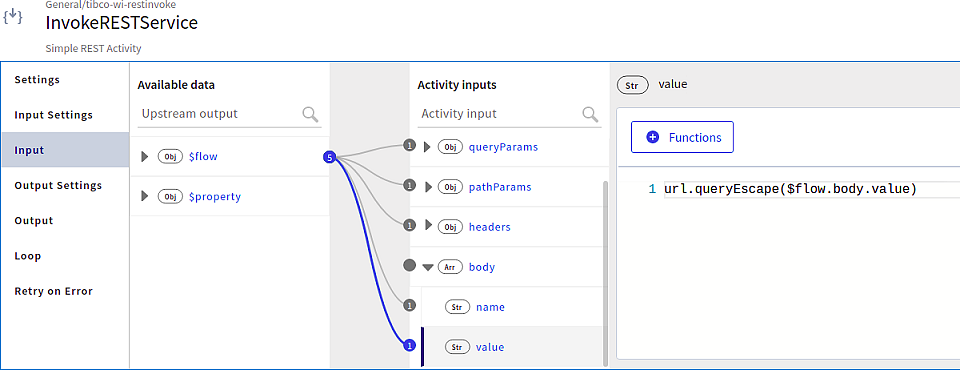
Input Settings
| Field | Description |
|---|---|
| Query Params | Query parameters to be appended to the path. To add the query parameters, click  and press
Enter to save your changes. and press
Enter to save your changes.
|
| Path Params | Path parameters that are appended to the path. This is a non-editable field.
|
| Request Headers | Header values for the InvokeRESTService Activity. To add the header parameters, click and press
Enter to save your changes.
|
| Request Schema |
Enter a request schema here. This field is visible only if you selected the POST, PUT, PATCH, or DELETE method on the Settings tab. Note:
|
| Multipart Data | This field is displayed in place of the Request Schema field if you select multipart/form-data as the Request Type on the
Settings tab. Click to add the parameters.
|
Input
| Field | Description |
|---|---|
| host | Specify the value that must override the
hostname:port value specified in the URL at runtime with the value specified in this configuration. Enter a value in the form
hostname[:port] where
[:port] is optional.
|
| serviceUrl |
Specify the complete endpoint URL of the service, including protocol http/https, hostname, basepath, and path and query parameter value that must override the value specified in Settings > URL and Input > host at runtime with the value specified in this configuration. Query parameters added in the Input Settings are ignored when serviceUrl is configured. If you want to append query parameters in endpoint URL, you must add them to the serviceUrl. Enter a value in the following format: The serviceUrl field takes the highest priority in determining the endpoint URL. The URL value is prioritized in the following order:
|
| queryParams | Provide a value to the query parameters configured in the Input Settings section. |
| pathParams | Provide a value to the path parameters defined as part of the URL on the Settings tab. |
| headers | Header values for the Activity. These values can be manually entered or mapped to the output of the trigger or any preceding Activity. |
| dynamicRequestHeaders |
An array of additional header parameters to add request headers at runtime when invoking a REST Service. The header includes the following information: name: the name of the header value: the value of the header These values can be entered manually or mapped to the output of the trigger or any preceding Activity.
Note: If a header is defined in both the header and dynamicRequestHeader (mapped or dynamically provided) fields, then the value from dynamicRequestHeader takes precedence.
|
| body |
Request Schema values for the Activity. These values can be manually entered or mapped to the output of the trigger or any preceding Activity. This field is visible only if you selected the POST, PUT, PATCH, or DELETE method on the Settings tab. Note: For the DELETE method, specifying the request schema here is supported for manual configuration only and not when configured with API specification.
|
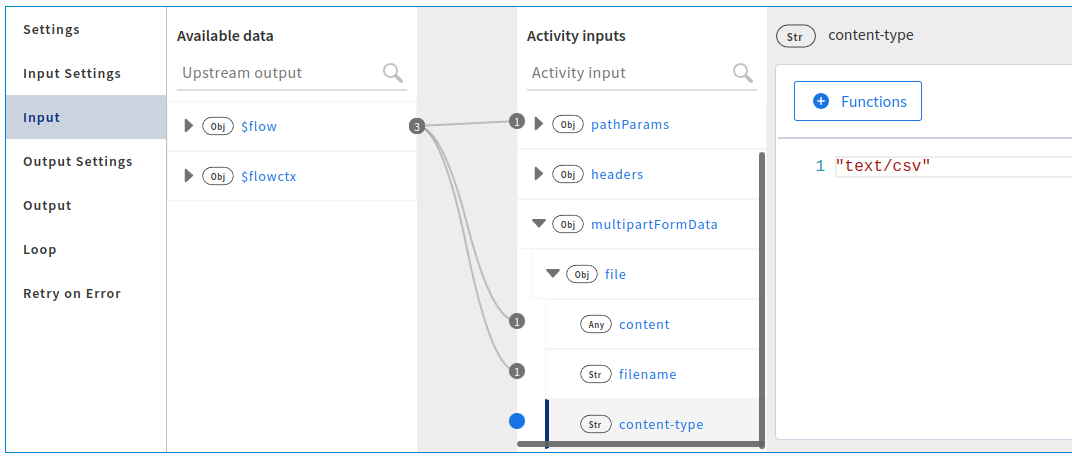
| multipartFormData | This field is visible if you select file or files type in the Multipart Data field on the Input Settings tab.
Each file that you enter in the Multipart Data table appears here.
|
Output Settings
| Field | Description |
|---|---|
| Configure Response Codes | This allows you to configure response codes.
Default: False (See "Response Schema" and "Response Type" in this table.) To specify a response code, select
True and click
The response codes appear on the Output tab. |
| Throw Error |
If set to True, the flow execution goes to the Error Handler for an error response of 400 or higher. The flow continues running for a Success response code of less than 400. Default: False |
| Response Schema |
Note: This field is displayed only when
Configure Response Codes is set to
False.
The schema for the reply that the server sends.
|
| Response Type |
Note: This field is displayed only when
Configure Response Codes is set to
False.
The content type of the REST service. The following content types are supported:
Default: JSON to XML conversion is not supported by the REST Activity. Any service that requires data in XML format cannot be invoked after providing data in the JSON format using REST Activity. |
| Output Format |
Note: This field appears only when the Response Type is set as
application/xml.The format of the requested content for the
|
| Response Schema |
Sample JSON schema for the response that the REST service returns. The JSON schema in this field is editable for the following settings only:
|
| Response Headers |
The header parameters for the reply. Tip: If you want to fetch a cookie coming with a response, add a new row with
Set-Cookie as the parameter. You can also map this parameter to subsequent activities in the flow. |
Output
The Output tab displays the headers and responsebody configured for the response in a tree format. The responseTimeInMilliSec parameter specifies the time taken to receive the response in milliseconds.
Loop
For more information on the Loop tab, see Using the Loop Feature in an Activity.
Retry on Error
See Using the Retry on Error Feature in an Activity
Circuit Breaker
For more information on the Circuit Breaker tab, see Using the Circuit Breaker in an Activity.