Identifying Report Components
The basic concept behind StyleSheets is that a report consists of several components, each of which has a specific name. A StyleSheet file consists of style declarations for those components whose styles you want to change, along with the formatting that you want to apply to those components. Any component that you do not specifically format in your StyleSheet either retains the default style or inherits a style from a higher level component. Inheritance is discussed in FOCUS StyleSheet Attribute Inheritance.
In a StyleSheet, you identify a report component with the TYPE attribute. The following chart lists all report components:
|
TYPE |
Report Component |
|---|---|
REPORT |
The entire report. See Identifying Report Components. |
PAGENUM |
Default page numbers. See Identifying Report Components. Note: Styles
created for page number lines do not apply to page numbers created
by the TABPAGENO variable in TABLE requests. You can format TABPAGENO
page numbers by defining a style for the heading or footing that
contains it.
|
TABHEADING |
A heading on the first page of a report, generated by ON TABLE SUBHEAD. See Identifying Report Components. |
TABFOOTING |
A footing on or after the last page of a report, generated by ON TABLE SUBFOOT. See Identifying Report Components. |
HEADING |
Headings at the top of each report page. See Identifying Report Components. |
FOOTING |
Footings at the bottom of each report page. See Identifying Report Components. |
SUBHEAD |
Headings before a particular sort field, generated by ON sortfield SUBHEAD. See Identifying Report Components. |
SUBFOOT |
Footings after a particular sort field, generated by ON sortfield SUBFOOT. See Identifying Report Components. |
DATA |
Report data. See Identifying Report Components. |
TITLE |
Column titles. See Identifying Report Components. |
ACROSSTITLE |
ACROSS field names (that is, field names used in ACROSS phrases). See Identifying Report Components |
ACROSSVALUE |
ACROSS field values (that is, values of the ACROSS field). These values become column titles in the report. See Identifying Report Components. |
SUBTOTAL |
Totals generated by SUBTOTAL, SUB-TOTAL, RECOMPUTE, and SUMMARIZE. See Identifying Report Components. |
GRANDTOTAL |
The last total on a report, which can either be a column total generated by COLUMN-TOTAL or a grand total generated by SUBTOTAL, SUB-TOTAL, RECOMPUTE, or SUMMARIZE. See Identifying Report Components. |
RECAP |
Lines generated by ON field name RECAP or ON field name COMPUTE. See Identifying Report Components. |
UNDERLINE |
Underlines generated by ON field name UNDER-LINE. See Identifying Report Components. |
SKIPLINE |
Skipped lines generated by ON field name SKIP-LINE. See Identifying Report Components. |
FREETEXT |
FML free text. See Identifying Report Components. |
Within certain components, you can select specific subcomponents. For example, within a heading, you can isolate a particular line or a particular field. You identify subcomponents with selection attributes (also called qualifiers). For example, to choose the third column for the entire report, use the parameters:
- TYPE=REPORT
- COLUMN=3
Identifying an Entire Report, Column, or Row
You can apply formatting to an:
- Entire report. For more information, see Identifying Report Components.
- Entire column within a report, both its title and data (including ROW-TOTAL columns). For more information, see Identifying Report Components.
- Entire row within
a report, either an FML (Financial Modeling Language) row, or a
total or subtotal row comprising the labeling text and data of the
row. For more information, see Identifying Report Components, and Identifying Report Components.
You can also identify an entire horizontal sort (ACROSS) title or value row in a StyleSheet, although each of these rows contains only a single kind of information. For details, see Identifying Report Components.
The following illustrates where the REPORT component and the COLUMN and ACROSSCOLUMN attributes appear in a report, and which TYPE values you use to identify them. Although in this example the value for COLUMN is B1 and the value for ACROSSCOLUMN is N2, these are not the only values you can use to identify these components.
TABLE FILE CENTORD
SUM LINEPRICE LINE_COGS AS 'Line Cost of,Goods Sold'
BY PLANT AS 'Plant'
ACROSS YEAR
WHERE YEAR EQ 2000 OR 2001
HEADING
"Cost Analysis"
FOOTING CENTER
"**End of Report**"
ON TABLE SET PAGE-NUM OFF
END
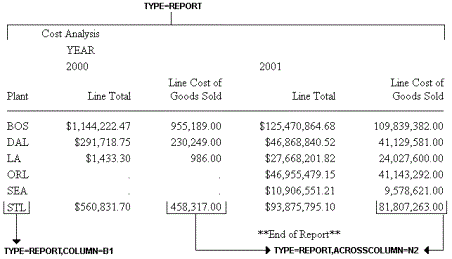
Identify the Entire Report
Identify an Entire Column
TYPE=REPORT, coltype=column
Specifies the type of column. It can be:
COLUMN specifies
a sort column (generated by BY), a display column (generated by
PRINT, LIST, SUM, or COUNT), a computed column (generated by COMPUTE),
or a column of row totals (generated by ROW-TOTAL).
ACROSSCOLUMN specifies
every instance of a column that is repeated across a horizontal
sort (ACROSS) row.
Specifies one or more columns. If you are identifying an ACROSSCOLUMN, the only valid identifiers are Nn and Pn.
Options for identifying columns in a StyleSheet are:
|
Identifier |
Description |
|---|---|
Nn
|
Identifies a column by its position in the report. To determine this value, count vertical sort (BY) fields, display fields, and ROW-TOTAL fields, from left to right, including NOPRINT fields. For an example, see Identifying Report Components. |
Pn
|
Identifies a column by its position in the report. To determine the value of n, count vertical sort (BY) fields, display fields, and ROW-TOTAL fields from left to right. Do not count NOPRINT fields. |
Cn
|
Identifies a display column by its position in the report. To determine the value of n, count only display fields from left to right, including NOPRINT fields. Do not count vertical sort (BY) fields or ROW-TOTAL fields. To select all display fields use C*. |
Bn
|
Identifies a vertical sort (BY) column by its position in the report. To determine the value of n, count only vertical sort (BY) fields, including NOPRINTs, from left to right. To select all BY fields use B*. |
field
|
Identifies a column by its field name. When a field occurs more than once, use field(n) to select a particular occurrence or field(*) to select all occurrences of the field. |
ROWTOTAL |
Identifies a column of row totals generated using ROW-TOTAL. When used with ACROSS and multiple display commands, ROWTOTAL generates multiple total columns. Use ROWTOTAL(n) to select a particular total column. Use ROWTOTAL(field) to select the row total column for a particular field. Use ROWTOTAL(*) to select all row total columns in the report. |
Identifying an Entire Column
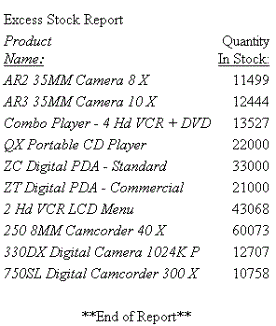
The following illustrates how to identify an entire column, which consists of the column data and the column title, in a report. The relevant StyleSheet declaration is highlighted in the request.
TABLE FILE CENTINV
HEADING
"Excess Stock Report"
SUM QTY_IN_STOCK
BY PRODNAME
WHERE QTY_IN_STOCK GT 10000
FOOTING CENTER
"**End of Report**"
ON TABLE SET PAGE-NUM OFF
ON TABLE HOLD FORMAT HTML
ON TABLE SET STYLE *
TYPE=REPORT, GRID=OFF,$
TYPE=REPORT, COLUMN=N1, STYLE=ITALIC,$
ENDSTYLE
END
The output is:
Identifying an Entire Horizontal (ACROSS) Column
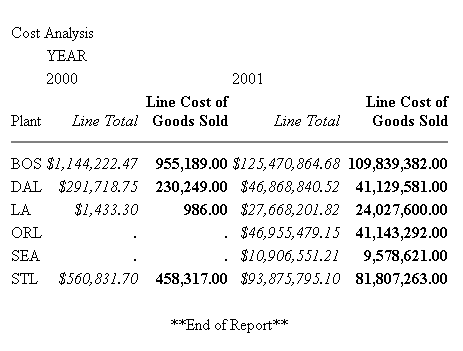
The following illustrates how to identify a horizontal (ACROSS) column. When you identify and format an ACROSSCOLUMN, all data values and the column title sort. The relevant StyleSheet declarations are highlighted in the request.
TABLE FILE CENTORD
SUM LINEPRICE LINE_COGS AS 'Line Cost of,Goods Sold'
BY PLANT AS 'Plant'
ACROSS YEAR
WHERE YEAR EQ 2000 OR 2001
HEADING
"Cost Analysis"
FOOTING CENTER
"**End of Report**"
ON TABLE SET PAGE-NUM OFF
ON TABLE HOLD FORMAT HTML
ON TABLE SET STYLE *
TYPE=REPORT, GRID=OFF,$
TYPE=REPORT, ACROSSCOLUMN=N1, STYLE=ITALIC,$
TYPE=REPORT, ACROSSCOLUMN=N2, STYLE=BOLD,$
ENDSTYLE
END
The output is:
Identify an Entire Financial Modeling Language (FML) Row
TYPE=REPORT, LABEL=label
Is an implicit row label. To determine the value of n, count the number of rows up to and including the desired row.
Is an explicit row label.
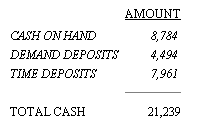
Identifying an Entire FML Row
The following illustrates how to identify an entire FML row, consisting of the row label and the row data. The relevant StyleSheet declarations are highlighted in the request.
TABLE FILE LEDGER
SUM AMOUNT FOR ACCOUNT
1010 AS 'CASH ON HAND' LABEL COH OVER
1020 AS 'DEMAND DEPOSITS' LABEL DD OVER
1030 AS 'TIME DEPOSITS' LABEL TD OVER
BAR OVER
RECAP TOTCASH = R1 + R2 + R3; AS 'TOTAL CASH'
ON TABLE SET PAGE-NUM OFF
ON TABLE HOLD FORMAT HTML
ON TABLE SET STYLE *
TYPE=REPORT, GRID=OFF, $
TYPE=REPORT, LABEL=COH, STYLE=ITALIC, $
TYPE=REPORT, LABEL=DD, STYLE=ITALIC, $
TYPE=REPORT, LABEL=TD, STYLE=ITALIC, $
ENDSTYLE
END
The output is:
Identify an Entire Total or Subtotal Row
TYPE=type, [BY=sortcolumn]
Identifies a subtotal or total. Select from:
GRANDTOTAL which
is a grand total (generated by COLUMN-TOTAL, SUBTOTAL, SUB-TOTAL,
RECOMPUTE, or SUMMARIZE).
SUBTOTAL which
is a subtotal (generated by SUBTOTAL, SUB-TOTAL, RECOMPUTE, or SUMMARIZE).
RECAP which
is a subtotal calculation (generated by ON sortfield RECAP
or ON sortfield COMPUTE).
When there are several subtotal commands, each associated with a different vertical sort (BY) column, this enables you to identify which of the subtotal commands you wish to format.
Specifies the vertical sort (BY) column associated with one of a report's several subtotal commands. Use the field name to identify the sort column.
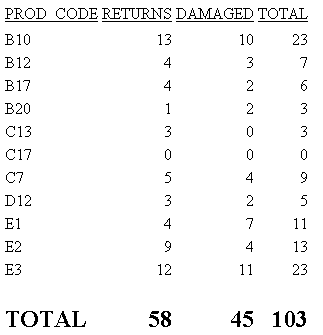
Identifying an Entire Total Row
The following illustrates how to identify an entire COLUMN-TOTAL row in a StyleSheet. The relevant StyleSheet declaration is highlighted in the request.
TABLE FILE SALES
SUM RETURNS DAMAGED AND ROW-TOTAL AND COLUMN-TOTAL
BY PROD_CODE
ON TABLE SET PAGE-NUM OFF
ON TABLE HOLD FORMAT HTML
ON TABLE SET STYLE *
TYPE=REPORT, GRID=OFF, $
TYPE=GRANDTOTAL, STYLE=BOLD, SIZE=12, $
ENDSTYLE
END
The output is:
Identifying a Row Total
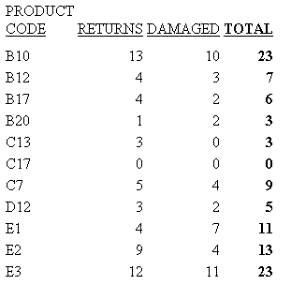
The following illustrates how to identify a row total. The relevant StyleSheet declaration is highlighted in the request. Note that if you want to format an instance of row-total, you can add a WHEN statement to your StyleSheet. For details, see Conditionally Formatting in a StyleSheet.
TABLE FILE SALES
SUM RETURNS DAMAGED AND ROW-TOTAL
BY PROD_CODE AS 'PRODUCT,CODE'
ON TABLE SET PAGE-NUM OFF
ON TABLE HOLD FORMAT PS
ON TABLE SET STYLE *
TYPE=REPORT, GRID=OFF, $
TYPE=REPORT, COLUMN=ROWTOTAL, STYLE=BOLD, $
ENDSTYLE
END
The output is:
Identifying Data
You can identify and format many categories of data in a report, including:
- All of a report's data. For more information, see Identifying Report Components.
- Columns of data, including sort columns and display columns. For more information, see Identifying Report Components.
- Sort rows (that is, ACROSS field values). For more information, see Identifying Report Components.
- Totals and subtotals. For more information, see Identifying Report Components.
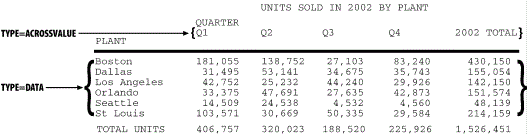
The following illustrates where the DATA and ACROSSVALUE components appear in a report, and which TYPE values you use to identify them.
TABLE FILE CENTORD
HEADING CENTER
"UNITS SOLD IN 2002 BY PLANT"
SUM QUANTITY AND ROW-TOTAL AS '2002 TOTAL'
ACROSS QUARTER
BY PLANTLNG AS 'PLANT'
WHERE YEAR EQ 2002
ON TABLE COLUMN-TOTAL AS 'TOTAL UNITS'
ON TABLE SET PAGE-NUM OFF
END
Identify All Data
To identify all report data in a StyleSheet, except for column totals, grand totals, subtotals, and horizontal sort (ACROSS) values, which need to be identified separately, use this attribute and value:
TYPE = DATA
Identifying All Data in a Report
The following illustrates how to identify all of the data in a report. The relevant StyleSheet declaration is highlighted in the request.
TABLE FILE CENTORD
HEADING CENTER
"UNITS SOLD IN 2002 BY PLANT"
SUM QUANTITY AND ROW-TOTAL AS '2002 TOTAL'
ACROSS QUARTER
BY PLANTLNG AS 'PLANT'
WHERE YEAR EQ 2002
ON TABLE COLUMN-TOTAL AS 'TOTAL UNITS'
ON TABLE SET PAGE-NUM OFF
ON TABLE HOLD FORMAT HTML
ON TABLE SET STYLE *
TYPE=REPORT, GRID=OFF, $
TYPE=DATA, STYLE=BOLD, $
ENDSTYLE
END
In the output, the titles and grand total are not bolded because they are not data values:
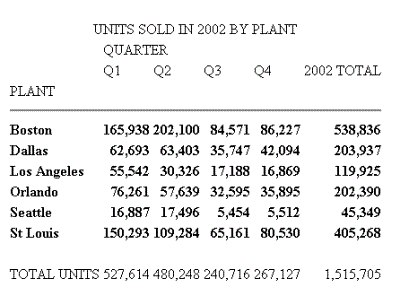
Identify a Column of Data
TYPE=DATA, COLUMN=column
Specifies one or more columns that you wish to format. For a list of values, see Identifying Report Components.
Identifying a Column of Data
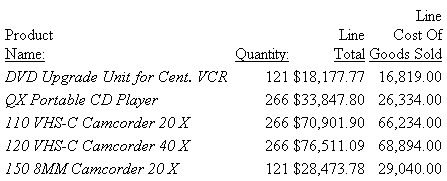
The following illustrates how to identify a column of data. The relevant StyleSheet declaration is highlighted in the request.
Note that when identifying a column using Nn, NOPRINT columns are counted. Even though the Product Name field is the first column in this report, it is identified with N2 because of the NOPRINT column.
TABLE FILE CENTORD
PRINT QUANTITY LINEPRICE LINE_COGS
BY ORDER_NUM NOPRINT
BY PRODNAME
WHERE ORDER_NUM EQ '48045'
ON TABLE SET PAGE-NUM OFF
ON TABLE HOLD FORMAT HTML
ON TABLE SET STYLE *
TYPE=REPORT, GRID=OFF,$
TYPE=DATA, COLUMN=N2, STYLE=ITALIC,$
ENDSTYLE
END
The output is:
Identify a Row of Horizontal Sort (ACROSS) Data
TYPE=ACROSSVALUE, [ACROSS={fieldname|Nn}]
If you have a request with multiple ACROSS fields, you can identify each field using the ACROSS identifier. You only need to include the ACROSS identifier if you have multiple ACROSS fields in your request.
Specifies a horizontal sort row by its field name.
Specifies a horizontal sort row by its position in the sequence of horizontal sort rows.
Identifying a Row of Horizontal Sort (ACROSS) Data
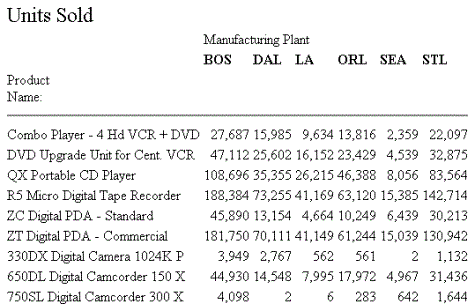
The following illustrates how to identify a row of horizontal data values. The relevant StyleSheet declaration is highlighted in the request.
TABLE FILE CENTORD
HEADING
"Units Sold"
SUM QUANTITY
BY PRODNAME
ACROSS PLANT AS 'Manufacturing Plant'
WHERE PRODTYPE EQ 'Digital'
ON TABLE SET PAGE-NUM OFF
ON TABLE HOLD FORMAT HTML
ON TABLE SET STYLE *
TYPE=REPORT, GRID=OFF, $
TYPE=HEADING, SIZE=12, $
TYPE=ACROSSVALUE, ACROSS=PLANT, STYLE=BOLD, $
ENDSTYLE
END
The output is:
Identifying Totals and Subtotals
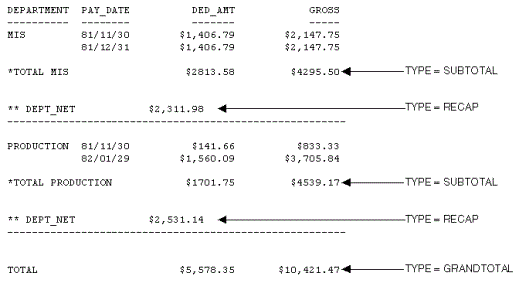
Within a StyleSheet, you can identify a report's grand totals, subtotals, subtotal calculations (generated by ON sortfield RECAP or ON sortfield COMPUTE), column totals, and row totals in order to format them. For details on identifying row totals, see Identifying Report Components.
The following example illustrates where these components are in a report, and which TYPE values you use to identify them.
TABLE FILE EMPLOYEE
SUM DED_AMT AND GROSS
BY DEPARTMENT BY PAY_DATE
ON DEPARTMENT RECAP DEPT_NET/D8.2M = GROSS-DED_AMT;
WHEN PAY_DATE GT 820101
ON DEPARTMENT SUBTOTAL
END
Identify a Grand Total, Subtotal, or Subtotal Calculation
TYPE=type, [BY=sortfield] [coltype=column]
Identifies a subtotal or total. Select from:
GRANDTOTAL which
is a grand total (generated by COLUMN-TOTAL, SUBTOTAL, SUB-TOTAL,
RECOMPUTE, or SUMMARIZE).
SUBTOTAL which
is a subtotal (generated by SUBTOTAL, SUB-TOTAL, RECOMPUTE, or SUMMARIZE).
RECAP which
is a subtotal calculation (generated by ON sortfield RECAP
or ON sortfield COMPUTE).
If you have requests with multiple BY fields, and two or more have subtotal commands associated with them, you can identify each field using the BY identifier. This is helpful when you want to format each subtotal differently or when you want to format only one subtotal.
You need to include the BY identifier only if you have multiple BY fields in your request.
Specifies the BY field associated with one of a report's several subtotal commands. Use the fieldname for the value (BY=fieldname).
Identifies a specific column for formatting. When you include the COLUMN or ACROSSCOLUMN identifier in your declaration, only the subtotal values receive the formatting; the labeling text will not. Values can be:
COLUMN which
is a display column (generated by PRINT, LIST, SUM, or COUNT) or
a computed column (generated by COMPUTE).
ACROSSCOLUMN where
every instance of a display or computed column that is repeated
across a horizontal sort (ACROSS) row.
If there are several columns being totaled or subtotaled by one command, and you do not specify a column in the StyleSheet, the formatting will be applied to the totals or subtotals for all of the columns. It will also be applied to the labeling text for the total and subtotal values.
Specifies the column whose totals or subtotals you wish to format. For a list of values, see Identifying Report Components.
Identifying Subtotals and the Grand Total
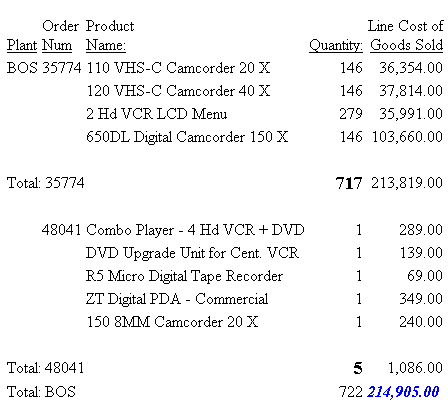
The following illustrates how to identify subtotals and the grand total in a report request. In this example, only subtotal values in the QUANTITY and LINE_COGS fields are formatted, so the COLUMN attribute is included in the StyleSheet declarations.
The grand total in this request is generated by COLUMN-TOTAL.
Since there are two SUBTOTAL commands associated with two of the three BY fields (PLANT and ORDER_NO), the BY attribute is also included in each declaration to ensure the formatting is applied to the correct value.
TABLE FILE CENTORD
SUM QUANTITY LINE_COGS AS 'Line Cost of, Goods Sold'
BY PLANT AS 'Plant'
BY ORDER_NUM AS 'Order,Num'
BY PRODNAME
ON PLANT SUBTOTAL AS 'Total:'
ON ORDER_NUM SUBTOTAL AS 'Total:'
WHERE ORDER_NUM EQ '35774' OR '48041'
WHERE PLANT EQ 'BOS'
ON TABLE SET PAGE-NUM OFF
ON TABLE HOLD FORMAT HTML
ON TABLE SET STYLE *
TYPE=REPORT, GRID=OFF,$
TYPE=SUBTOTAL, BY=PLANT, COLUMN=LINE_COGS, STYLE=BOLD+ITALIC,  COLOR=BLUE,$
TYPE=SUBTOTAL, BY=ORDER_NUM, COLUMN=QUANTITY, STYLE=BOLD, SIZE=11,$
TYPE=GRANDTOTAL, COLUMN=QUANTITY, STYLE=ITALIC, SIZE=11,$
ENDSTYLE
END
The output is:
- To style the entire grand total row, remove the COLUMN attribute from the StyleSheet declaration.
- To produce the same results, you can alternatively use the values N5, P5, or C3 for the COLUMN attribute in the StyleSheet declaration.
- To style an entire subtotal row, remove the COLUMN and BY attributes from the StyleSheet declaration.
- To produce the same results you can, alternatively, use the values COLUMN=N6, COLUMN=P6, or COLUMN=C3 for the COLUMN=LINE_COGS attribute.
- To produce the same results you can, alternatively, use the values COLUMN=N4, COLUMN=P4, or COLUMN=C1 for the COLUMN=QUANTITY attribute.
Identifying a Subtotal Calculation (RECAP/COMPUTE)
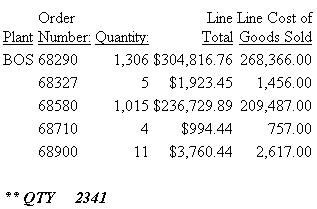
The following illustrates how to identify a subtotal calculation created with a RECAP or COMPUTE phrase. In this example, the subtotal calculation is generated with ON PLANT RECAP QTY/F6=QUANTITY. The relevant StyleSheet declaration is highlighted in the request.
TABLE FILE CENTORD
SUM QUANTITY LINEPRICE LINE_COGS AS 'Line Cost of, Goods Sold'
BY PLANT AS 'Plant' BY ORDER_NUM
ON PLANT RECAP QTY/F6=QUANTITY;
WHERE PLANT EQ 'BOS'
WHERE ORDER_NUM GT '60000' AND ORDER_NUM LT '70000'
ON TABLE SET PAGE-NUM OFF
ON TABLE HOLD FORMAT HTML
ON TABLE SET STYLE *
TYPE=REPORT, GRID=OFF, $
TYPE=RECAP, STYLE=BOLD+ITALIC, $
ENDSTYLE
END
The output is:
Styling Multiple RECAP Statements in a Matrix
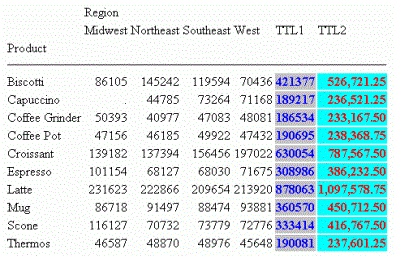
You can style multiple RECAP commands in a matrix when the RECAP statements are placed after the last ACROSS value:
TABLE FILE GGSALES
SUM UNITS
BY PRODUCT
ACROSS REGION
RECAP
TTL1/I8=C1+C2+C3+C4;
TTL2/D12.2=TTL1*1.25;
ON TABLE HOLD FORMAT HTML
ON TABLE SET STYLE *
TYPE=DATA, COLUMN=TTL1 (*), COLOR=BLUE, BACKCOLOR=SILVER, STYLE=BOLD, $
TYPE=DATA, COLUMN=TTL2 (*), COLOR=RED, BACKCOLOR=AQUA, STYLE=BOLD, $
ENDSTYLE
END
The output is:
Identifying Tags for SUBTOTAL and GRANDTOTAL Lines
The tag is the text that is displayed in the leftmost portion of each SUBTOTAL and GRANDTOTAL row in a report. The tag is used to identify the type of data represented within this row. The text used to generate this tag can be customized by adding an AS name to the SUBTOTAL syntax.
You can define styling for the subtotal and grand total tag separately from the rest of the row. Text attributes available for the tag, including font, color, size, and style, can be used to differentiate and highlight the tags. Additionally, styling can be applied that turns tags into drill-down links.
Styling is supported for text attributes only. Cell or column features, such as borders, background color, or justification are not supported.
This feature is available for PDF, DHTML, PS, HTML, AHTML, PPTX, XLSX, and EXL2K formats.
Style Subtotal and Grand Total Tags
TYPE={SUBTOTAL|GRANDTOTAL}, OBJECT=TAG,
   [FONT=font], [SIZE=size], [STYLE=style],
   [COLOR={color|RGB({rgb|#hexcolor})],
   [drilltype=drillparms], $
where:
Is the name of the font.
Is the point size of the font.
Is the font style, for example bold, italic, or bold + italic.
Is a color name.
Specifies the font color using a mixture of red, green, and blue.
(r g b) is the desired intensity of red, green, and blue, respectively. The values are on a scale of 0 to 255, where 0 is the least intense and 255 is the most intense. Note that using the three color components in equal intensities results in shades of gray.
Is the hexadecimal value for the color. For example, FF0000 is the hexadecimal value for red. The hexadecimal digits can be in uppercase or lowercase and must be preceded by a pound sign (#).
Is any valid link attribute, for example, URL=. For more information about links, see Advanced StyleSheet Features.
Are valid attribute values for the type of link.
Styling SUBTOTAL and GRANDTOTAL Tags
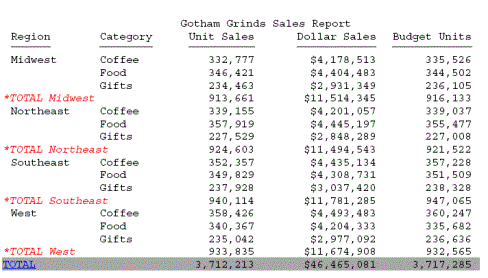
The following request against the GGSALES data source generates subtotal and grand total rows. The tags for the subtotal rows are in italics and are red. The tag for the grand total row has a drill-down link to a URL:
TABLE FILE GGSALES
SUM UNITS/D8C DOLLARS/D12CM BUDUNIT/D8C BUDDOLLARS/D12CM
BY REGION
BY CATEGORY
ON REGION SUBTOTAL
HEADING CENTER
"Gotham Grinds Sales Report"
ON TABLE SET HTMLCSS ON
ON TABLE HOLD FORMAT PDF
ON TABLE SET DROPBLNKLINE ALL
ON TABLE SET PAGE-NUM OFF
ON TABLE SET STYLE *
TYPE=SUBTOTAL, OBJECT=TAG,STYLE=ITALIC,COLOR=RED,$
TYPE=GRANDTOTAL, BACKCOLOR='LIGHT GREY',$
TYPE=GRANDTOTAL, OBJECT=TAG,URL='http://www.informationbuilders.com',$
ENDSTYLE
END
The output is:
Identifying a Heading, Footing, Title, or FML Free Text
A report's data is framed by headings, footings, and titles; these provide context for the data. You can identify and format many categories of headings, footings, and titles in a report, including:
- Report, page, and sort headings.
- Report, page, and sort footings.
- Column titles.
- Horizontal sort (ACROSS) titles and values.
- Free text in Financial Modeling Language (FML) reports.
You can also use a StyleSheet to create a report title that:
- Overrides the default report title (FOCUS Report) that appears in your browser's title bar in an HTML report.
- Replaces the default worksheet tab name with the name specified in an EXL2K report.
Identifying a Column or Row Title
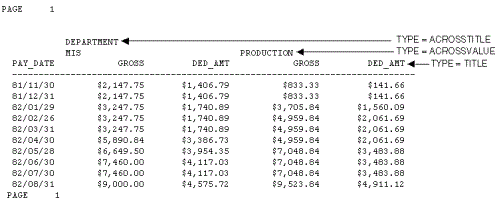
Within a StyleSheet, you can identify a report's column titles and horizontal sort (ACROSS) values to format. The following example illustrates where column titles and horizontal sort values are stored in a report, and which TYPE values you use to identify them.
TABLE FILE EMPLOYEE
SUM GROSS AND DED_AMT
ACROSS DEPARTMENT BY PAY_DATE
END
Identify a Column Title
TYPE=TITLE, [COLUMN=column]
Is used to specify one or more column titles. If you omit this attribute and value, the formatting will be applied to all of the report's column titles.
Specifies the column whose title you wish to format. For column values, see Identifying Report Components.
Identify a Horizontal Sort Title or Value
TYPE={ACROSSTITLE|ACROSSVALUE}, [ACROSS=column]
Specifies a horizontal sort (ACROSS) title.
Specifies a horizontal sort (ACROSS) value.
Although horizontal sort values are not technically titles, they often function as titles that categorize the column titles appearing beneath them.
Is used to specify titles or values for a specific horizontal sort field. If you omit this attribute and value, the formatting will be applied to the titles or values of all of the report's horizontal sort fields.
Specifies the horizontal sort (ACROSS) field whose title or values you wish to format. For values you can assign to this attribute, see Identifying Report Components.
Identifying Column Titles and Horizontal Sort (ACROSS) Values
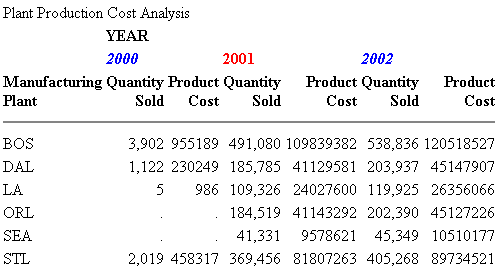
The following illustrates how to identify vertical sort titles, horizontal sort titles, and horizontal sort values. The vertical sort titles (TYPE=TITLE) are Manufacturing Plant, Quantity Sold and Product Cost; the horizontal sort title (TYPE=ACROSSTITLE) is Year; and the horizontal sort values (TYPE=ACROSSVALUE) are 1999, 2000, and 2001. The StyleSheet declarations that identify these components are highlighted in the request.
TABLE FILE CENTORD
SUM QUANTITY AS 'Quantity,Sold' LINE_COGS/I9  AS 'Product,Cost'
BY PLANT
ACROSS YEAR
WHERE YEAR EQ '2000' OR '2001' OR '2002'
HEADING
"Plant Production Cost Analysis"
ON TABLE SET PAGE-NUM OFF
ON TABLE HOLD FORMAT HTML
ON TABLE SET STYLE *
TYPE=REPORT, GRID=OFF,$
TYPE=TITLE, STYLE=BOLD, $
TYPE=ACROSSTITLE, STYLE=BOLD, $
TYPE=ACROSSVALUE, STYLE=BOLD+ITALIC, COLOR=BLUE, $
TYPE=ACROSSVALUE, COLUMN=N4, STYLE=BOLD, COLOR=RED, $
ENDSTYLE
END
The output is:
Identify Free Text in an FML Report
TYPE=FREETEXT, LABEL={Rn|label}
Is an implicit row label. To determine the value of n, count the number of rows up to and including the desired row.
Is an explicit row label.
Identifying Free Text in an FML Report
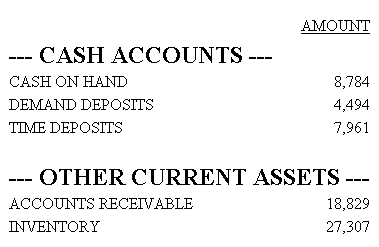
The following illustrates how to identify free text in an FML report. In this example, the free text are the rows, CASH ACCOUNTS and OTHER CURRENT ASSETS. The relevant StyleSheet declarations are highlighted:
TABLE FILE LEDGER
SUM AMOUNT FOR ACCOUNT
" --- CASH ACCOUNTS ---" LABEL CA            OVER
1010 AS 'CASH ON HAND'                       OVER
1020 AS 'DEMAND DEPOSITS'                    OVER
1030 AS 'TIME DEPOSITS'                      OVER
" "                                          OVER
" --- OTHER CURRENT ASSETS ---" LABEL OCA    OVER
1100 AS 'ACCOUNTS RECEIVABLE'                OVER
1200 AS 'INVENTORY'
ON TABLE SET PAGE-NUM OFF
ON TABLE HOLD FORMAT HTML
ON TABLE SET STYLE *
TYPE=REPORT, GRID=OFF, $
TYPE=FREETEXT, LABEL=CA, STYLE=BOLD, SIZE=12, $
TYPE=FREETEXT, LABEL=OCA, STYLE=BOLD, SIZE=12, $
ENDSTYLE
END
The output is:
Create a Custom Report Title
Add the following declaration to your StyleSheet
TYPE=REPORT, TITLETEXT='title', $
where:
Is the text for your title.
The maximum amount of characters for:
- The worksheet tab name in an EXL2K report is128. Any text that exceeds 128 characters will be truncated.
- The browser
title for an HTML report is 95. This is a limit imposed by the browser.
Text specified in the title is placed in the file as is and is not encoded. Special characters, such as <, >, &, and so on, should not be used as they have special meaning in HTML and may produce unpredictable results.
For an example of using this technique, see Using Excel Display Formats: XLSX, EXL2K, EXL97.
Identifying a Heading or Footing
Within a StyleSheet, you can identify a report's headings and footings, and the individual lines, text strings, and fields within them, in order to format them.
You can use the <TABLASTPAGE system variable to insert the total number of pages in a heading or footing. For example, if you want to add a footing in your report that reads, Page 1 of 5, you can use the <TABLASTPAGE system variable in conjunction with the <TABPAGENO system variable to do so.
You can also the <BYLASTPAGE system variable to display the number of pages of output within each sort group when a report uses the REPAGE option to reset the page numbers for each sort group. If the REPAGE option is not used in the report, the total number of pages in the report (<TABLASTPAGE variable) is used for <BYLASTPAGE.
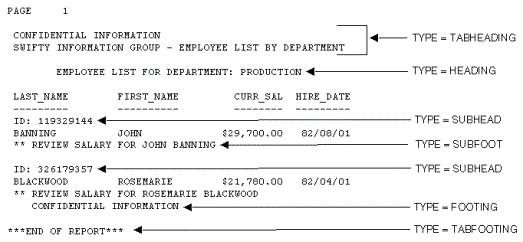
The following example illustrates where a report heading (TABHEADING), a page heading (HEADING), a sort heading (SUBHEAD), a sort footing (SUBFOOT), and a report footing (TABFOOTING) are stored in a report, and which TYPE values you use to identify them.
TABLE FILE EMPLOYEE
PRINT CURR_SAL HIRE_DATE
BY LAST_NAME
BY FIRST_NAME
ON TABLE SUBHEAD
"CONFIDENTIAL INFORMATION"
"SWIFTY INFORMATION GROUP - EMPLOYEE LIST BY DEPARTMENT"
HEADING CENTER
"</1>EMPLOYEE LIST FOR DEPARTMENT: <DEPARTMENT"
ON LAST_NAME SUBHEAD
"ID: <EMP_ID"
ON LAST_NAME SUBFOOT
"** REVIEW SALARY FOR <FIRST_NAME <LAST_NAME"
FOOTING
"CONFIDENTIAL INFORMATION"
ON TABLE SUBFOOT
"</1>***END OF REPORT***"
END
The output is:
Identify a Heading or Footing
TYPE=headfoot, [BY=sortcolumn]
Identifies a heading or footing. Select from:
TABHEADING which
is a report heading. This appears once at the beginning of the report
and is generated by ON TABLE SUBHEAD.
TABFOOTING which
is a report footing. This appears once at the end of the report
and is generated by ON TABLE SUBFOOT.
HEADING which
is a page heading. This appears at the top of every report page
and is generated by HEADING.
FOOTING which
is a page footing. This appears at the bottom of every report page
and is generated by FOOTING.
SUBHEAD which
is a sort heading. This appears at the beginning of a vertical (BY)
sort group (generated by ON sortfield SUBHEAD).
SUBFOOT which
is a sort footing. This appears at the end of a vertical (BY) sort
group (generated by ON sortfield SUBFOOT).
When there are several sort headings or sort footings, each associated with a different vertical sort (BY) column, you can identify which sort heading or sort footing you wish to format.
If there are several sort headings or sort footings associated with different vertical sort (BY) columns, and you omit this attribute and value, the formatting will be applied to all of the sort headings or footings.
Specifies the vertical sort (BY) column associated with one of the report's sort headings or sort footings.
Identify an Individual Line in a Heading or Footing
TYPE=type, LINE=line_#
Identifies a type of heading or footing. Select from HEADING, FOOTING, TABHEADING, TABFOOTING, SUBHEAD, or SUBFOOT. For details, see Identifying Report Components.
Identifies a line by its position in the heading or footing.
Identifying an Individual Line in a Heading
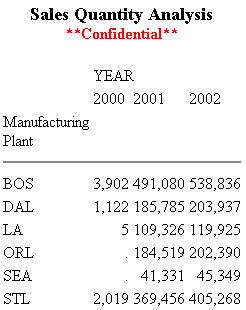
The following example illustrates how to format individual lines in a heading. Heading line 1 (Sales Quantity Analysis) is formatted in bold, point size 11. Heading line 2 (**Confidential**) is formatted in bold and red. The relevant StyleSheet declarations are highlighted in the request.
TABLE FILE CENTORD
HEADING
"Sales Quantity Analysis"
"**Confidential**"
" "
SUM QUANTITY
ACROSS YEAR
BY PLANT
ON TABLE SET PAGE-NUM OFF
ON TABLE HOLD FORMAT HTML
ON TABLE SET STYLE *
TYPE=REPORT, GRID=OFF, $
TYPE=HEADING, LINE=1, SIZE=11, STYLE=BOLD,$
TYPE=HEADING, LINE=2, COLOR=RED, STYLE=BOLD,$
TYPE=HEADING, JUSTIFY=CENTER,$
ENDSTYLE
END
The output is:
Identify a Text String in a Heading or Footing
TYPE=type, [LINE=line_#], [OBJECT=TEXT], ITEM=item_#
Identifies a type of heading or footing. Select from HEADING, FOOTING, TABHEADING, TABFOOTING, SUBHEAD, or SUBFOOT. For details, see Identifying Report Components.
Identifies a line by its position in the heading or footing. You need to include the LINE attribute only if you have a multi-line heading or footing.
Formats only text strings and Dialogue Manager variables (also known as &variables). It is not necessary to use OBJECT=TEXT in your declaration unless you are styling both text strings and embedded fields in the same heading or footing.
Identifies an item by its position in a line.
If you need to apply formatting to several parts of a continuous text string that appears on one line, you can break the header or footer into multiple parts using spot markers. Place the spot marker after the text string you wish to specify. The <+0> spot marker will not add any additional spaces to your heading or footing. When using spot markers, text is divided as follows:
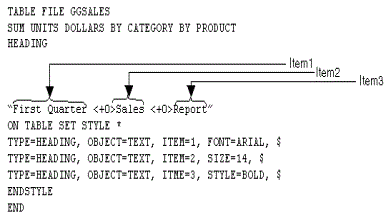
For an example, see Identifying Report Components.
The position value also depends on whether you are using the OBJECT attribute or not. If you are using:
- OBJECT=TEXT, count only text strings from left to right.
- No OBJECT, count text strings and embedded field values from left to right.
Identifying a Text String in a Heading Using Spot Markers
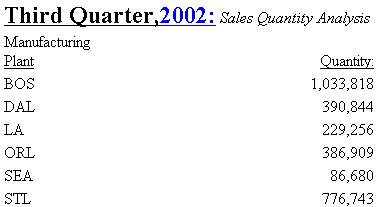
The following illustrates how to apply different formats to text strings in a heading using spot markers. The spot markers used in this example are <+0>, since they do not add any spaces. The relevant StyleSheet declarations are highlighted in the request.
TABLE FILE CENTORD
HEADING
"Third Quarter,<+0>2002:<+0> Sales Quantity Analysis"
SUM QUANTITY  BY PLANT
ON TABLE SET PAGE-NUM OFF
ON TABLE HOLD FORMAT HTML
ON TABLE SET STYLE *
TYPE=REPORT, GRID=OFF, $
TYPE=HEADING, OBJECT=TEXT, ITEM=1, STYLE=BOLD+UNDERLINE, SIZE=12, $
TYPE=HEADING, OBJECT=TEXT, ITEM=2, COLOR=BLUE, SIZE=12,
     STYLE=BOLD+UNDERLINE, $
TYPE=HEADING, OBJECT=TEXT, ITEM=3, STYLE=ITALIC,$
ENDSTYLE
END
The output is:
Identify an Embedded Field in a Heading or Footing
TYPE=type, [LINE=line_#], OBJECT=FIELD, [ITEM=item #]
Identifies a type of heading or footing. Select from HEADING, FOOTING, TABHEADING, TABFOOTING, SUBHEAD, or SUBFOOT. For details, see Identifying Report Components.
Identifies a line by its position in the heading or footing. You need to include the LINE attribute only if you have a multi-line heading or footing.
Identifies an item by its position in a line.
If you have more than one embedded field in a heading or footing, you must specify the field you wish to format by giving the item number. Count items from left to right. Do not include text fields in the count. You do not need to specify the item number if there is only one embedded field in the heading or footing.
Identifying Embedded Fields in a Heading
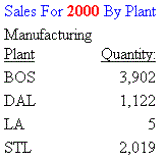
The following illustrates how to format an embedded field in a heading. Notice that the item number is not specified in the StyleSheet declaration since there is only one embedded field in the heading. The relevant StyleSheet declaration is highlighted in the request.
TABLE FILE CENTORD
HEADING
"Sales For <YEAR By Plant"
SUM QUANTITY  BY PLANT
WHERE YEAR EQ 2000
ON TABLE SET PAGE-NUM OFF
ON TABLE HOLD FORMAT HTML
ON TABLE SET STYLE *
TYPE=REPORT, GRID=OFF, $
TYPE=HEADING, OBJECT=TEXT, COLOR=BLUE,$
TYPE=HEADING, OBJECT=FIELD, COLOR=RED, STYLE=BOLD,$
ENDSTYLE
END
The output is:
Insert the Total Page Count
To insert the total number of pages, add the following to your request:
<TABLASTPAGE
Note that TABLASTPAGE is not supported with Excel 2000.
- TABLASTPAGE does not adjust for changes in FOCFIRSTPAGE or for the REPAGE command. For example, if the report has 10 pages and the user uses FOCFIRSTPAGE to set the first page number to 3 rather than 1, the value of TABLASTPAGE will still be 10.
- TABLASTPAGE is supported only for a single report, not compound reports. A separate page count is generated for each report in a compound report.
- TABLASTPAGE is supported only for styled reports such as HTML, PDF, and PS. it is not supported for EXL2K, WP, or DOC.
- TABLASTPAGE causes a second pass through the report results, first to calculate the last page then to print it with TABPAGENO (even when SQUEEZE=OFF).
- TABLASTPAGE does not support the system (external) sort.
- GRAPH FILE does not support TABLASTPAGE.
- TABLEF is not supported with TABLASTPAGE.
- The variables TABPAGENO and TABLASTPAGE cannot be used to define styling with conditional styling (WHEN).
Inserting the Current Page Number and the Total Page Count
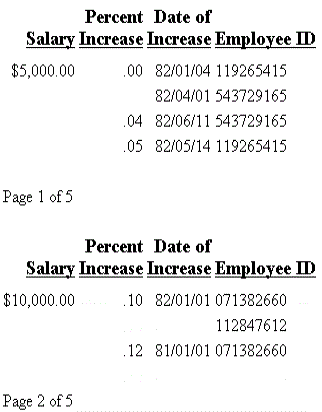
The following illustrates how to add the current page number and the total page count to a report. The relevant syntax is highlighted in the request.
TABLE FILE EMPLOYEE
PRINT EMP_ID AS 'Employee ID'
BY SALARY IN-GROUPS-OF 5000 AS 'Salary'
BY PCT_INC AS 'Percent,Increase'
BY DAT_INC AS 'Date of,Increase'
ON SALARY PAGE-BREAK
ON TABLE SET PAGE-NUM OFF
ON TABLE HOLD FORMAT HTML
ON TABLE SET STYLE *
TYPE=REPORT, GRID=OFF, $
TYPE=TITLE, STYLE=BOLD, SIZE=11, $
ENDSTYLE
FOOTING
"Page <TABPAGENO of <TABLASTPAGE"
END
The first two pages of output are:
Display the Total Number of Pages Within Each Sort Group
The request must have the following syntax and hold the output in a styled output format:
BY sortfield REPAGE
The heading or footing can use the following syntax to display “Page x of y”
{HEADING|FOOTING}
"Page <TABPAGENO of <BYLASTPAGE"
where:
Is the sort field that has the REPAGE option. A PAGE-BREAK is required on the same sort field or a lower level sort field. PAGE-BREAK starts a new page for each sort break. REPAGE resets the page number to 1 for each sort break.
Is the current page number.
Is the last page number before the repage.
Paginating Within a Sort Group
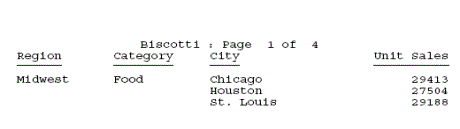
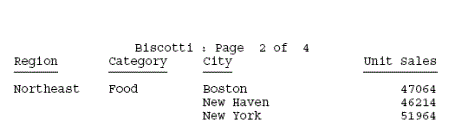
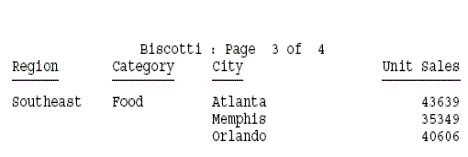
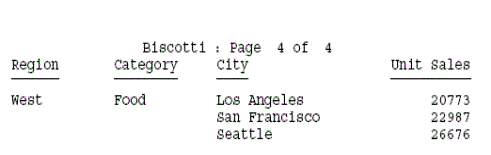
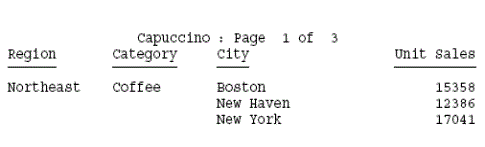
The following request against the GGSALES data source sorts by product, region, category, and city. It resets the pagination each time the product changes. The heading prints the current page number and the total within each product group:
TABLE FILE GGSALES
HEADING CENTER
"<PRODUCT : Page <TABPAGENO of <BYLASTPAGE "
SUM UNITS
BY PRODUCT NOPRINT REPAGE
BY REGION PAGE-BREAK
BY CATEGORY
BY CITY
ON TABLE HOLD FORMAT PDF
END
The following partial output shows that the page number resets to 1 when the product changes and that the BYLASTPAGE variable displays the total number of pages for each product:
Identifying a Page Number, Underline, or Skipped Line
In a report, you can identify and format page numbers, underlines, and skipped lines using the PAGENUM, SKIPLINE, and UNDERLINE attributes.
You can make a detailed tabular report easier to read by separating sections with blank lines or underlines.
You cannot add blank lines or underlines to an HTML report that displays a grid. You can add blank lines or underlines if you set the GRID attribute to OFF.
When inserting blank lines, the setting of the LINES parameter should be at least one less than the setting of the PAPER parameter, to allow room for blanks after the display of data on a page.
Note that although you can insert skipped lines and underlines in an HTML report, formatting is not supported.
The following illustrates where the PAGENUM, UNDERLINE, and SKIPLINE components appear in a report, and which TYPE values you use to identify them.
TABLE FILE CENTORD
HEADING
"Sales By Plant"
SUM QUANTITY
BY PLANT BY YEAR
WHERE PLANT EQ 'BOS' OR 'DAL'
ON YEAR UNDER-LINE
ON PLANT SKIP-LINE
ON TABLE HOLD FORMAT PDF
END
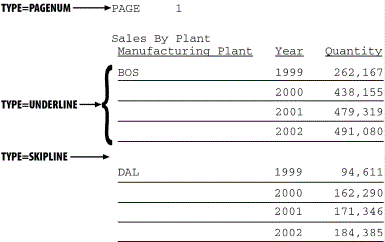
Identify a Page Number, Underline, or Skipped Line
TYPE=type
Identifies the report component. Select from:
PAGENUM which
identifies page numbers. Note that the TABPAGENO variable is a component
of the heading or footing in which it appears and can be formatted
as a subcomponent of that heading or footing.
SKIPLINE which
denotes skipped lines generated by the ON field SKIP-LINE. This
is not supported for reports in HTML format.
UNDERLINE which
identifies underlines generated by ON field UNDER-LINE, or
by BAR in a Financial Modeling Language (FML) report. This is not
supported for reports in HTML format.
Identifying Underlines and Page Numbers
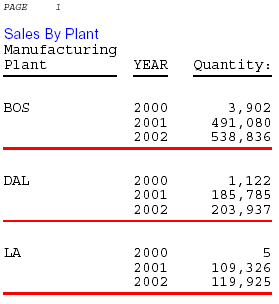
The following illustrates how to identify underlines and page numbers in a report request. The relevant StyleSheet declarations appear in boldface in the request.
Note that this report is formatted in PDF, since formatting is not supported for underlines in an HTML report.
TABLE FILE CENTORD
HEADING
"Sales By Plant"
SUM QUANTITY
BY PLANT BY YEAR
WHERE PLANT EQ 'BOS' OR 'DAL' OR 'LA'
ON PLANT UNDER-LINE SKIP-LINE
ON TABLE HOLD FORMAT PDF
ON TABLE SET STYLE *
TYPE=REPORT, GRID=OFF, $
TYPE=HEADING, OBJECT=TEXT, COLOR=BLUE, FONT=ARIAL,$
TYPE=PAGENUM, STYLE=ITALIC, SIZE=8,$
TYPE=UNDERLINE, COLOR=RED,$
ENDSTYLE
END
The output is:
Identifying Skipped Lines
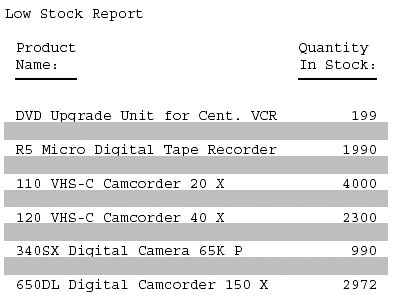
The following illustrates how to identify skipped lines in a report. The relevant StyleSheet declaration is highlighted in the request.
TABLE FILE CENTINV
HEADING
"Low Stock Report"
" "
SUM QTY_IN_STOCK
WHERE QTY_IN_STOCK LT 5000
BY PRODNAME
ON PRODNAME SKIP-LINE
ON TABLE SET PAGE-NUM OFF
ON TABLE HOLD FORMAT PDF
ON TABLE SET STYLE *
TYPE=SKIPLINE, BACKCOLOR=SILVER, $
ENDSTYLE
END
The output is:
Extend an Underline to the Entire Report Column
By default, underlines for column titles on a report extend only from the beginning to the end of the column title text. You can extend the underline to the entire report column in styled report output using the EXTUNDERLINE option in your FOCUS StyleSheet. EXTUNDERLINE is an option of the STYLE attribute for the TITLE report component. It is supported for formats DHTML, PDF, PS, and PPT.
TYPE = TITLE, [COLUMN = colspec,] STYLE = [+|-]EXTUNDERLINE ,$
where:
Is any valid column specification.
Adds the EXTUNDERLINE option to the inherited text style or specifies a combination of text styles (for example, STYLE=BOLD+UNDERLINE).
Removes the EXTUNDERLINE option from the inherited text style.
Usage Notes for the EXTUNDERLINE Attribute
- HTML format is not supported because the browser calculates the column width and renders the report.
- GRID=ON and EXTUNDERLINE are mutually exclusive since the GRID line spans the width of the column. GRID overrides any styling specified for the column title underline.
Extending an Underline to the Entire Report Column
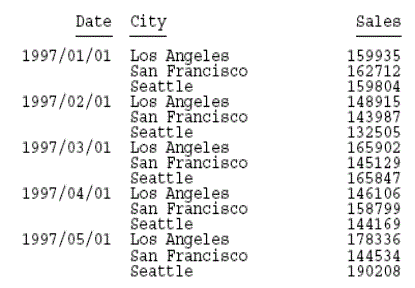
The following request from the GGSALES data source sums dollar sales by city and by date:
DEFINE FILE GGSALES
YEAR/YY = DATE;
MONTH/M = DATE;
END
TABLE FILE GGSALES
SUM DOLLARS
BY DATE
BY CITY
WHERE YEAR EQ 1997
WHERE MONTH FROM 01 TO 05
WHERE CITY EQ 'Seattle' OR 'San Francisco' OR 'Los Angeles'
ON TABLE SET PAGE NOPAGE
ON TABLE HOLD FORMAT DHTML
END
The output shows that only the column titles are underlined:
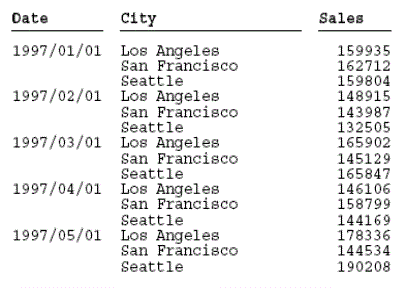
To underline entire columns, generate the output in a format that can be styled and use the EXTUNDERLINE option in the STYLE attribute for the TITLE component. For example, the following request creates DHTML output in which the column titles are in boldface and left justified, and the underline is extended to the entire report columns:
DEFINE FILE GGSALES
YEAR/YY = DATE;
MONTH/M = DATE;
END
TABLE FILE GGSALES
SUM DOLLARS
BY DATE
BY CITY
WHERE YEAR EQ 1997
WHERE MONTH FROM 01 TO 05
WHERE CITY EQ 'Seattle' OR 'San Francisco' OR 'Los Angeles'
ON TABLE SET PAGE NOPAGE
ON TABLE HOLD FORMAT DHTML
ON TABLE SET STYLE *
TYPE=TITLE, STYLE= BOLD +EXTUNDERLINE, JUSTIFY=LEFT $
ENDSTYLE
END
The output is:
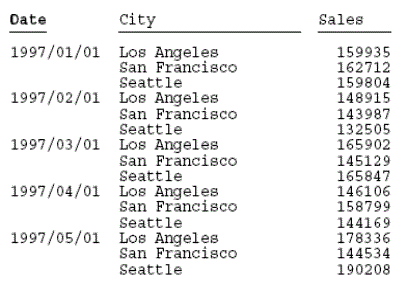
The following version of the request makes the EXTUNDERLINE and JUSTIFY=LEFT options the default for the TITLE component, then makes the Date column title bold and removes the extended underline from that column:
DEFINE FILE GGSALES
YEAR/YY = DATE;
MONTH/M = DATE;
END
TABLE FILE GGSALES
SUM DOLLARS AS 'Sales'
BY DATE
BY CITY
WHERE YEAR EQ 1997
WHERE MONTH FROM 01 TO 05
WHERE CITY EQ 'Seattle' OR 'San Francisco' OR 'Los Angeles'
ON TABLE SET PAGE NOPAGE
ON TABLE HOLD FORMAT DHTML
ON TABLE SET STYLE *
TYPE=TITLE,STYLE= EXTUNDERLINE, JUSTIFY=LEFT ,$
TYPE=TITLE,COLUMN= DATE, STYLE= -EXTUNDERLINE +BOLD ,$
ENDSTYLE
END
The output is:
Section Separation Features
|
Feature |
Description |
Applies to |
|---|---|---|
SKIP-LINE |
Adds a blank line. |
HTML (requires GRID=OFF) PS |
TYPE=SKIPLINE |
Formats a blank line. |
PS |
UNDER-LINE |
Underlines a sort group. |
HTML (requires GRID=OFF) PS |
TYPE=UNDERLINE |
Formats an underline. |
PS |
STYLE={+|-}UNDERLINE
|
Adds an underline to a report component, or removes an underline from a report component other than a column title. |
HTML PS |
BAR AS '{-|=}'
|
Selects a light or heavy underline in an FML report. |
HTML PDF (displays single or double underline) |
Format a Blank Line
TYPE=SKIPLINE, attribute=value, $
Is a valid StyleSheet attribute.
Is the value of the attribute.
Format an Underline
TYPE=UNDERLINE ... COLOR={color|RGB} (r g b), $
Denotes underlines generated by ON fieldname UNDER-LINE.
Specifies the color of the underline. If the display or output device does not support colors, it substitutes shades of gray. The default value is black.
Is one of the supported color values.
Specifies the text color using a mixture of red, green, and blue.
Is the desired intensity of red, green, and blue, respectively. The values are on a scale of 0 to 255, where 0 is the least intense and 255 is the most intense.
Note that using the three-color components in equal intensities results in shades of gray. For more information, see Specifying Font Format in a Report.
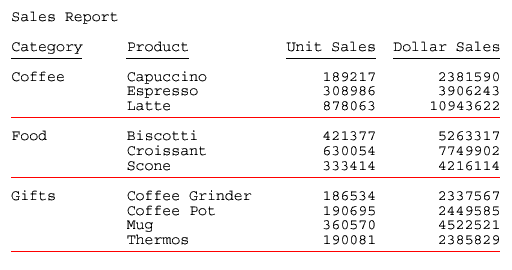
Formatting a Sort Group Underline
This request uses UNDERLINE to change the default color of an underline from black to red.
TABLE FILE GGSALES
SUM UNITS DOLLARS
BY CATEGORY BY PRODUCT
HEADING
"Sales Report"
" "
ON CATEGORY UNDER-LINE
ON TABLE SET PAGE-NUM OFF
ON TABLE HOLD FORMAT PDF
ON TABLE SET STYLE *
TYPE=UNDERLINE, COLOR=RED, $
ENDSTYLE
END
The result is an eye-catching separation between sort group values. The online PDF report appears as:
Add or Remove a Report Component Underline
TYPE=type, [subtype,] STYLE=[+|-]UNDERLINE, $
Is the report component.
Are additional attributes, such as COLUMN, ACROSS, or ITEM, needed to identify the report component.
Removes an underline from an inherited text style.
For more information, see Identifying Report Components.
Remove an Underline From a Column Title
This syntax applies to an HTML report with an internal cascading style sheet.
TYPE=TITLE, [COLUMN=column,] STYLE=-UNDERLINE, $
where:
Specifies a column.
Adding Column Underlines and Removing Column Title Underlines
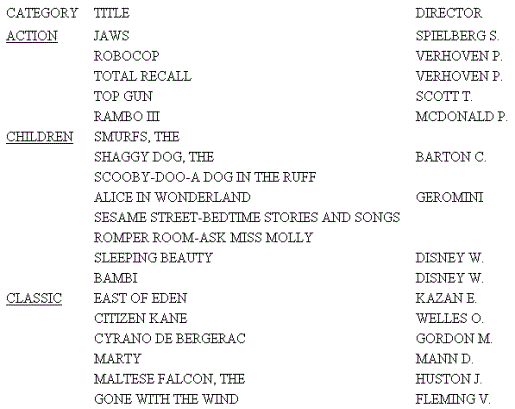
This request adds underlines to the values of the column CATEGORY and removes the default underlines from the column titles in an HTML report with an internal cascading style sheet.
SET HTMLCSS = ON
TABLE FILE MOVIES
PRINT TITLE DIRECTOR
BY CATEGORY
ON TABLE SET PAGE-NUM OFF
ON TABLE HOLD FORMAT HTML
ON TABLE SET STYLE *
TYPE=REPORT, GRID=OFF, $
TYPE=TITLE, STYLE=-UNDERLINE, $
TYPE=REPORT, COLUMN=CATEGORY, STYLE=UNDERLINE, $
ENDSTYLE
END
The partial report is: