Copyright © Cloud Software Group, Inc. All Rights Reserved


Appendix D Using BusinessWorks FormBuilder Applications with TIBCO PortalBuilder : Using BusinessWorks FormBuilder Applications with PortalBuilder

Using BusinessWorks FormBuilder Applications with PortalBuilder
The BusinessWorks FormBuilder application, EmployeeAssistance, can now be accessed with a URL such as http://localhost:8080/pps/tibco/empAssist.
This URL is slightly different from the URLs usually used for BusinessWorks FormBuilder. Instead of TIBCOpps, there is pps because that is how the context URL is defined in PortalBuilder. Also, with PortalBuilder Console a site key, empAssist was provided and can be used instead of the full site name EmployeeAssistance/site.
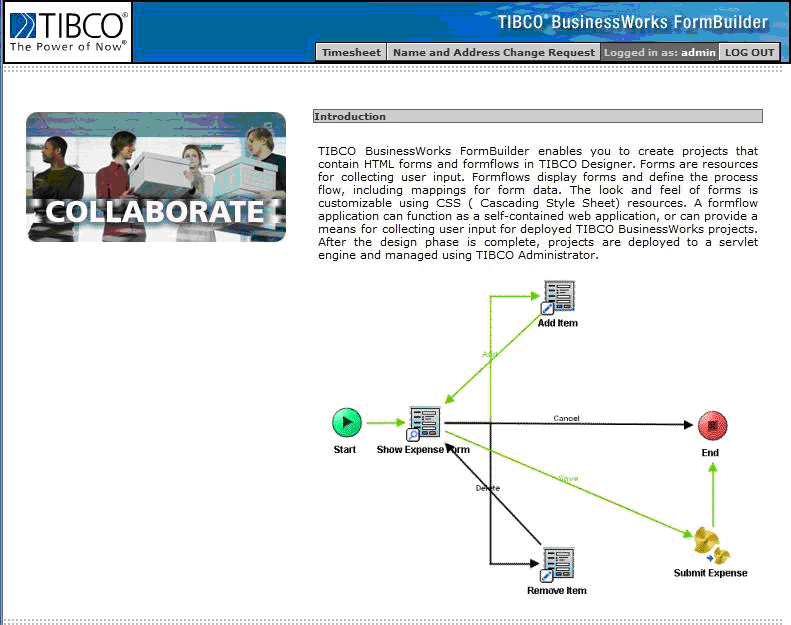
Since you are still logged into the portal, the above URL will show the application home page as shown in Figure 76.
Figure 76 PortalBuilder Deployment: BusinessWorks FormBuilder Home Page
Using PortalBuilder Shortcuts
One way you can access BusinessWorks FormBuilder applications from other portal pages is by using PortalBuilder Shortcuts to pages. This will effectively provide single sign-on to a BusinessWorks FormBuilder application that is integrated with a portal.
To set this up with the following example, ensure that you have installed the Starter Portal (see Installation, Step 6.).
1.
2.
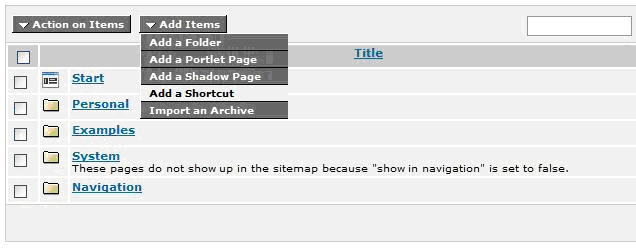
Click on Pages and then click Add Items and choose Add a Shortcut from the drop down menu, as shown in Figure 77.
Figure 77 PortalBuilder Deployment: Add a Shortcut
3.
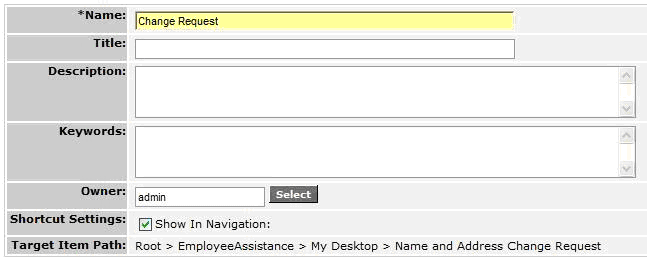
In the shortcut target selection, select EmployeeAssistance>My Desktop> Name and Address Change Request as the target.
Name the shortcut Change Request. It should be defined as in Figure 78.
Figure 78 PortalBuilder Deployment: Change Request
4.
Click Finish.
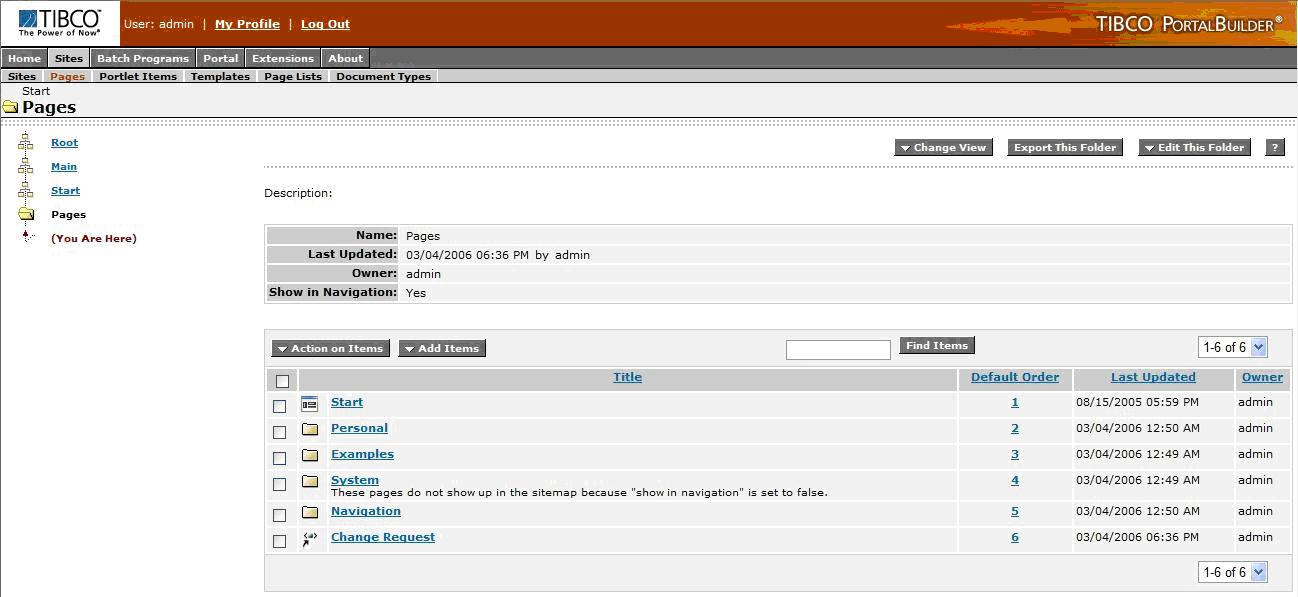
The shortcut will appear as shown below, in the content list for the Starter Portal top level pages.
Figure 79 PortalBuilder Deployment: Shortcut On the Starter Portal Page
5.
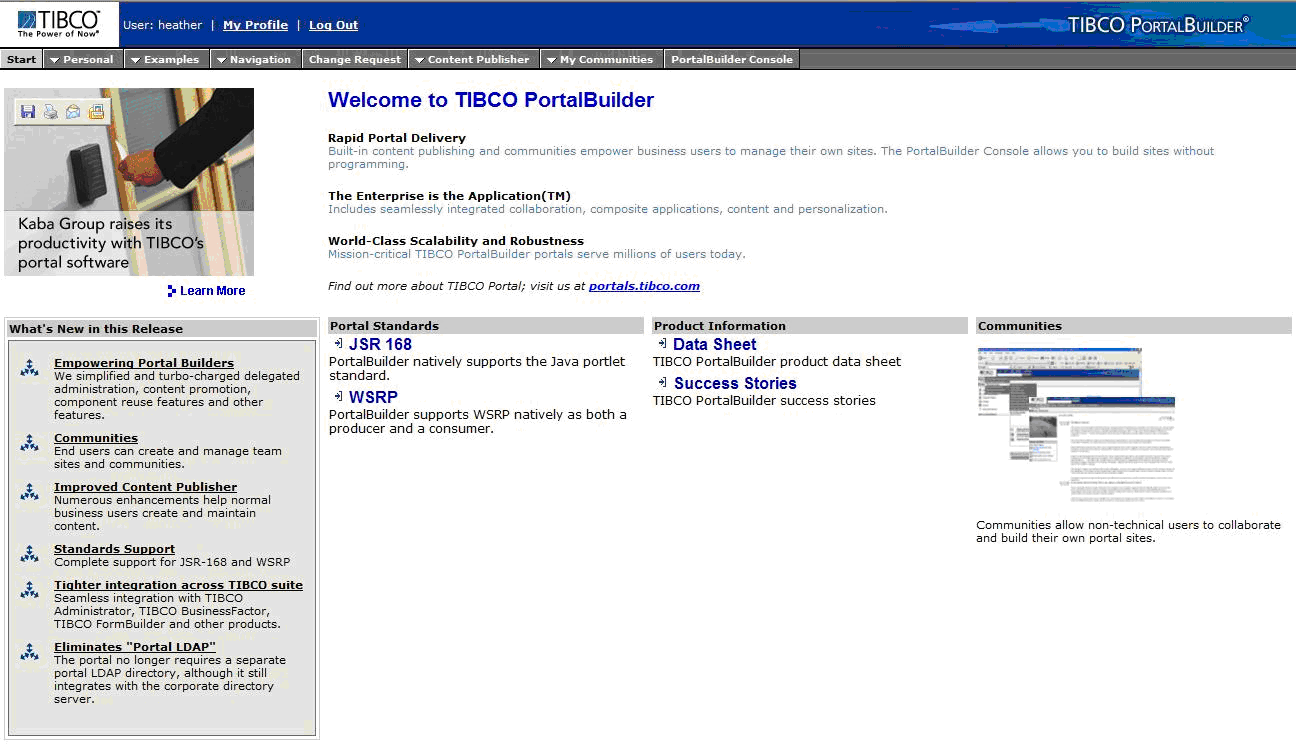
Now log out of the portal and go to the Starter Portal http://localhost:8080/pps/tibco/start.
At the Starter Portal home page, log in as heather/heather, for example. The navigation bar will include a button for Change Request as shown inFigure 80.
Figure 80 PortalBuilder Deployment: Starter Portal Shows Request Change
6.
Click on Change Request to go directly to the Name and Address Change Request form, already logged in as heather.

Copyright © Cloud Software Group, Inc. All Rights Reserved