|
| Copyright © Cloud Software Group, Inc. All Rights Reserved |
You can assign custom resources to some form control attributes, such as Image URL, Help URL, and Style.
• Copy a folder inFolders can be directories where images or other resources are accessed by a web server.
• Copy a file inThe files added to the Form Resource Store can be image files, a CSS file, a JSP page that redirects to an HTML file, and so on.
When you import a folder using the Copy a folder in button, the contents of that folder are imported at the same time.
1. Select the Custom Resource Form in the project panel.
2.
4. Click on OK to import the folder. Rename the folder if needed.
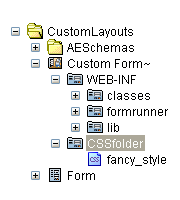
5. If you open the new folder in the project panel, you will see that it contains a file that was imported with the folder, for example fancy-style.Figure 8 Add a FolderTo import a file using the Copy a file in button, select a folder to copy the file into. You can move the file later to another folder or a subfolder if needed.
Do not add resources for controls to the WEB-INF folder, because this folder is not accessible from the browser.
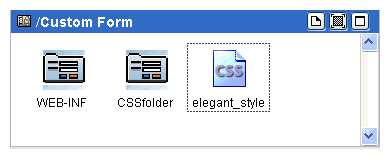
1. Select the top level folder (Custom Form) and browse to the resource location on the file system on your machine, for example elegant_style.css.
2. Click Open.The resource you selected is added in the design panel.Figure 9 Add a File
3. With a top level CSS Folder selected, drag a Web Resources Folder from the Form palette to the design panel.
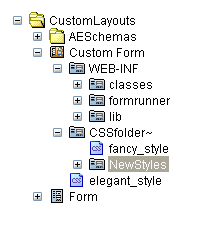
4. Name the new subfolder, such as New Styles. Check if the new subfolder was added to the proper location.Figure 10 Add a Subfolder
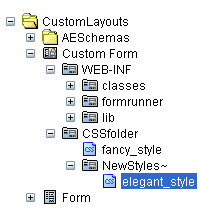
5. Drag the new stylesheet (elegant_style.css) into the new subfolder.Figure 11 Drag a Stylesheet into a Subfolder
|
| Copyright © Cloud Software Group, Inc. All Rights Reserved |