|
| Copyright © Cloud Software Group, Inc. All Rights Reserved |
You can add a custom stylesheet to your TIBCO Designer project to use in forms. Stylesheet syntax must conform to the CSS standard and to the guidelines described in Syntax Guidelines.For CSS syntax details, see http://www.htmlhelp.com/reference/css/.To use custom styles in forms, first create a Stylesheet resource in your project, then modify or replace the default styles with custom style definitions. A Stylesheet resource acts as a container for a CSS file. A project can include multiple Stylesheet resources.
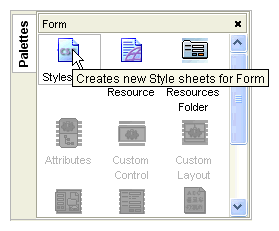
1. In TIBCO Designer, selecting the Form Resource Store and add a folder for the new styles. For instructions, see Building Custom Layouts.
Stylesheets can be located in any Form Resource Store folder except the WEB-INF folder. Resources in this folder are not available to the browser.
2. Figure 26 Add Stylesheet Resource
3. Type a name for the resource in the Name field. The default value is Stylesheet. This value is used as the display name in TIBCO Designer.
− Use a third-party HTML editor. To open the CSS file in the editor, click the Edit button and specify the executable path.
− Provide an external CSS file, with syntax that conforms to the CSS standard and the default stylesheet.To use an external file, click the Copy a file in... button on the toolbar and browse to a file system location. The new file replaces the default stylesheet. For details, refer to To Add a File. To associate the new style with a form, read To Apply a Custom Style to a Form.When a Stylesheet resource is created, it includes the default layout and control style definitions. These styles can remain in the stylesheet and be used as templates for new styles, or can be deleted from the stylesheet. If the default styles are deleted, these style definitions are no longer available in the Style dropdown list for each control.
|
| Copyright © Cloud Software Group, Inc. All Rights Reserved |