Copyright © Cloud Software Group, Inc. All Rights Reserved


Chapter 5 Using Custom Styles in Forms : Applying Custom Styles

Applying Custom Styles
Styles defined in a Stylesheet resource can be applied to an entire form. After the custom stylesheet is associated with the form, control styles defined in the stylesheet are automatically displayed in the Style dropdown list for each control.
To Apply a Custom Style to a Form
1.
2.
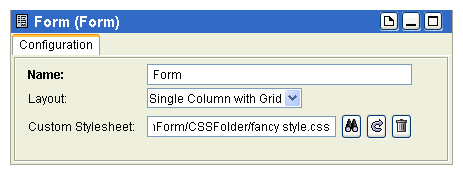
Look at the Custom Stylesheet field in the Configuration tab. By default, this field is blank, which means the default stylesheet is used.
3.
Figure 27 Default Stylesheet
4.
Click the Browse resources... button next to the Custom Stylesheet field and browse to the Stylesheet resource in the Form Resource Store, such as fancy style.
Figure 28 Apply a Custom Style
5.
Click on Apply to apply the new custom style to your form.
6.
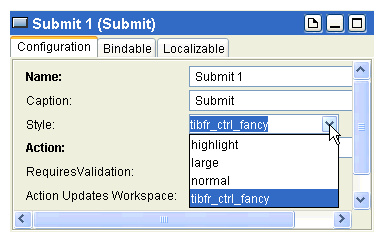
When you apply a new custom style, it will appear in the Style dropdown list.
Figure 29 Custom Style Applied
Select the appropriate style for each control.
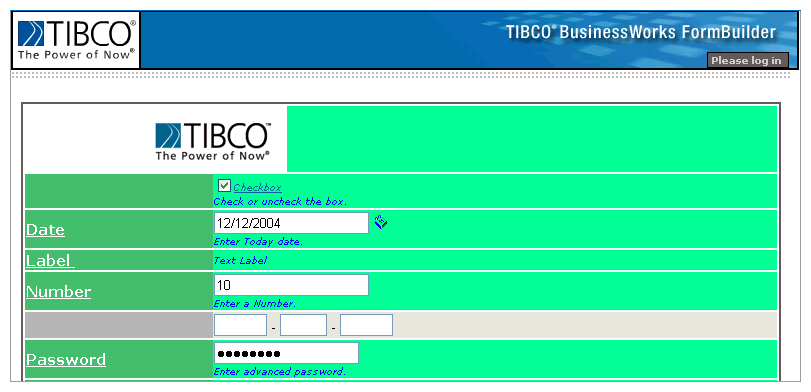
Verify Stylesheet Application
7.
Figure 30 Verify Custom Style Application
If you are not satisfied with the style you have created, you can edit it again.

Copyright © Cloud Software Group, Inc. All Rights Reserved