Copyright © Cloud Software Group, Inc. All Rights Reserved


Chapter 8 FormBuilder Desktop : Configuring FormBuilder Desktop

Configuring FormBuilder Desktop
You can configure several aspects of the FormBuilder Desktop, such as the log file content and location, and the FormBuilder Desktop URL.
You may need to configure the log file location or content in order to comply with certain file restriction issues. Various log files are stored in the directory install-dir/version/logs, such as C:\tibco\bwfb_install_dir\version\logs on Windows.
To Configure Log Files
1.
2.
3.
4.
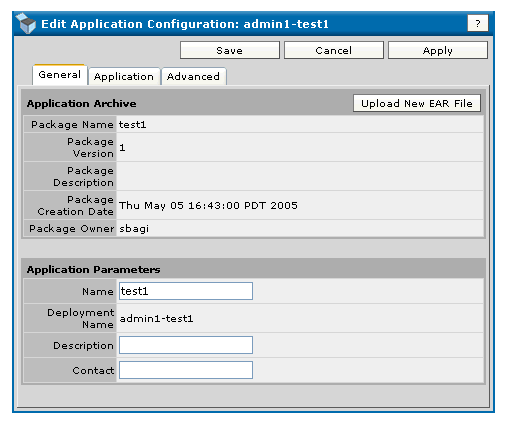
Figure 58 Configuring Log Files
5.
Click on Advanced.
The Advanced tab contains three sections: Global Variables, Logging Configuration, and TIBCO BusinessWorks and Adapters Deployment Repository Instance.
For more information, read the sections To Configure Global Variables, Logging Configuration, and To Configure Adapters Deployment Repository Instance.
To Edit FormBuilder Desktop’s URL
You can change the FormBuilder Desktop’s URL in order to follow your company naming policy, or in order to provide more appropriate wording.
The FormBuilder Desktop’s URL format is
http://host_name:port/TIBCOpps/tibco/site_name/site
You can customize different parts of the URL, for example you can change the context name of the FormBuilder Desktop.
To change the FormBuilder Desktop’s URL, you need to edit the application configuration such as the following:
1.
In TIBCO Administrator, select
Application Management > application_name
2.
Click Configuration.
3.
4.
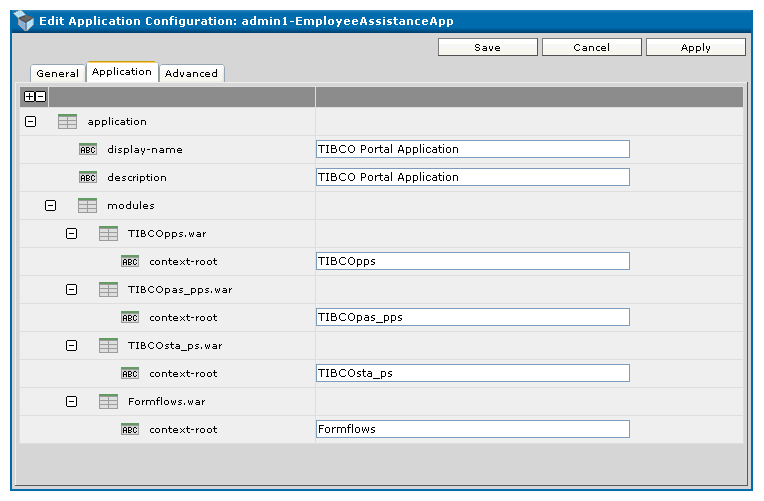
The screen shown in Figure 59 appears:
Figure 59 Edit Application Configuration
5.
Change the desired values. For example, change the context name of the TIBCOpps.war to the desired one such as FormflowApp.
To change the servlet name, edit the servlet URL-pattern in the servlets tab of the TIBCOpps.war.
6.
Click Apply to save the changes.
To re-establish the default values click Reset to Defaults.
Modifying the Login Portlet
The Login portlet belongs to the screen that contains the username and password fields. This portlet can be modified in order to add or remove text.
To Modify the Login Portlet
1.
Look for the file Login.htm in the following directory: bwfb_install_dir\version\bui\archive\WEB-INF\FBTemplates\fb\
loginPortlet\Login.htm
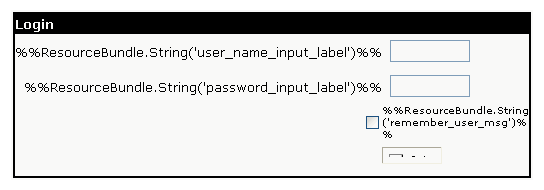
The file Login.htm looks such as Figure 60:
Figure 60 Modify Login Portlet
2.
3.
After the modification, rebuild the .ear file so that it contains the new Login.htm file.
If you modify the Login.htm file, it is recommended that you define a new skin.

Copyright © Cloud Software Group, Inc. All Rights Reserved