Form state is the HTML form that is rendered, with any related process data. The initial state of a form is the Form resource and any default values specified. A user can also specify values manually in form fields. During formflow processing, form data can be modified in the following ways:
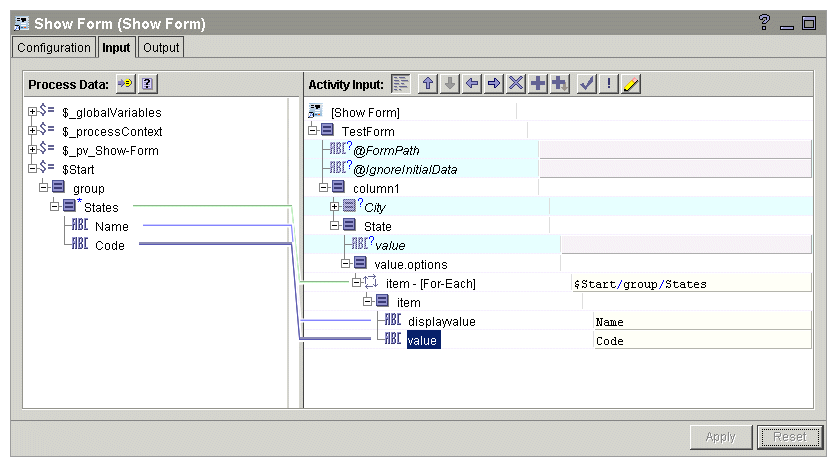
In both activities, the form state is provided by the _pv_Show_Form_activity_name process variable on the Input tab.
This activity can modify form state before the Show Form activity in the formflow, or after a Show Form activity. Transitions in a formflow can loop back to previous activities, so a Set Form Data activity can modify a form based on user input, then display the modified version.
Data in form fields can be validated using formflow logic and the Set Form Data activity. Using the Set Form Errors option, a custom validation check can be performed in the formflow, and a custom error message can be displayed in the form.
For example, the following formflow is used for ordering items. An automated process, InventoryCheck, checks whether ordered items are in stock or out of stock.
The Set Form Errors option is selected, and an attribute with inventory check results is passed to the Set Form Data activity by the automated process. If an item is out of stock, the form is redisplayed with the error message
Item item_name currently out of stock. This message is specified in the Input tab of the Set Form Data activity.

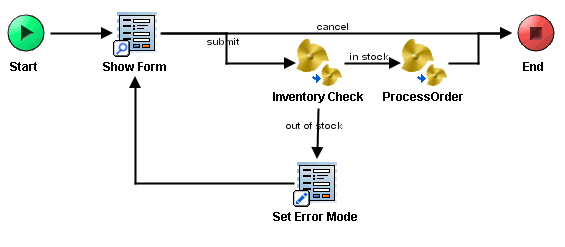 The Set Form Errors option is selected, and an attribute with inventory check results is passed to the Set Form Data activity by the automated process. If an item is out of stock, the form is redisplayed with the error message Item item_name currently out of stock. This message is specified in the Input tab of the Set Form Data activity.