Files can be retrieved or provided in a formflow using the File control. For example, an end user can specify the path to a Microsoft Excel spreadsheet in a form, and the spreadsheet contents can be accessed in the formflow. If a spreadsheet has already been provided, users can click a link in a form to view the file or save a local version.
Each instance of the control can handle one file at a time. When the Show Form activity is executed in a formflow, only the file path and filename are stored in the form state. The behavior of the File control depends on whether the control is writable or read-only.
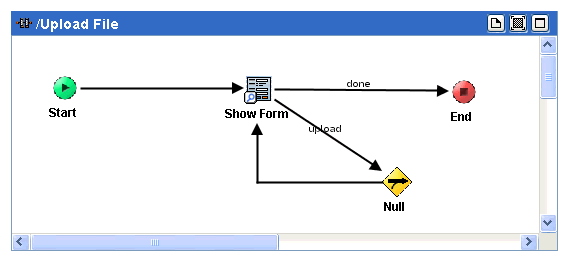
When an end user provides (uploads) the file, a writable control is used. File controls are writable by default. The user clicks on the Browse button to navigate to the desired file on their hard drive to select a file to upload.
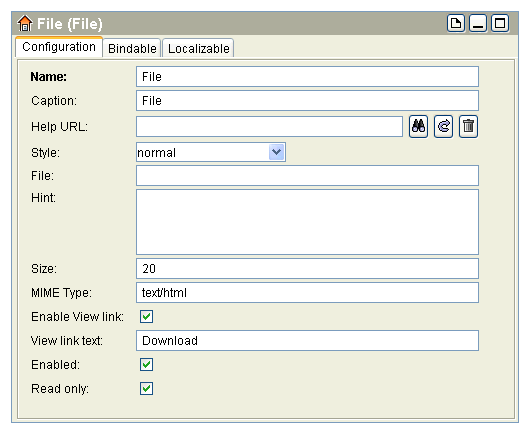
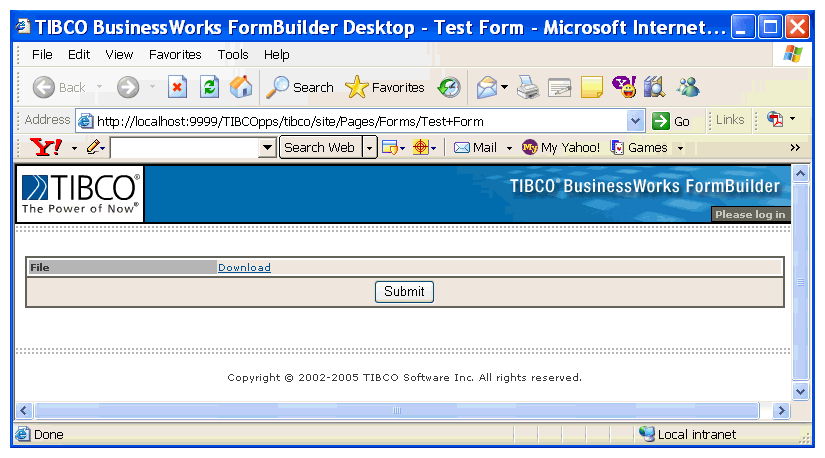
When an end user retrieves (uploads) a file, a read-only control is used. The user clicks on provided link to download the file. If you want to allow users to view files before downloading, you need to provide an appropriate formflow.
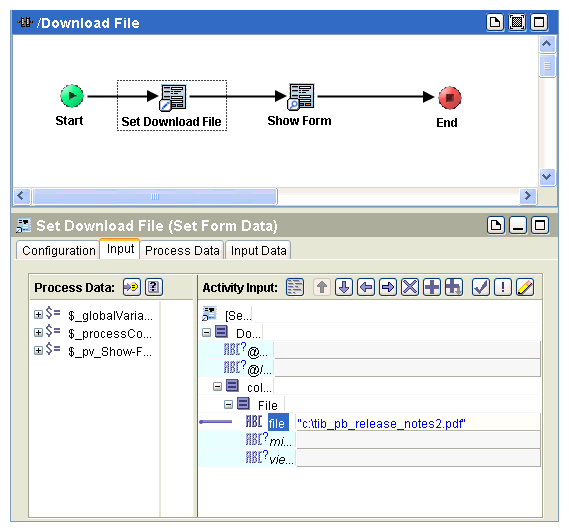
To prepare a file for downloading, you will first specify that file as input, then add a Show Form activity to display the file, and finally provide button to download the file.
At runtime, file content is written to a temporary directory on the machine where the servlet engine is running. The directory is specified by the value of the
javax.servlet.context.tempdir property for the servlet engine. For example, for Tomcat, this location is
tomcat_install_dir/work/Catalina/localhost/web_application_context. The user who starts the servlet engine must have write permission on this directory.
This location is specified by the TemporaryDirectory attribute of the Get Formflow Context activity. During formflow processing, the temporary directory can be used to store temporary files. When the servlet engine is started, all files in this directory are automatically deleted.