|
|
| Copyright © Cloud Software Group, Inc. All Rights Reserved |
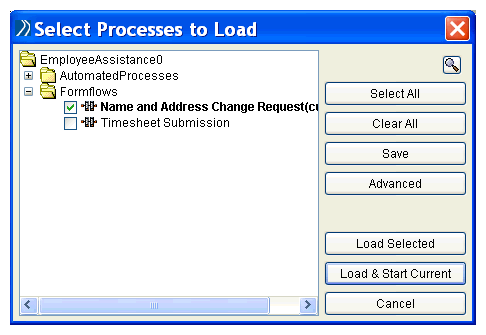 If a formflow depends on runtime data, this data must be manually provided when testing formflows in TIBCO Designer. Runtime data might include formflow context parameters, request parameters, or any process variables that must be specified at runtime.Both form and formflow names can be specified at runtime. In a Call Formflow activity, the Process Name Dynamic Override field can be used, and in a Set Form Data activity, the form name can be mapped to the @FormPath parameter. However, when no explicit reference exists at design time, the form or formflow cannot be automatically called by the Tester utility.To test a formflow that is called dynamically, load this formflow in the Tester utility at the same time as the parent formflow.
|
|
| Copyright © Cloud Software Group, Inc. All Rights Reserved |