|
|
| Copyright © Cloud Software Group, Inc. All Rights Reserved |
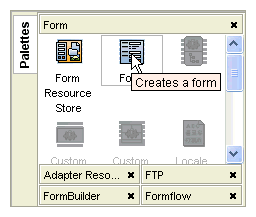
Forms are resources that collect user input. A form consists of a layout scheme defined by HTML templates, and controls that become input fields at runtime.Every form has a layout that defines the basic structure of the form, such as the number and placement of panes, and whether panes can repeat in a form. Layouts are defined using two HTML template files, a basic template for displaying the form outline in TIBCO Designer, and a more elaborate template used when the form is rendered at runtime.TIBCO BusinessWorks FormBuilder provides default layout schemes that can be used without modification. Custom layouts can also be defined. For more information, see Chapter 4, Building Custom Controls and Layouts.Controls are user entry fields in a form, such as text fields or radio buttons. Attributes of a control can be set at design time or at runtime. For more information on setting attributes at runtime, see Using Dynamic Data with Controls.TIBCO BusinessWorks FormBuilder provides a set of default controls that can be used without modification. Custom controls can also be defined. For details, see Chapter 4, Building Custom Controls and Layouts.
|
|
| Copyright © Cloud Software Group, Inc. All Rights Reserved |