Copyright © Cloud Software Group, Inc. All Rights Reserved


Chapter 2 Installing BusinessWorks FormBuilder : Adding and Removing a Servlet Engine

Adding and Removing a Servlet Engine
You can add any supported servlet container or the application server into your TIBCO domain. The list of supported servlet containers is available in the file readme.txt. This section describes only adding and removing of Apache Tomcat.
Adding Tomcat to a TIBCO Domain
To Add Tomcat in GUI Mode
1.
Log into a machine that has the servlet engine installed.
On UNIX platforms, log in as the user that ran the installer program. For instructions, see TIBCO Administrator User’s Guide. On Windows, log in using an account with administrator privileges.
2.
On Windows, select Start>Programs>TIBCO>TIBCO Runtime Agent & Adapter SDK version>Domain Utility
On UNIX, run tra_install_dir/bin/domainutility. If any exceptions occur, check the file tra_install_dir/logs/domainutility.log
If the TIBCO administration domain is on a remote machine, first add this machine to the domain. Refer to TIBCO Administrator User’s Guide for instructions.
3.
4.
In the screen Select a category, select Servlet Engine Plugin in the Categories field, and Add Servlet Engine in the Task field. Click Next to continue.
5.
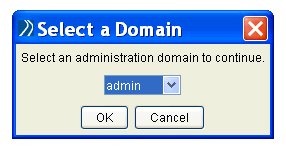
Figure 4 Select Servlet Engine Domain
Click OK to continue.
6.
In the screen Provide administration credentials for TIBCO administrator, type the user name and password for the selected domain. For authentication to succeed, the TIBCO Administrator service must be running.
Click Next to start the validation process.
7.
In the screen Select the servlet engine vendor, select Tomcat. This software must already be installed on the machine, as explained in the section To Install Tomcat.
Add servlet engine to domain
This component should be added to only one domain. Startup scripts contain domain-specific data and cannot be shared across domains.
8.
9.
Servlet engine installation directory
This is the location of the servlet engine’s server file. For Tomcat, this is
/install_dir/Tomcat/conf/server.xml
Click Next to continue.
10.
11.
The next screen confirms that the servlet engine was added to the domain and that a startup and shutdown scripts were created.
To read about Tomcat start and shutdown scripts, read To Start Tomcat and To Stop Tomcat.
Next time you start the servlet engine, use the new directory as described above instead of the directory where the engine was initially downloaded.
To Add Tomcat in Command Line Mode
1.
Before running the add command, edit the following file:
bwfb_install_dir/version/template/DUCmdSampleRegisterTomcat5.xml.
Provide right values for the following: Domain name, Username for the domain, Password for the domain, Tomcat location, Tomcat’s file server.xml, Tomcat user with a manager role, and Tomcat user password for the manager role.
A user with the manager role must be defined in the tomcat-users.xml file, which is located in the conf directory where Tomcat is installed.
2.
Run the program domainutilitycmd in the directory tra_install_dir/bin with the following option:
domainutilitycmd -cmdFile file
where file is in the directory
bwfb_install_dir/version/template/DUCmdSampleRegisterTomcat5.xml.
To Edit the File tomcat-users.xml
The file tomcat-users.xml is generated by default in the directory
C:\Program Files\Apache Software Foundation\Tomcat version\conf\tomcat-users.xml.
It looks such as the following:
<?xml version="1.0" encoding="utf-8" ?>
  <tomcat-users>
  <role rolename="tomcat" />
  <role rolename="role1" />
  <role rolename="manager" />
  <role rolename="admin" />
  <user username="tomcat" password="tomcat" roles="tomcat" />
  <user username="both" password="tomcat" roles="tomcat,role1" />
  <user username="role1" password="tomcat" roles="role1" />
  <user username="admin" password="admin" roles="admin,manager" />
</tomcat-users>
You don’t need to do anything with this file, provided there is another user with a manager role mentioned in the file.
If you want to use another user with a manager role, you need to edit the file tomcat-users.xml accordingly.
Removing Tomcat
To Remove Tomcat in GUI Mode
1.
2.
Select Servlet Engine Plugin, and then select Remove Servlet Engine.
3.
4.
Type the user name and password for the domain. For authentication to succeed, the TIBCO Administrator service must be running.
5.
Servlet Container
Removes instances of registered servlet engines. Instances that are associated with a formflow application cannot be removed from the domain. If necessary, delete the application definition in TIBCO Administrator.
6.
Review components to remove and click Next and then click Finish.
To Remove Tomcat in Command Line Mode
1.
2.
Before running the add command, edit the following file:
bwfb_install_dir/version/template/DUCmdSampleRemoveTomcat5.xml.
Provide right values for the following: Domain name, Username for the domain, Password for the domain, and the Tomcat installation port.
3.
Run the program domainutilitycmd in the directory tra_install_dir/bin with the following option:
domainutilitycmd -cmdFile file
where file is in the directory
bwfb_install_dir/version/template/DUCmdSampleRemoveTomcat5.xml.

Copyright © Cloud Software Group, Inc. All Rights Reserved