Copyright © Cloud Software Group, Inc. All Rights Reserved


Appendix C Localization Tutorial : Localize a Form

Localize a Form
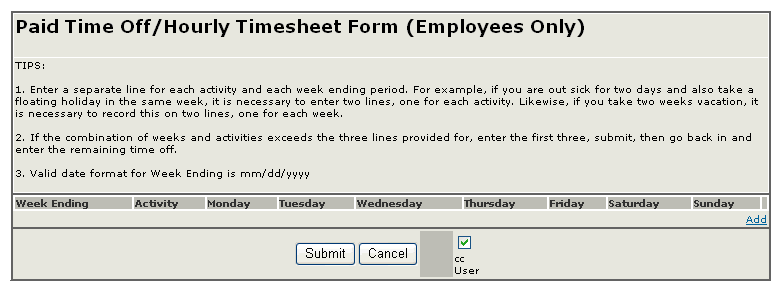
In this short tutorial you will localize the form Timesheet Submission, which was built in the Forms tutorial. The form looks such as the following:
To Make a Form Localizable
1.
2.
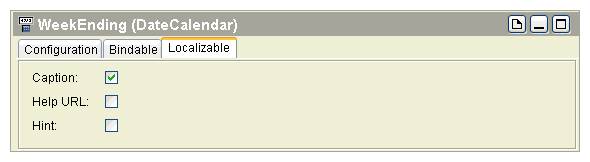
When the field displays in the design panel, click the Localizable tab, and then select the checkbox for the appropriate form element: Caption, Help URL, or Hint.
In this example, the Caption attribute is selected for localization.
3.
To Create a New Locale Properties Resource
1.
2.
3.
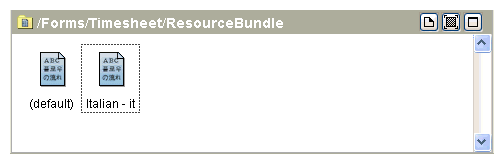
This value is also used as the resource name, by default.
4.
The design panel displays an empty table (with no rows or columns).
To Design Properties Mapping
1.
2.
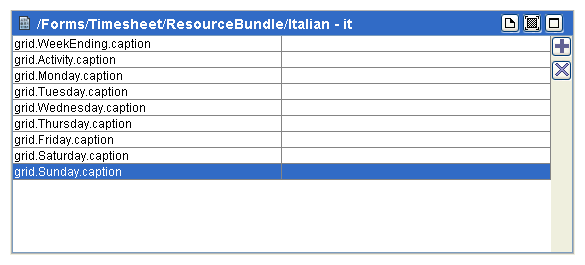
Click in the left column of the new row to display a dropdown list of localizable attributes. Select the appropriate caption from the dropdown list for each row, such as grid.WeekEnding.caption.
To correct mistakes, use the Delete button to delete the row, then add a new row.
When you are finished, the dialog should look such as the following:
To Enter Localized Text
1.
2.
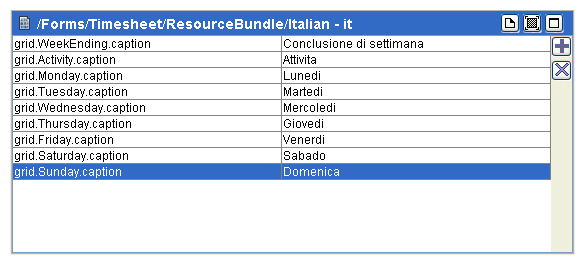
When you are done, the dialog should look such as the following:
3.

Copyright © Cloud Software Group, Inc. All Rights Reserved