|
| Copyright © Cloud Software Group, Inc. All Rights Reserved |
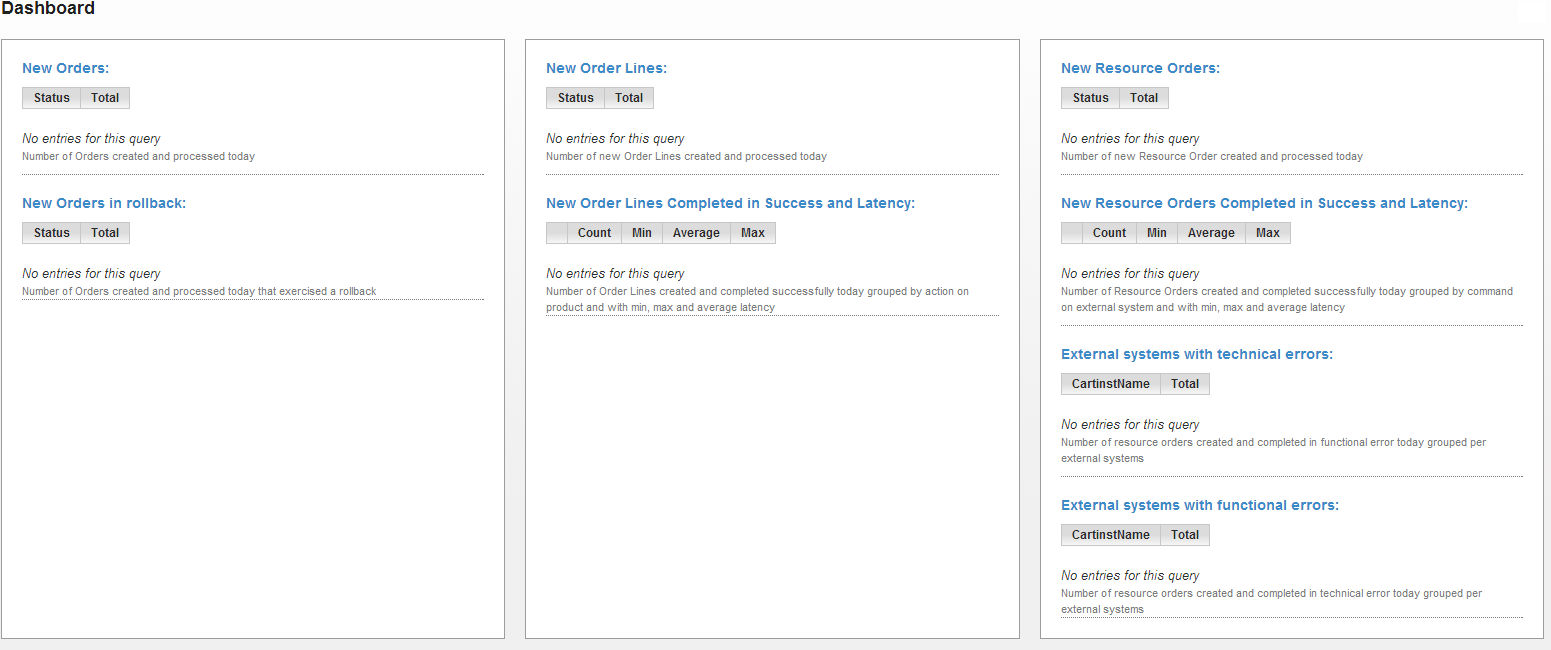
Before logging into the Fulfillment Provisioning Order Management System, follow the installation instructions given in TIBCO Fulfillment Provisioning Installation Guide to successfully install and start the product.
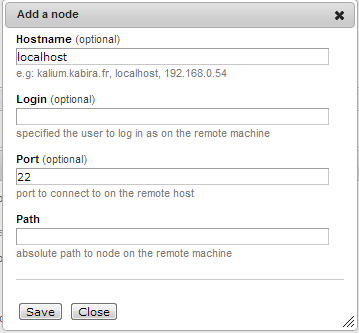
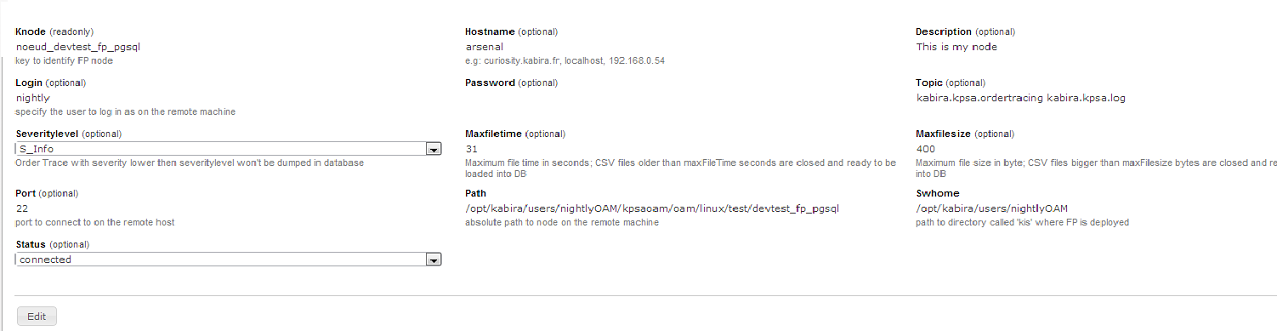
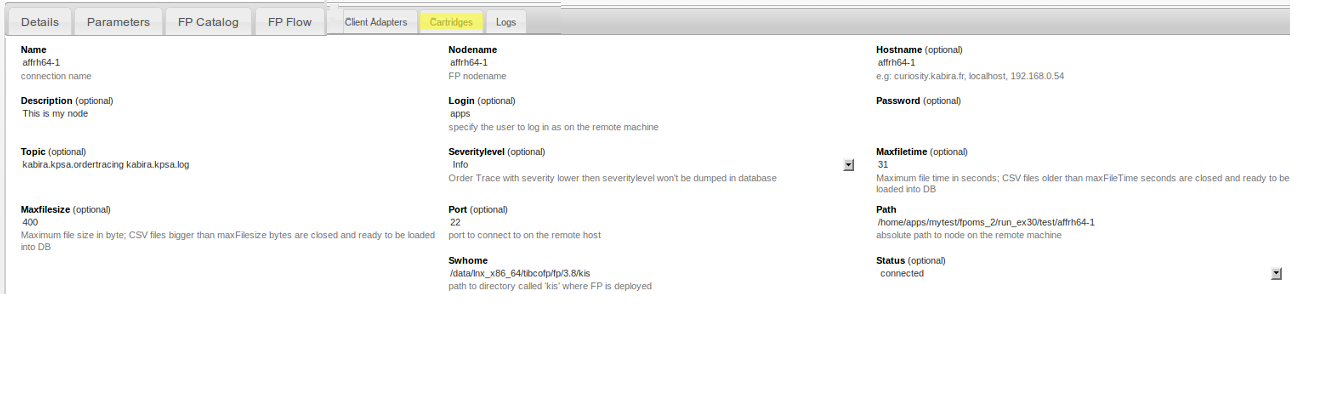
1. Open a browser and navigate to the Order Management System URL. For help about the command that retrieves the URL, refer to TIBCO Fulfillment Provisioning Installation Guide.See the start fp section for details about how to start a node. Following steps help you add a new node.
−
−
−
−
3. Click Save.
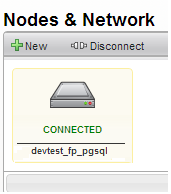
2. The Order Management System is now connected to the node. The menu option toggles to show Disconnect and the icon representing the node shows Connected.
2. The node is disconnected. The menu options toggles to show Connect. in the menu. Since disconnected nodes can be deleted, the menu also shows a Delete option in the menu.
2.
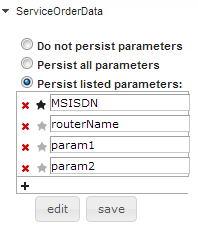
− Persist listed parameters: The option persists all parameters listed in the list. Click Edit to make changes to this list. You can delete or add more parameters to this list.
2.
1.
2.
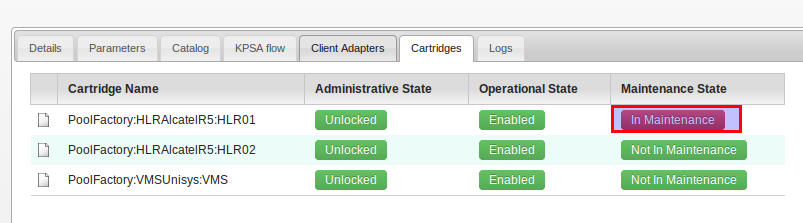
3. The cartridge is now pushed to the maintenance state. For more information on effects of pushing a cartridge into the maintenance state, refer to the startMaintenance Cart section. The In Maintenance button toggles between the In Maintenance state and the Not in Maintenance state.
5. To place a cartridge no in the maintenance state, click Not In Maintenance. for details, refer to the stopMaintenanceCart section.
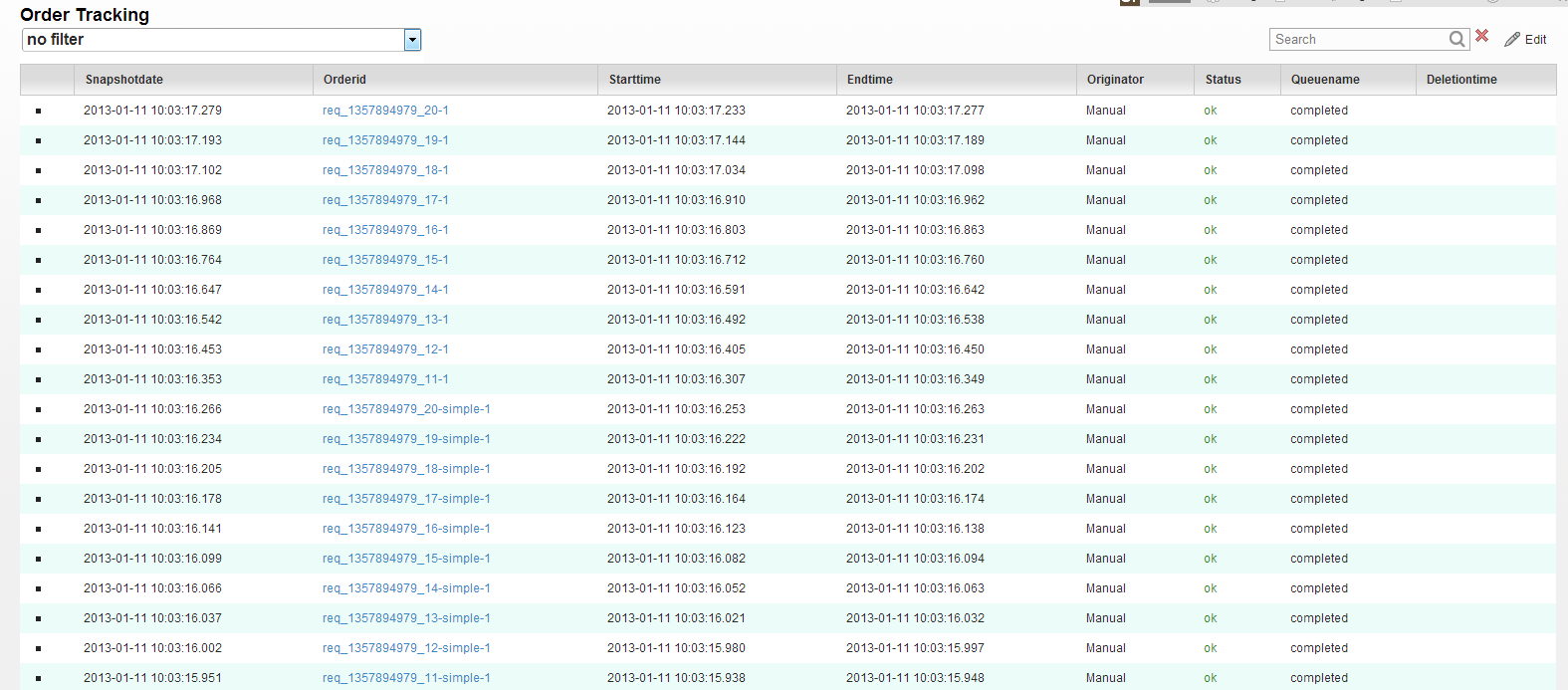
1. Click Administration > Order Tracking
3.
4. To search for a particular criterion, use the Search box. For example, "manual" can be entered as a criterion when you want to fetch records that were created manually.
|
| Copyright © Cloud Software Group, Inc. All Rights Reserved |