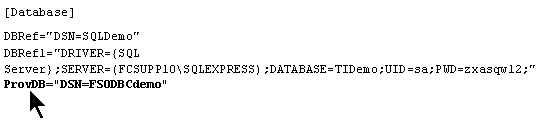
Setting up a system DSN
Windows provides two applications for setting up ODBC Data Sources, one for 64-bit and one for 32-bit.Instream requires a 64-bit ODBC driver
HIPAA Validator Desktop and EDISIM require 32-bit ODBC drivers.
Set up DSN Name
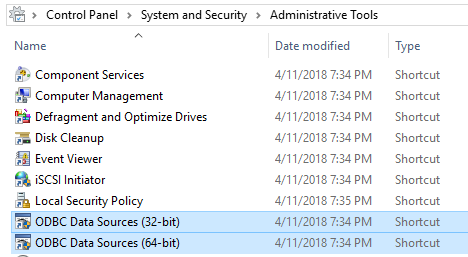
Under Control Panel, choose Administrative Tools and select the appropriate ODBC Data Source (32- or 64-bit)
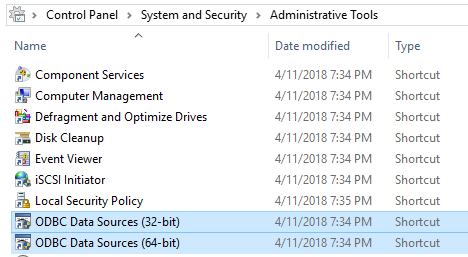
Choose the System DSN tab. Is there a listing for FSODBCdemo/FSODBCdemo64?
Yes – your DSN is already set up and you can proceed to Looking at the Database.
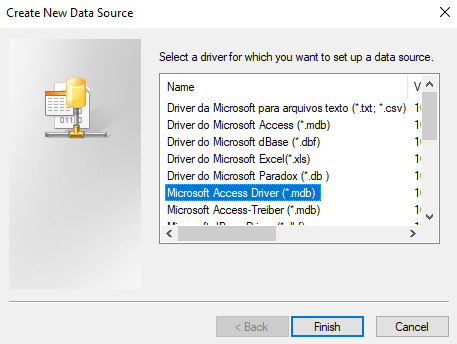
No – Choose Add | Microsoft Access Driver (*.mdb) | Finish and continue with Step 4.
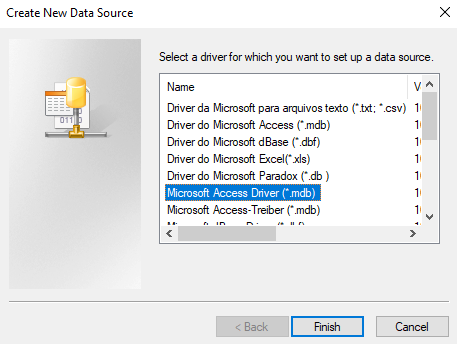 Note: If the Microsoft Access Driver (*.mdb) driver name is not listed, you must install the correct ODBC driver for your operating system. (Refer to https://www.microsoft.com/en-us/download).
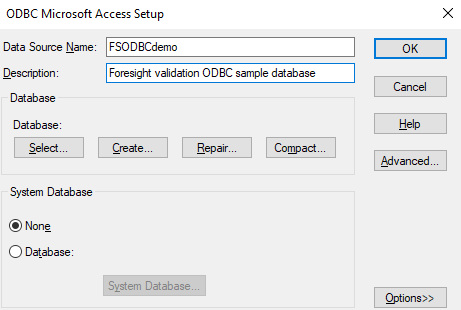
Fill out the fields as follows, and then click Select.
Note: Use FSODBCdemo for a 32-bit data source or FSODBCdemo64 for a 64-bit data source.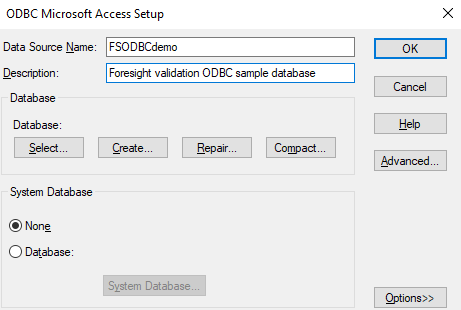
Navigate to HIPAA Validator Desktop’s DemoData directory or Instream’s DemoData\ODBC directory and choose FSDemo.mdb. Click OK until you have closed out of all Control Panel dialog boxes.
(These files are exactly the same for HIPAA Validator Desktop and Instream; if you are using the demos for both products, choose either one.)
Edit $Dir.ini
Edit $Dir.ini in HIPAA Validator Desktop or Instream’s Bin directory and give the DSN a name: