Creating a Guideline from a CSV Layout
Requires EDISIM 6.6 or later
CSV File Format
For an example, please see Test1.csv in EDISIM’s Samples directory:
Notice the headers in the top row. The first row must contain the exact field names shown in Test1.csv.
Each line in the CSV file can contain these columns (case insensitive and in any order).
|
Lev |
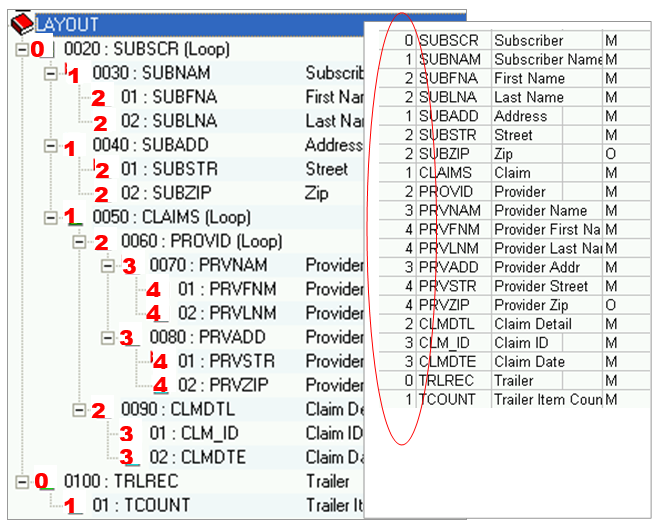
The Lev column shows the level, or hierarchy, of items. Number from the outer level as 0 to the most inner level, which will be a field containing data. Example (levels are shown in red):
|
|
|
Level 99 is a code value for the field immediately above. These 99 rows are code values A, B, and C for ITEMTYPE:
|
|
ID |
The ID of the item; maximum 20 characters for a record and 128 characters for fields; no spaces or other special characters except underscores.
|
|
Name |
The Description of the item:
|
|
Desc |
The Purpose of the item. |
|
Usage |
The Usage of the item. Possible values are: M (mandatory) O (optional) N (not used) They appear in the U/A column |
|
Repeat |
How many times this item can repeat in the current location. |
|
Type |
Data type for fields. See DataTypes.pdf in EDISIM’s Documentation directory. Only fields that actually contain data should have a type. Do not use Type for records or complex fields. |
|
MinLen |
Minimum length for data in this field. Only fields containing data have MinLengths. Do not use them with records or complex fields. |
|
MaxLen |
Maximum length for data in this field. Only fields containing data have MaxLengths. Do not use them with records or complex fields. If each field has a MinLen and MaxLen that is the same, the guideline will be assumed to be for fixed-length data. If one or more has a different MinLen from its MaxLen, then the guideline will be assumed to be delimited. |
|
Note1 |
Contents of a level 1 note. |
|
Note2 |
Contents of a level 2 note. You can have columns for any level of note up to Note99. |


CSV File Checklist
-
Remove commas, line feeds, double quotes, and single quotes from values. If you are editing the CSV file with a spreadsheet program, edit the CSV with a text editor just before importing, and check for single quotes that have been inserted.
-
Make all cells text if you are using a spreadsheet to create the CSV file. Otherwise, leading zeros may disappear.
-
Be sure values in the Usage column match those in EDISIM (M, O, and N).
-
Be sure the values in the Type column match EDISIM types (see DataTypes.pdf in EDISIM’s Documentation directory).
-
Do not include the segment tag as a field.
-
IDs are 6 characters or less.
-
Add levels in column 1.
-
Be sure that records do not have lengths or types.
-
Be sure the last record has a newline at the end.
Importing the CSV File
To import a comma-delimited file into Standards Editor for use as a delimited or fixed-length-field guideline:
-
Open Standards Editor.
-
Choose File > Import > Import CSV Layout and open.
-
Select the CSV file and import it.
There is a sampleTest1.csvin EDISIM’s Samples directory. -
Choose File > Properties > User-Defined Standard and fill out the information as described in Splitting Flat Files with Document Splitter on page Splitting Flat Files with Document Splitter.
-
Be sure that the record tags are not repeated as the first field in the records.