Install Foresight Studio
Procedure
-
Download the Foresight Studio installation package to a temporary directory. Select the version that corresponds to the platform on which it will be installed.
Example: Select
TIB_fsp-studio_9.2.0_win_x86_64.zipif you are installing Foresight Studio on a Windows 64-bit operating system. -
Extract the files from the installation package.
-
If you have decided to install Foresight Studio without a version subdirectory, refer to Optional Installation without Version Subdirectory. When you’ve completed those steps, continue with Step 4.
-
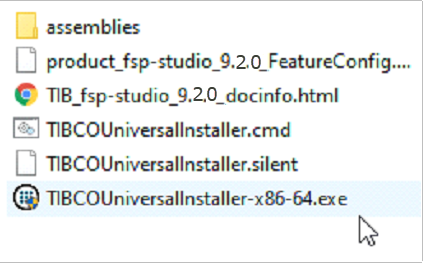
Double-click
TIBCOUniversalInstaller.exe: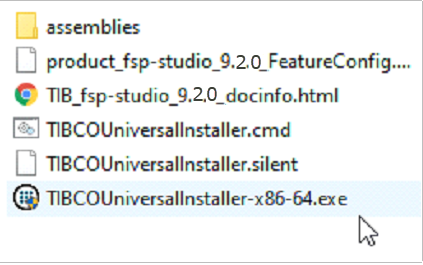
-
To run from the command line instead, execute
TIBCOUniversalInstaller.cmdor type the absolute path to the installer file with or without specifying options.
There will be a brief pause and the Welcome dialog appears: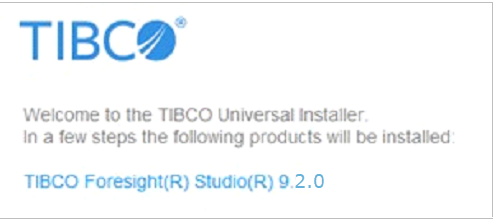
Verify you are installing the correct edition of Foresight Studio and click Next. -
Read and accept the license information, and click Next.
-
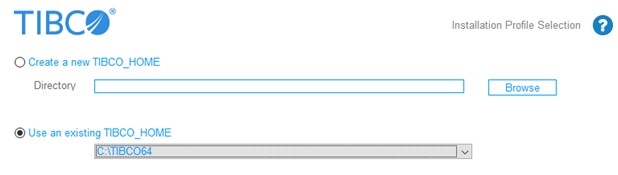
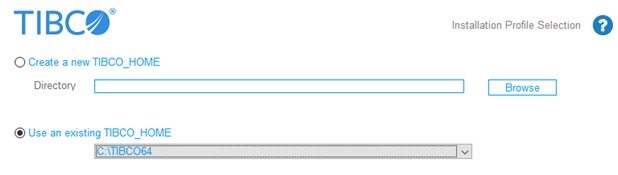
The TIBCO_HOME dialog appears.
This dialog allows you to select an installation environment. An installation environment isolates product installations, so that a product installed into one installation environment does not access components in other installation environments.
-
Option 1 – Create a new TIBCO_HOME
Note: If you have already installed Foresight® Instream® and TIBCO Foresight® Translator (recommended), you have previously set up a TIBCO_HOME. To use the same TIBCO_HOME, see Option 2 - Use an existing TIBCO_HOME.If you do not have a TIBCO_HOME directory, create a new TIBCO_HOME.
Directory is the Foresight Studio directory into which the product is installed. This is the directory immediately above Instream’s bin directory.
Type the path or browse to specify the path. The path cannot be the same as the path of an existing TIBCO_HOME.
Good directory paths:
-
C:\TIBCO64
-
C:\Foresight

In this example, we choose
C:\TIBCO64, which causes Foresight Studio’s Bin directory to be-
C:\TIBCO64\fsp-studio\9.2or -
C:\TIBCO64\fsp-studio\if you’ve specified no version subdirectory.
-
-
Option 2 - Use an existing TIBCO_HOME
Select this radio button to use an existing TIBCO_HOME.
Note: If this is your first time using the Universal Installer, the list will show only the default C:\TIBCO64 installation environment,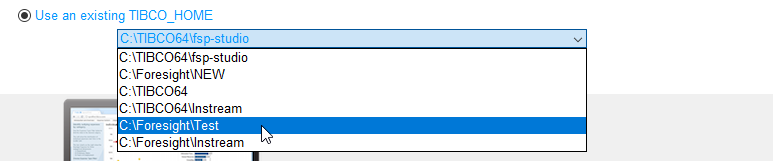 If you have used the Universal Installer before, installation environments you have installed into previously appear on the list.
After you’ve made your selection, click Next.
-
-
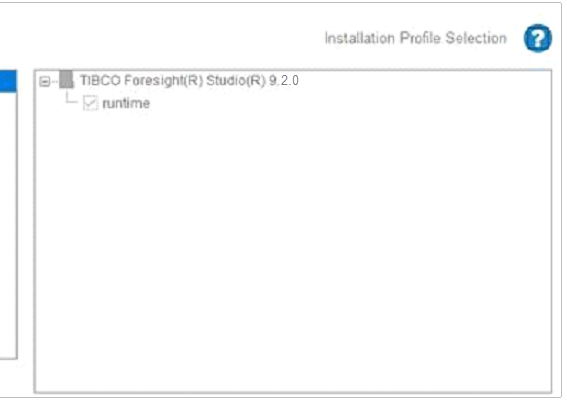
Select Typical from the installation profile screen and click Next:
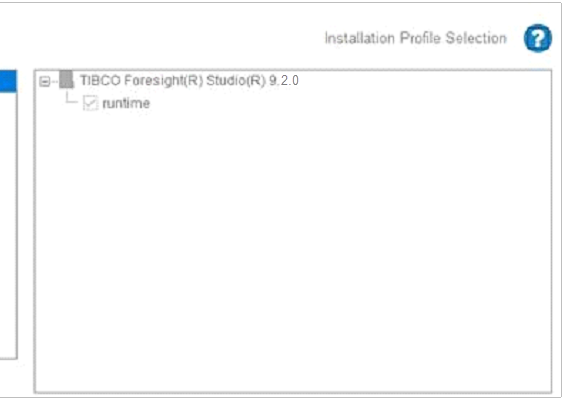
Optionally, you can choose the “Customize Installation” checkbox and select or remove items from the list of features on the right.
-
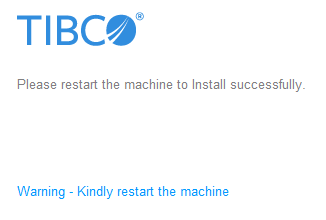
A screen appears informing you that, at the end of this installation, you must restart your machine. Click Next to acknowledge that you understand you must restart.
-
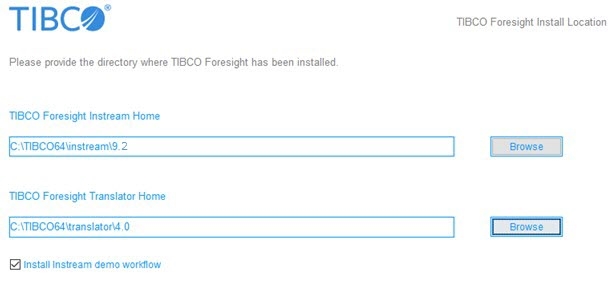
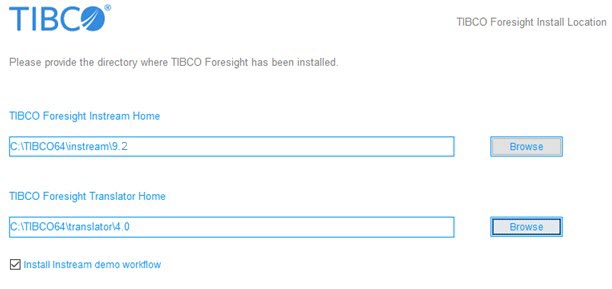
Provide the path to installation locations for TIBCO Foresight Instream and TIBCO Foresight Translator and click Next.
-
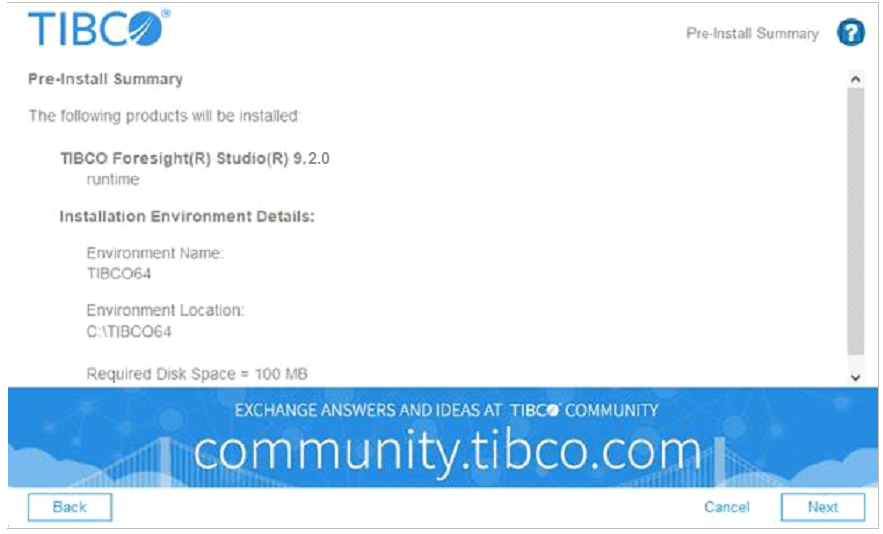
If the Pre-Install Summary is correct, click Next.
-
Installation progress is displayed.
-
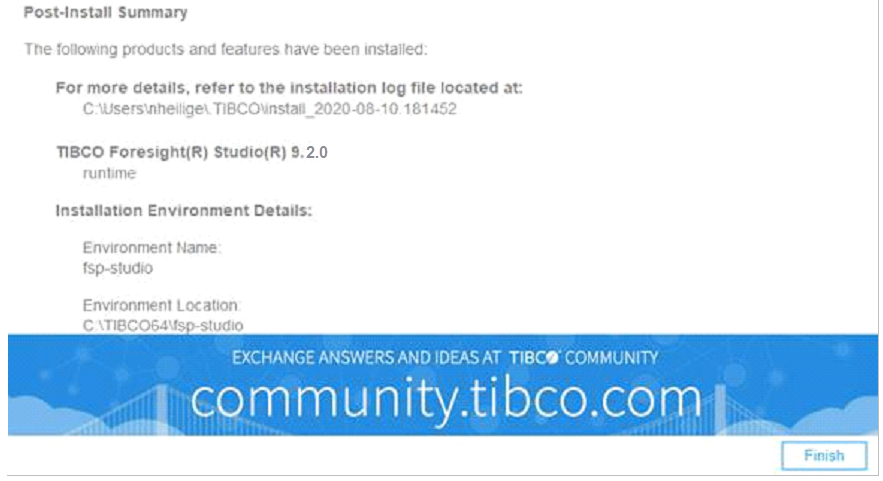
If the Post-Install Summary is correct, click Finish.
-
Restart your machine to complete the installation.
-
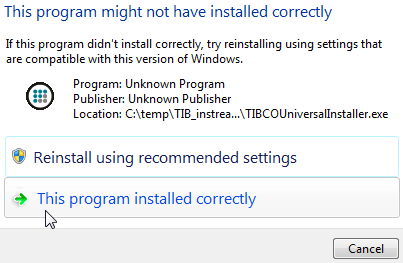
If this dialog appears after rebooting, click This program installed correctly.
-
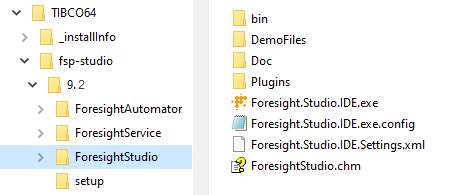
Verify installation by looking for the
fsp-studiodirectory under the TIBCO_HOME path that you chose. Ensure the files and directories shown here are present.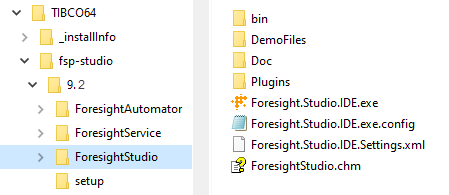
-
Your Foresight Studio installation is complete. Continue with Post Installation.






Install Foresight Studio using Silent Mode
In the silent mode, you can run the installer without user input by pointing the installer to an existing response file.
A default response file named TIBCOUniversalInstaller.silent is packaged with TIBCO Universal Installer. Before launching the silent installation, you have to edit the response file with information about your environment. It is a good practice to make a copy of the default response file, then edit that file and use it for the installation.
-
If you invoke the installer with the -silent argument, the installer reads the input from default response file.
-
If you invoke the installer with the -silent -V responseFile=<filename> argument, the installer reads the input from the specified response file.
Procedure
-
Open the physical media or download the package from the TIBCO eDelivery site.
To download the installation package, a user name and password are required. If you do not have a user name and password, contact TIBCO Technical Support.
-
Extract the content of the package to a temporary directory and open the
TIBCOUniversalInstaller.silentfile. -
Update the response file directly, or make a copy of the response file first and then update the copied file.
Edit the lines in
TIBCOUniversalInstaller.silentto provide the directory where TIBCO Foresight has been installed.For example:
<entry key="installationRoot">C:\tibco</entry>
<entry key="foresight.instream.home">C:\fsstudio\instream\9.2</entry>
<entry key="foresight.translator.home">C:\fsstudio\translator\4.1</entry>
-
On the command line, navigate to the temporary directory where you extracted the installation package.
-
Enter the following command to start the installation:
TIBCOUniversalInstaller.cmd -silent [-V responseFile="filename"]Note: If you copy the response file to another directory, not the temporary directory containing the installer, you have to provide the absolute path of the response file.