Trigger Tab
This tab defines what activates the component.
To set up a trigger:
-
Click the
 button.
 -
Fill out the fields.
-
If the component can be triggered in multiple ways, repeat for the next trigger.
-
If you want to reorganize the list of trigger names, use the
 keys.
keys. -
If you want to delete a trigger name, click it and press
 .
. -
Save.



Fields include:
Name
Type a name for the trigger.
Type
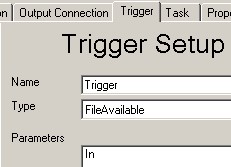
FileAvailable triggers the component when a file arrives in the component’s In directory (TIBCO_HOME\fspstudio\<n.n>\Systems\<system>\Workflows\<version> \<workflow>\<component>\In).
FileNameMatch triggers the component when multiple files arrive in the component’s In directory with the extensions specified under Parameters. All must be there for activation to occur. In addition, the left part of the filename (up to the dot) must match. You can use two dots in filenames if you want to have the middle section for special purposes such as contentbased splitting. Example: Myfile.PartnerA.dtl
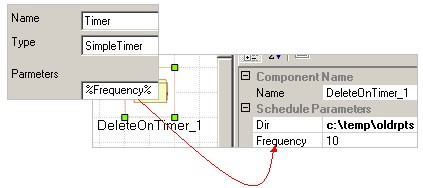
SimpleTimer triggers the component every n seconds.
Parameters
FileAvailable
The Parameters area contains the directory where the component should look for incoming files. It will be in one of the component’s directories in the workflow: In, Process, Out, or Error.
FileNameMatch
The top line contains the directory where the component should look for incoming files. It will be in one of the component’s directories in the workflow: In, Process, Out, or Error. The second line is 2, 3, or 4 - the number of files that are to be matched up before they can be processed. The remaining lines are the file extensions.
Example. If extensions are edi and dtl:
These match:
File1.edi
File1.dtl
These do not match:
File1.edi
File1_results.dtl
These do not match:
File1.edi
File1.A.dtl
SimpleTimer
Type the number of seconds before the component activates.
If you want the workflow developer to specify the number of seconds, use a variable that is defined under the Property tab.