FHIR Search Area
Use the FHIR Search area to select a FHIR server, a FHIR Resource, and Search Fields.
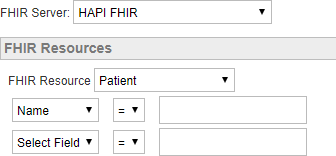
To conduct a search:
-
Choose Search > FHIR on the top menu.
-
Select the FHIR server you want to query from the drop-down.
The FHIR servers on this drop-down list have been set up by your administrator and might include private servers (For example, those set up by your organization) or public servers (those freely available to the public via the internet).
Please note the following about public FHIR servers:
-
Data can change or be deleted any time.
-
There is no requirement to implement every search field for a resource; one FHIR server might allow you to search for certain fields and another might not.
-
They might experience downtime. If this happens, you will receive an error and results are not available.
Direct any questions about FHIR servers to your Transaction Insight administrator.
-
-
Select the FHIR Resource you want to search from the drop-down. You can search through one resource at a time.
Transaction Insight provides five common FHIR Resources.
-
Patient
-
Practitioner
-
Allergy Intolerance
-
Medication Statement
-
Condition
Your Transaction Insight administrator has the option to add more resource types if desired.
-
-
Select up to two fields to search. The available fields change based on the Resource type. For example, you can search for both Name and ID.
Your Transaction Insight administrator has the option to add more search fields if desired.