|
| Copyright © Cloud Software Group, Inc. All Rights Reserved |
1. Click an agent listed in the Agents portlet on the Hawk Dashboard. The Agent tab opens. The name of the Agent tab is same as the selected agent name <agent_name>. The following tabs are available on the top right corner of the screen:
−
2. Click the Rulebase tab. The Rulebase screen lists the rulebases loaded by the selected agent and provides a toolbar for performing rulebase operations.
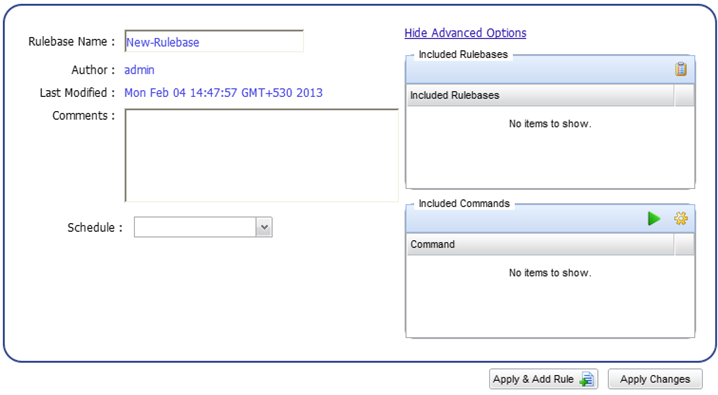
3. Click the Create new Rulebase icon from the toolbar to create a new rulebase. A new rulebase is created with the default name "New-Rulebase". Type Sample in the Rulebase Name field.
The rulebase name must be unique on the agent. It may contain only numeric digits, underscore ( _ ), hyphen ( - ), or a letter as defined by the UNICODE 2.0 standard. The latest version of the UNICODE specification can be found at www.unicode.org/ucd.Figure 10 Rulebase Editing Screen
4. Enter comments in the Comments field, if required.
5. Select the name of an existing schedule from the Schedule dropdown list to apply to this rulebase. This is an optional field. By default, the rulebase is always active. For more information, see Working with Schedules and Period Groups.
7. Click the Apply & Add Rule button to save the changes and proceed to the rule building process. Refer Creating a Rule for further instruction.
8. Click the Apply Changes button to save the current changes. These changes are available in the browser till the user logs out.A rulebase must have at least one rule, a rule must have at least one test, and a test must have at least one action.A rulebase can include other rulebases which can automatically load when the rulebase is loaded by an agent. The Included Rulebases feature is useful for maintaining modular rulebase sets. For example, if rulebase A should always be loaded with rulebase B, rulebase B can have A as a member of it’s include list.Similarly, the Included Commands feature can be used to add any command to a rulebase, but rulebase commands are typically related to the resources or activities that the rulebase monitors. For example, if a rulebase is monitoring the httpd daemon, the commands could execute scripts such as: start_httpd or kill_httpd.
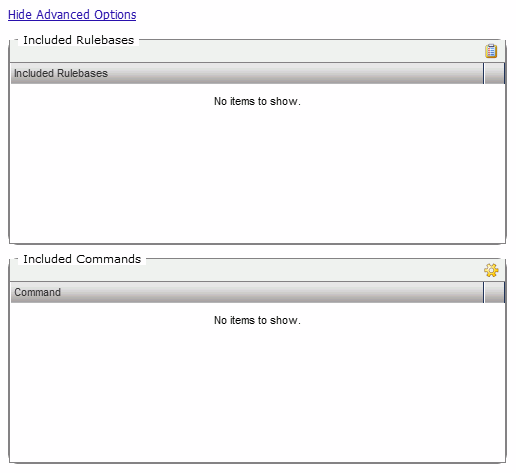
1. In the rulebase editing screen, click Show Advanced Options link. The Advanced options are displayed.
2. Clickicon available on the Included Rulebases section title bar. A new row is added to the Included Rulebases table.
4. Clickicon available on the Included Commands section title bar. A new row is added to the Command table.
5. Type a command or the name of a script to execute. You can specify an absolute or relative path. To specify multiple commands, separate them with a semicolon (;). The Command List displays the string you typed.
6. Click the Apply & Add Rule button to save the changes and proceed to the rule building process. Refer Creating a Rule for further instruction.
7. Click the Apply Changes button to save the current changes. These changes are available in the browser till the user logs out.
|
| Copyright © Cloud Software Group, Inc. All Rights Reserved |