|
| Copyright © Cloud Software Group, Inc. All Rights Reserved |
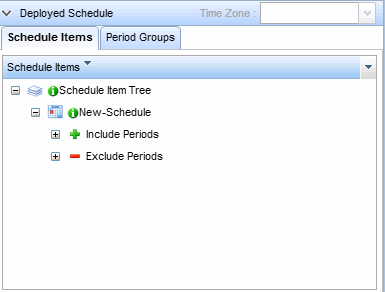
You define schedules in TIBCO Hawk WebConsole, then send schedules to agents and Repositories on your network.
1. Click an agent listed in the Agents portlet on the Hawk Dashboard tab. The Agent tab opens. The name of the Agent tab is same as the selected agent name <agent_name>. The following tabs are available on the top right corner of the screen:
b.
c.
d.
2. Click the Schedules tab. The Schedules screen displays the schedules defined for the selected agent.
3. Click theCreate new schedule item icon from the toolbar to create a new schedule item. Alternatively, click on the schedule item name in the Schedule Item Tree to edit an existing schedule item.
4. A new schedule item is created with the default name "New-Schedule". Double-click the default name field of the schedule item to edit the schedule name. This name must be unique within the schedule items list and cannot contain spaces.
6. You can define inclusions periods and exclusion periods for a schedule-item. Click the arrow icon to expand the "New Schedule" tree. You can see the Include Periods and Exclude Periods options.
7. To define new inclusion period, select Include Periods and click theCreate new period item icon from the toolbar.
8. The Schedule Item section of the screen is enabled.
For a period item to be valid, you must select at least one interval in each category in the Schedule Item section: Time of Day, WeekDay of Week, Day of Month, and Month. If one or more categories has no selections, the schedule is not used.
9. The schedule item is defined in four parts. The detailed steps are provided in the following sections:
10. When the inclusion period is completely defined, click Apply button to save the changes locally. The Schedule Item Tree is updated with the new schedule item details.
11. You can define an exclusion period, if required. Select Exclude Periods from the Schedule Item Tree and click theCreate new period item icon from the toolbar.
12. Then repeat this procedure from step 8 to step 10, selecting the times, days, dates and months that the schedule item should not include.For example, to create a schedule item of 9:00 AM to 11:59 AM and 1:00 PM to 4:59 PM, you can define an inclusion period of 9:00 AM to 4:59 PM, then add an exclusion period of 12:00 PM to 12:59 PM.
13. Click Apply to save the changes locally. The Schedule Item Tree is updated with the new schedule item details. At this point the schedule definition is stored in browser cache on the current machine.
14. Click theDeploy icon from the toolbar to deploy the schedule updates on the corresponding agent or in the Repository. When the schedule is updated on the agent, the schedule will take effect immediately.
1. Select one or more Time of Day intervals. There are four pre-defined intervals available:
− All Day 12:00 AM to 11:19 PM
− AM 12:00 AM to 11:59 AM
− PM 12:00 PM to 11:59 PM
− 9 to 5 9:00 AM to 4:59 PMBy default, the 9 to 5 interval is displayed when the a new period item is added. You can select a different pre-defined interval by clicking on the Options drop-down list. The selected interval is displayed in the Time of Day section title bar and in the Start and End fields. (Clicking on a pre-defined interval also resets the Start and End times to the selected interval.)
2. To create a custom interval, double-click the time interval entry and type new values for Start and End fields.
3. To add another interval, click theAdd new time period icon on the Time of Day section title bar. Another set of Start and End intervals are added. If an interval is selected when you click the
Add new time period icon, the new interval is placed after the selected interval. If no interval is selected when you click the
Add new time period, the new interval is placed before the existing intervals.
By default, the new interval is the largest possible interval that can be specified. You can click in these fields to modify the interval, if desired.
4.
You can have as many intervals as desired, but the intervals cannot overlap in time and cannot span more than 24 hours. For example, if the first interval starts at 12:00 AM, the last interval must end at 11:59 PM or earlier.
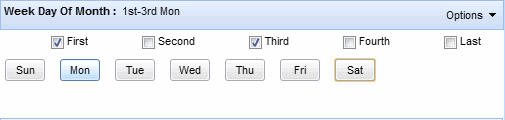
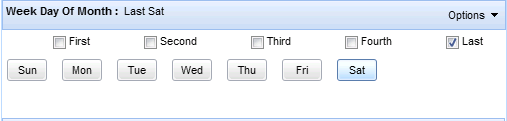
1. Select the days of the week and weeks in the month for the interval in the Week Day of Month section.
2. There are five pre-defined sets of days available on the Options drop-down list. You can also click an individual day to select it:
− Weekday Mondays through Fridays
− Weekend Saturdays and Sundays
− Select All Every day
− Unselect Unselects all days
− Toggle Selection Selects the days that are currently not selected, and unselects the selected day
− First The first occurrence in the month of the checked day(s)
− Second The second occurrence in the month of the checked day(s)
− Third The third occurrence in the month of the checked day(s)
− Fourth The fourth occurrence in the month of the checked day(s)
− Last The last occurrence in the month of the checked day(s).
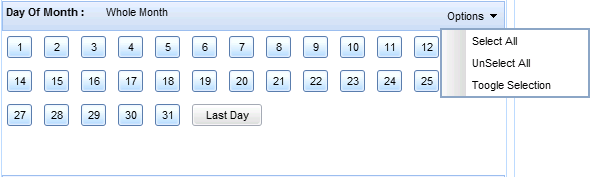
1. Select the dates of the month for the schedule from the Day of Month section. There are three pre-defined sets of dates:
− Select All The first through the last date of the month
− Unselect Unselects all dates
− Toggle Selection Selects the dates that are currently not selected, and unselects the selected dates
2. You can also select Last to indicate the final day of the month. The last day of the month may be the 28th, 29th, 30th, or 31st, depending on the month and if the year is a leap year.
3. The WeekDay of Month and Day of Month selections must overlap in order for a day to be selected.For example, Example 1 of the previous step shows the first and third Mondays of each month selected. Because these days fall on a different date each month, the selected Days of Month would have to include the 1st through 22nd in order to make sure the first and third Mondays fell on selected dates.In Example 2 of the previous step, the selected Days of Month would have to include the 22nd through the 31st to ensure the last Saturday fell on a selected date.
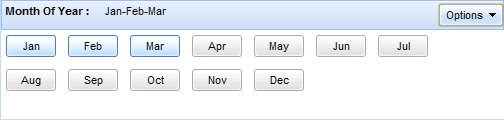
1. Select the month to be included from the Month of Year section. There are seven pre-defined sets of months:
− First Quarter January through March
− Second Quarter April through June
− Third Quarter July through September
− Fourth Quarter October through December
− Select All All twelve months
− Unselect Unselects all months
− Toggle Selection Selects the months that are currently not selected, and unselects the selected months
|
| Copyright © Cloud Software Group, Inc. All Rights Reserved |