Installing ibi Data Intelligence
-
Download ibi Data Intelligence from the TIBCO eDelivery website. To log in, you need a username and password. If you have not received a username and password, contact TIBCO Technical Support.
-
Create a parent directory and unzip the
ibi_data_intelligence_1.0.0.zipfile into the parent directory. On Windows, this must be in the WSL2 environment.For example:
$ mkdir iDI
$ cd iDI
$ unzip -d . ../ibi_data_intelligence_1.0.0.zip
- Procedure
-
Open the
install.shscript file in a text editor. -
To use Loqate Service for address cleansing, update the LOQATE_LINUX variable to point to your Loqate installation path.
-
Configure the HOSTDOMAIN for ibi Data Intelligence by using either your machine's fully qualified host name or its IP address. Edit the respective section in the
install.shscript.# To access ibi DI services with hostname, uncomment following line export HOSTDOMAIN=`hostname -f` # To access ibi DI services with IP Address, uncomment following line #export HOSTDOMAIN=`hostname -I |awk '{print $1}'` # Do NOT uncomment both, the most recent HOSTDOMAIN will override and all services will be accessible with this HOSTDOMAIN echo "HOSTDOMAIN: $HOSTDOMAIN"Note: In some environments, thehostnamecommand might not provide the correct name. If this happens, you can comment out both lines, and manually set the HOSTDOMAIN. -
Save the changes made to the
install.shscript. -
Optionally, to make the
install.shscript executable, run the following command:chmod +x ./install.sh
-
Then, run the installation script.
./install.sh
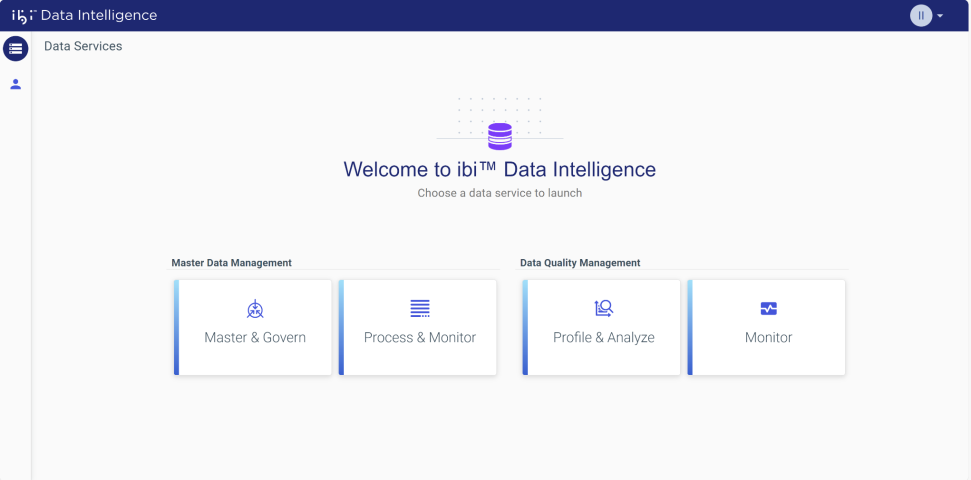
https://<HOSTDOMAIN>:9808. You can log in using the following credentials: Username - ibi, Password - ibi00. After logging in, you see the following ibi Data Intelligence page: