Database Configuration Dialog (Continued)
The second Database Configuration dialog is used to specify authentication details for the database connection.
The configuration items displayed on the second Database Configuration dialog box differ depending on which database type is selected from the Database Type list in the Database Configuration Dialog.
The following figures show the specific fields displayed on the second Database Configuration dialog when a different database type is selected.
Figure 18: Select the SQL Server (Windows Authentication) Database Type
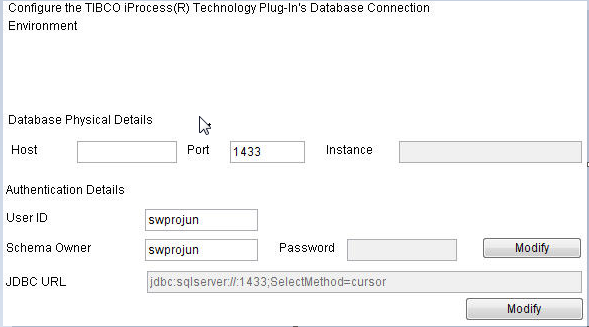
Figure 19: Select the SQL Server (SQL Server Authentication) Database Type
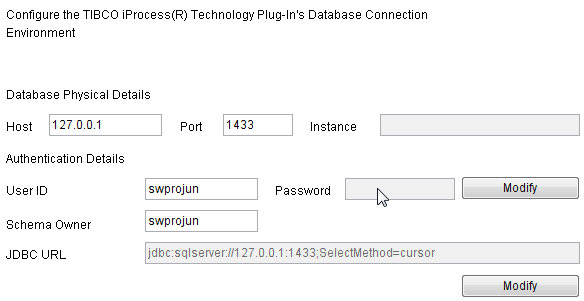
Figure 20: Select the Oracle Database Type
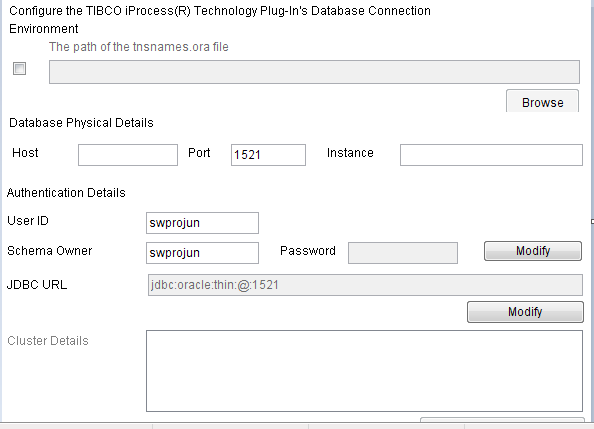
Figure 21: Select the DB2 Database Type
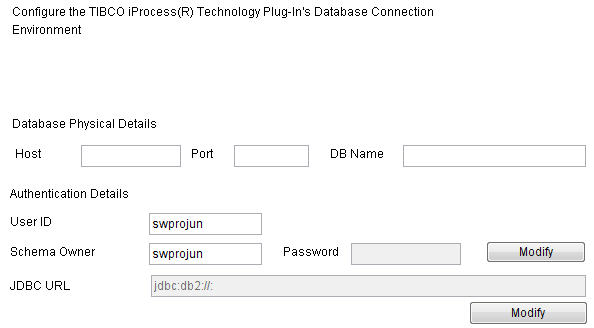
Figure 22: Select the Oracle Real Application Cluster (RAC) Database Type
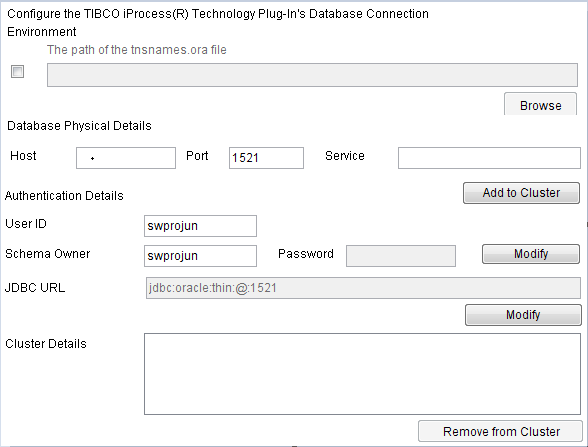
The following table describes the information that is specified in the second Database Configuration dialog box:
|
Field |
Description |
|||||||||
Database Physical Details |
||||||||||
|
The path of the |
This field is displayed when you select Oracle or Oracle Real Application Cluster (RAC) from the Database Type list in the Database Configuration Dialog. The The Note: If the The path of the
tnsnames.ora file check box is selected, the SID in the tnsnames.ora file is used. You do not need to specify the Host field and Port field. |
|||||||||
|
Enter the IP address or the host name of the machine that is hosting the database. For example, 10.10.41.28. You can specify 127.0.0.1 if the database is on a local machine. Note: The field is unavailable when the The path of the
tnsnames.ora file check box is selected for the Oracle and Oracle Real Application Cluster (RAC) database types. Besides, when you select SQL Server (Windows Authentication) from the Database Type list, you have to specify the host name rather than the IP address of the machine. |
||||||||||
|
Enter the port number that the database is using. This field automatically displays the default port number for the database type you selected, as follows:
If you select SQL Server (SQL Server Authentication) or SQL Server (Windows Authentication) from the Database Type list, and you have multiple database instances under SQL Server, find out the port number used by the SQL instance to which you want to connect, and specify it here. Note: The field is inapplicable when the The path of the tnsnames.ora file check box is selected for the Oracle and Oracle Real Application Cluster (RAC) database types.
|
||||||||||
|
Enter the instance name of the Oracle database to which you want to connect. Note: This field is available only when you select Oracle from the Database Type list.
|
||||||||||
|
Enter the name of the DB2 database to which you want to connect. Note: This field is available only when you select DB2 from the Database Type list.
You must enter the DB2 database name rather than the DB2 database alias name. |
||||||||||
|
Service |
Enter the service name for the Oracle database to which you want to connect. Note: This field is available only when you select Oracle Real Application Cluster (RAC) from the Database Type list.
|
|||||||||
Authentication Details |
||||||||||
|
Enter the user name of the iProcess Engine database. Note: You do not have to specify this field if SQL Server (Windows Authentication) is selected from the Database Type list.
|
||||||||||
|
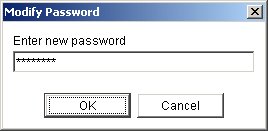
This field contains the password for the iProcess Engine database user. If you have to set or change this password, click Modify and the Modify Password dialog is displayed.
Enter the correct password and click OK and the Database Configuration dialog (Continued) is returned. Note: You do not have to specify this field if SQL Server (Windows Authentication) is selected from the Database Type list.
|
||||||||||
|
Enter the user name of the iProcess Engine table’s owner. The default value of this field is swpro. For more information, see Setting Up SQL Server Authentication. Note: You do not have to specify this field if SQL Server (Windows Authentication) is selected from the Database Type list.
|
||||||||||
|
This field contains the connection string used in the JDBC connection. If you select Oracle or Oracle Real Application Cluster (RAC) from the Database Type list and select the The path of the tnsnames.ora file check box, the This is modified only if you are instructed to do so by TIBCO Support. Note: If the
tnsnames.ora file is used, the connection string in the JDBC URL field, that is jdbc:oracle:thin:@SID, is recorded in the eaijavaplugin.properties file, which is located in the SWDIR/eaijava directory of the machine on which TIBCO iProcess Engine is installed. |
||||||||||
|
Cluster Details |
Note: This field is applicable only when you select Oracle Real Application Cluster (RAC) from the Database Type list.
The cluster details consists of one or more entries, each identifying the appropriate host and port on which the database is being hosted. Click Add to Cluster to add an entry to this field, an entry for the host and port currently identified in the Host and Port fields is added. Add additional entries by modifying the Host and Port field, then click Add to Cluster again. Each entry must be unique. Select the desired entry, then click Remove from Cluster to remove the entry from the Cluster Details field. (Note that if you mistakenly remove the wrong entry, you can re-enter it by simply clicking Add to Cluster — the Host and Port fields will contain the host and port information for the removed entry.) Note: The installation program only validates the JDBC URL for the Oracle RAC, not each node listed in the Cluster Details field. This also means that an instance of the Oracle RAC listed in the Cluster Details field might be running at installation-time, and no warning is issued.
|
|||||||||