Running BWC Tool
ActiveMatrix BusinessWorks Service Agent can connect to the database that the iProcess engine is used for by running the BWC tool.
After installing TIBCO iProcess Technology Plug-ins, the following two options are added in the eaijavaplugin.properties file located in the SWDIR/eaijava directory:
|
—
|
eaijava.db_use_new_mechanism=true
|
|
—
|
eaijava.db_use_bw_config=true
|
Note: If the value of the eaijava.db_use_new_mechanism option is any value not true or empty, the plug-in takes the value as false.
By default, these two options are set to true. After running the BWC tool, a BWCTool.cfg file is generated, which is used by BusinessWorks Service Agent to access the IPE database. Therefore, when a delayed release error occurs, TIBCO ActiveMatrix BusinessWorks Plug-in for iProcess calls the SW_DELAYED_RELEASE_ERR stored procedure in the iProcess database to send the error message to the iProcess engine.
|
•
|
If you want to use the old mechanism of the 11.4 release for the Delayed Release function, you have to set the eaijava.db_use_new_mechanism option to false. |
|
•
|
If you want to use the mechanism of the 11.5 release for the Delayed Release function, you have to set the eaijava.db_use_new_mechanism option to true and the eaijava.db_use_bw_config option to true.
|
Note: Before running the tool, make sure the JDK path in the BWCTool.tra file that is currently in use is correct.
To run the BWC tool, follow these steps:
|
1.
|
Copy the JDBC driver of the iProcess Engine database to the TIBCO_HOME/bw/version/lib folder. |
|
2.
|
Add the JDBC path to TIBCO class path in the BWCTool.tra file located in the TIBCO_HOME/bw/plugins/iprocess/bin folder: |
tibco.class.path.extended=%TIBCO_BW_PLUGIN_HOME%/lib/palettes; JDBC path
tibco.class.path.extended=%TIBCO_BW_PLUGIN_HOME%/lib/palettes: JDBC path
Note:
If you are using Windows authentication mode for SQL Server identity authentication, you also have to copy the sqljdbc_auth.dll file to the system path:
|
—
|
To run the BWC tool on a Windows (64-bit) machine, copy the sqljdbc_auth.dll file to the C:\WINDOWS\System32 directory and make sure that the PATH system environment variable of the machine includes the C:\WINDOWS\System32 directory. |
You can download the sqljdbc_auth.dll file at http://www.microsoft.com/en-us/download/details.aspx?id=11774.
|
3.
|
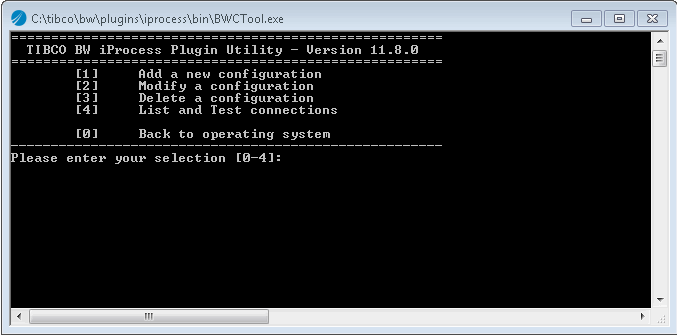
Open the TIBCO_HOME/bw/plugins/iprocess/bin folder and run BWCTool. A command prompt is displayed. |
|
4.
|
Enter 1 to add a new configuration; then press Enter. |
|
5.
|
Provide the iProcess engine and database information accordingly when you are prompted. |
|
6.
|
Press 0 (zero) to exit the command prompt. |
After running the BWC tool, a BWCTool.cfg file is generated with provided database information in the TIBCO_HOME/bw/plugins/lib/palettes directory, which is used by BusinessWorks Service Agent to connect to the database.
Note: You must add the configurations for each machine in the Windows Cluster setup.