Deadlines
|
1.
|
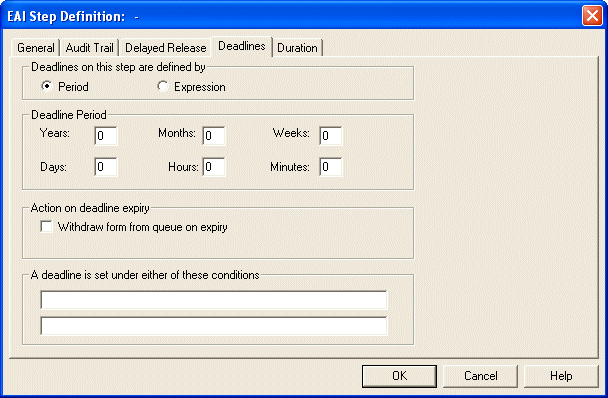
Click the Deadlines tab if you want to enter deadline information for this step. See “Using Deadlines” in TIBCO iProcess Modeler Basic Design for an explanation of defining deadlines. |
You can enter a deadline either as a period (defined in years, months, weeks, days, hours or minutes) or as an expression. If you select Expression you can:
|
—
|
Specify a deadline by defining a date expression. For example, the following expression: |
ap_date + @0/2/0/0@
is a date expression that is the date of application plus two weeks using the formula of @days/weeks/months/years@. The expression is evaluated at the time the step is sent out. For more information on expressions, see TIBCO iProcess Expressions and Functions Reference Guide.
|
—
|
Specify a deadline by defining a time expression. For more information on expressions, see TIBCO iProcess Expressions and Functions Reference Guide. |
Note: Do not select the Withdraw form from queue on expiry check box. Withdraw is not supported for an EAI BusinessWorks step.
|
—
|
If you select A deadline set under either of these conditions, you can enter any deadline conditions required. You can set a deadline to only take effect if a certain condition is true. For example, a deadline could be set if the anticipated completion date for the property purchase is less than 4 weeks after the application date. This condition is evaluated when the step is sent out. |
|
2.
|
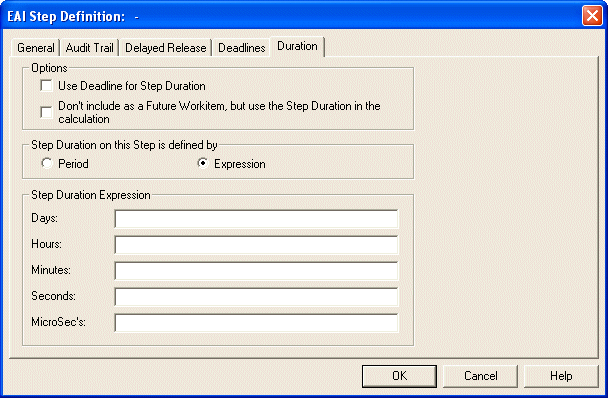
Click the Duration tab if you want to enter the step duration if you are using case prediction. See “Using Case Prediction to Forecast Outstanding Work items” in TIBCO iProcess Modeler Advanced Design for an explanation of using case prediction. |
|
—
|
Select Use Deadline for Step Duration if you want to set the step duration to be the same as the deadline. This means you do not have to manually set the duration to be the same as the deadline. |
|
—
|
Select Don’t include as a future WorkItem, but use the Step Duration in the calculation if you want to exclude the step from prediction. For example, you may want to exclude broker and EAI steps because these steps are processed automatically. This means that although these steps are taken into account as part of the case prediction, they do not appear in the outstanding step list. |
|
—
|
Specify whether the duration should be defined as a Period or an Expression, and then enter the period or expression in the remaining fields. For more information on expressions, see TIBCO iProcess Expressions and Functions Reference Guide. |
|
3.
|
Click the General tab, then click EAI Call-Out Definition. The BusinessWorks Step Definition wizard is displayed. |