The Define the BusinessWorks to iProcess Mappings Dialog
To define the data that is sent from the BusinessWorks process definition to the iProcess Engine procedure:
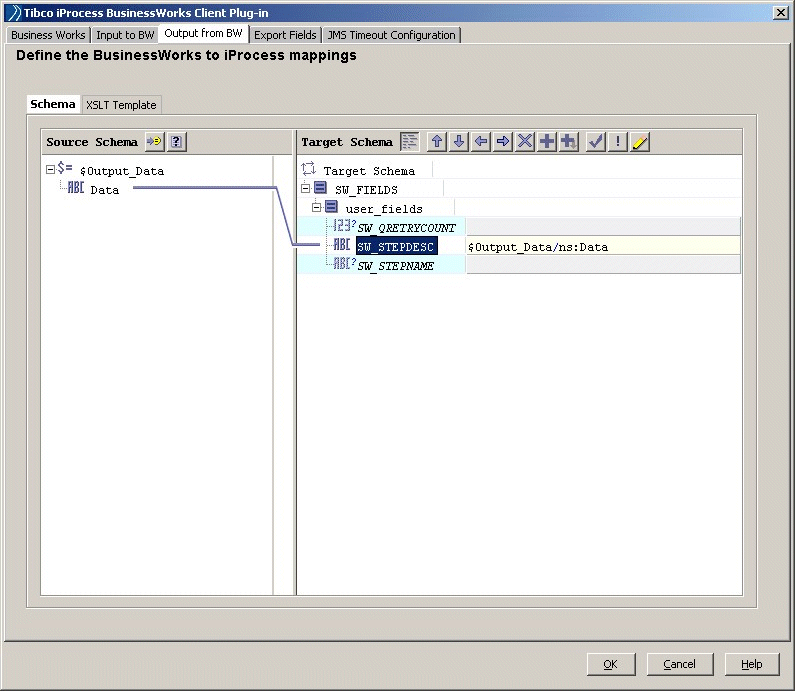
Note that:
| — | The elements in iProcess Engine array fields start at 0. However, XML arrays start at 1. If you map an iProcess Engine array to a BusinessWorks array, the 0 array field element from the iProcess Engine array field is automatically mapped to the 1array field element in the BusinessWorks field, the iProcess 1 field to the BusinessWorks 2 field, and so on. Similarly, if you map an individual iProcess array field to a BusinessWorks field, the iProcess 1 field will map automatically to the BusinessWorks 2 field, and so on. The only exception is that the XML Mapper does not allow you to enter an index of 0, so you cannot map the 0 field in an iProcess array directly to a BusinessWorks field. |
| — | If you attempt to write to any read-only SW_name iProcess fields, an error will result. These fields are listed in the section "Using Delimiters and Key Words" in TIBCO iProcess™ Modeler - Basic Design. |
| — | Some of the fields in the target schema are required. If you leave them empty, the field names will turn red. You can click  to check which field values are invalid. to check which field values are invalid. |
Note: The BG process might crash if the process contains invalid field values.
| — | If the BusinessWorks process definition you want to map iProcess Engine data to has an invalid schema, then blank mapping screens are displayed or no mapping screen is displayed at all. In this situation, you need to go back to your BusinessWorks process definition and check the schema definition. |
| — | Although the XML Mapper used in the iProcess Client Plug-in for ActiveMatrix BusinessWorks is the same as the XML Mapper used in TIBCO ActiveMatrix BusinessWorks, some XPath functions are not supported. See Unsupported XPath Functions for more information. |
| — | For more information about the XML Mapper see: |
| — | "Mapping and Transforming Data" in TIBCO ActiveMatrix BusinessWorks Process Design Guide for a complete explanation of the XML Mapper. |
| — | "Buttons, Menus and Icons" in TIBCO ActiveMatrix BusinessWorks Process Design Guide for an explanation of toolbar buttons, popup menus, and icons. |
| — | "Icons for Schema Element Datatypes" in TIBCO ActiveMatrix BusinessWorks Process Design Guide for an explanation of the schema elements and their associated icons. |
Click the XSLT Template tab to view the XSLT you have created as a result of the field mappings you have set in the Schema tab.
| 2. | Click Next. The Export iProcess Fields dialog is displayed. |