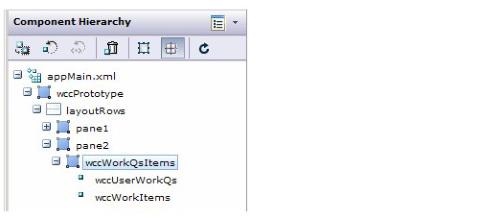
To subscribe to events for a particular component, in the Component Hierarchy palette, click on the component that will be subscribing to events published by other components:
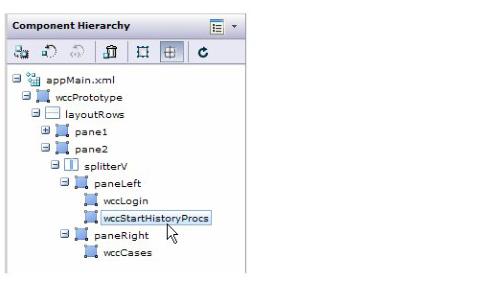
Click on the Events tab to display the Events Editor. A dialog similar to the following is displayed.
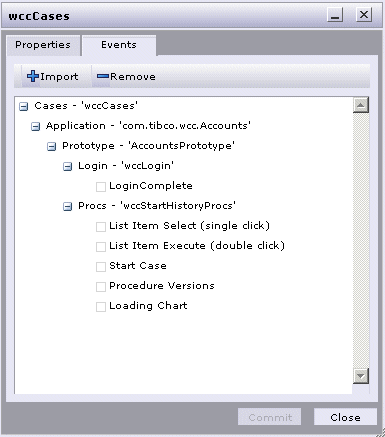
In the example above, the wccCases component (the one we are configuring) can subscribe to events published by the
wccLogin and
wccStartHistoryProcs components — they are the other components that have been added to the application so far. The
wccLogin component is publishing one event to which the
wccCases component can subscribe; the
wccStartHistoryProcs component is publishing five different events to which the
wccCases component can subscribe.
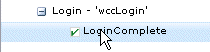
Note that although all events published to the PageBus are shown in the Events Editor, it may not make sense to subscribe to some events in the context of the component you are configuring. For instance, when configuring the wccCases component, it does not make sense to subscribe to the “Login Complete
” event on the
wccLogin component. It does make sense, however, to subscribe to the “List Item Select (single click)” event on the
wccStartHistoryProcs component to display the case list for the procedure that was selected.
With this composite component, the wccWorkItems component automatically subscribes to the “List Item Select (single click)” event on the
wccUserWorkQs component — you do not need to configure any events between those components. You will only need to specify the event to which the
wccWorkQsItems composite component will subscribe (which is likely the “Login Complete” event on the
wccLogin component).
In fact, if you select a composite’s underlying component in the Component Hierarchy, then display the Properties/Event Editor, the Events tab is disabled, as those components cannot subscribe to events. (Note, however, other components may subscribe to the events published by the underlying components.)
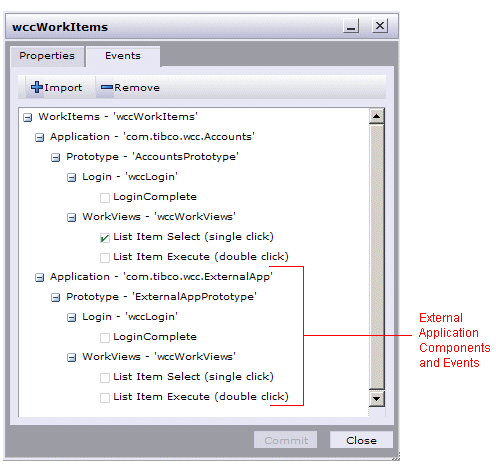
Because TIBCO iProcess Workspace (Browser) components need to communicate with applications that exist outside of their own application, the Events Editor provides an Import function that is used to import
event definition files that contain the definitions of events in external applications. This allows you to see, and subscribe to, events in the Events Editor that are being published by external applications.
TIBCO® General Interface Builder provides an Application Publish Definer that is used to create an event definition file from within the external application. You can then import that file into another WCC application and subscribe to the events published by the external application.
where WorkspaceDir is the workspace directory you specified after starting TIBCO
® General Interface Builder, and
WCCProjectName is the name you gave the WCC Project when creating your custom application with the iProcess Workspace (Browser) components.
where WorkspaceDir is the workspace directory you specified after starting TIBCO
® General Interface Builder, and
WCCProjectName is the name you gave the WCC Project when creating your application with the iProcess Workspace (Browser) components.
where WorkspaceDir is the workspace directory you specified after starting TIBCO
® General Interface Builder, and
WCCProjectName is the name you gave the WCC Project when creating your custom application with the iProcess Workspace (Browser) components.