Copyright © Cloud Software Group, Inc. All Rights Reserved

Chapter 14 ASP Forms : ASP Form Example

ASP Form Example
A Microsoft Visual Studio .NET 2003 project that defines an example ASP form is provided with the iProcess Workspace. This example can be used as a starting point to create your own custom ASP form project.
The example .NET project is located in the following directory:
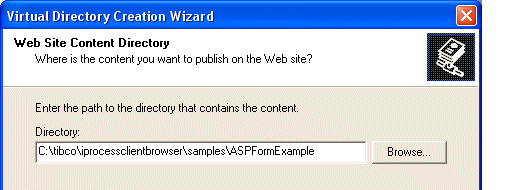
InstallationHomeDir\iprocessclientbrowser\samples\ASPFormExample
where InstallationHomeDir is the directory in which the installer places administrative files, such as the uninstaller, documentation, and sample code. This defaults to C:\tibco on Windows systems, and /opt/tibco on UNIX systems, but can be specified as a different directory when the TIBCO iProcess Workspace is installed.
The following sections describe how to implement this example.
Setting Up the ASP Form Project in IIS
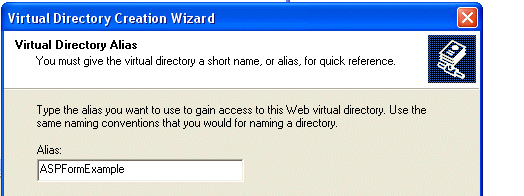
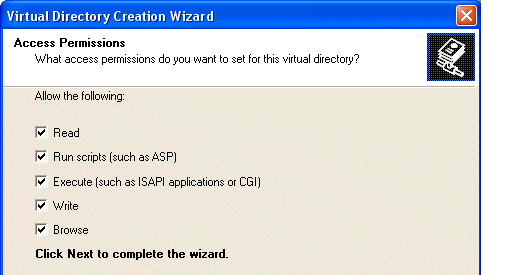
Perform the following steps to set up the Microsoft Visual Studio .NET 2003 ASP form project in Microsoft Internet Information Services (IIS):
1.
2.
3.
4.
5.
Open Visual Studio .NET 2003 and select File > Open > Project From Web, then enter the URL to the project. The path will be:
   http://Host:Port/ASPFormExample
where:
Host is the name of the machine on which you’ve installed the ASP form project.
Port is the port used by IIS to communicate with web applications.
The Open Project dialog is displayed.
6.
Select and open the ASPFormExample.csproj file.
7.
In Visual Studio, select Build > Rebuild Solution.
You will be prompted to save the solution file (.sln).
8.
Save the solution file in the ASPFormExample directory.
9.
In Visual Studio, right click on ASPForm.aspx in the Solution Explorer window and select Set As Start Page.
10.
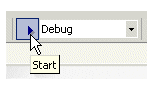
In Visual Studio, select Debug in the Solution Configuration drop-down list, then click the start arrow to the left of the field.
Visual Studio will connect to IIS, allowing you to develop and debug the ASPFormExample project. (A browser window may appear with the ASPForm.aspx page displayed containing an error message — you can ignore this message and close the browser window.)
Configuring iProcess Workspace to Use the ASP Form
Perform the following steps to configure the iProcess Workspace to use the ASP form:
1.
Set the ExternalFormURI parameter in the Action Processor’s configuration file, apConfig.xml. This specifies the base URL of the Web Application Server (IIS in this case) that is hosting your ASP Forms. For information about this parameter, see External Form URI.
2.
Create a procedure and define a normal step, or import ASPForm.xfr (which is included in the ASPFormExample project).
3.
4.
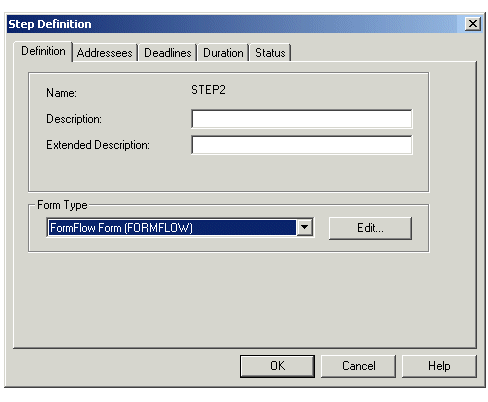
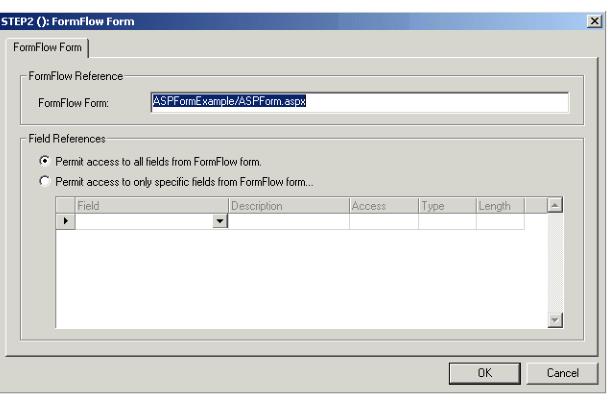
Click the Edit button on the Step Definition dialog. The FormFlow Form dialog is displayed.
5.
Enter the location of the ASPForm.aspx file. Don't enter the full URL, as the base URL location is defined in the ExternalFormURI parameter (see step 1). Only enter the portion of the URL that is unique to the step.
6.
7.
Edit the ASPFormExample example project for the desired form layout and fields to be displayed.
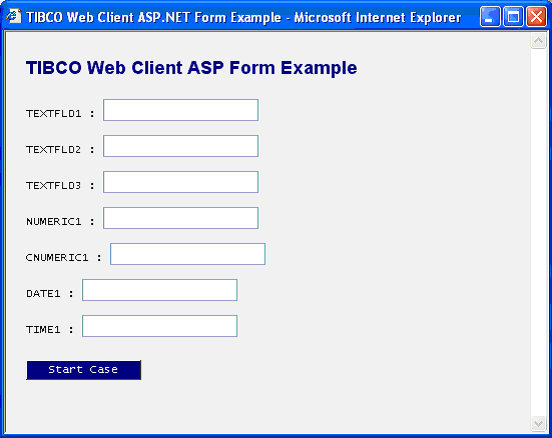
Define the field names in the fieldNames array, the types in the fieldTypes array, and the date format in the dateFormat string.
The field names should correspond to the iProcess Engine procedure field names. The arrays are defined in ASPForm.aspx, as follows:

 
String [] fieldNames = {"TEXTFLD1", "TEXTFLD2", "TEXTFLD3",                        "NUMERIC1", "CNUMERIC1", "DATE1", "TIME1"};
 
String [] fieldTypes = {"swText", "swText", "swText", "swNumeric",                        "swComma", "swDate", "swTime"};
 
String dateFormat = "MDY";

 
The dateFormat variable can be set to “MDY”, “DMY”, or “YMD”, to indicate the order of the day, month, and year in date fields. (Time fields will be displayed in the hh:mm format.)
The position and look of these fields can be defined in the ASPForm.css cascading style sheet. For example:
#TEXTFLD1marking {
   position:relative;
   left:75px;
   top:0px;
   width:240px;
}
ASP Form Interface
The ASPForm.aspx form makes use of the interfaces defined in the ASPFormLib.cs library in order to do a start case, lock item, release item, keep item, and undo item. These interfaces construct and make the request to the Action Processor. The ASPFormLib public interfaces available are as follows:
ASPFormLib Constructor
The constructor initiates the ASPFormLib with the request and field information.

 
public ASPFormLib (HttpRequest aRequest,
                   string [] aFieldNames,
                    string [] aFieldTypes)

 
getRequestType
This method returns the type of the request.

 
public int getRequestType()

 
The getRequestType method returns one of the following constant int values:
getInitXML
This method returns the details of the XML generated by an Undo, Keep or Release button click on the form.

 
public string getInitXML()

 
startCase
This method creates and submits an Action Processor StartCase request.

 
public void startCase()

 
undoItem
This method creates and submits an Action Processor UndoItems request.

 
public void undoItem()

 
lockItem
This method creates and submits an Action Processor LockItems request.

 
public String [] lockItem()

 
keepItem
This method creates and submits an Action Processor KeepItems request.

 
public void keepItem()

 
releaseItem
This method creates and submits an Action Processor ReleaseItems request.

 
public void releaseItem()


Copyright © Cloud Software Group, Inc. All Rights Reserved