Copyright © Cloud Software Group, Inc. All Rights Reserved

Chapter 16 Customizing iProcess Modeler Forms : Embedding HTML

Embedding HTML
When embedding HTML directly into the iProcess Modeler Form definition, any valid HTML can be included, with a few limitations and considerations, as described in the following subsections.
Word Wrap in the Editor
The editor for the iProcess Modeler Form limits the line length for entering text into the form definition. When typing or pasting HTML code into the form, you may want to set the line length to the maximum value of 128. If the editor does wrap code to a new line, you may need to alter it so that line breaks do not adversely affect the HTML.
Pre-Formatting of the Form
By default, all the text that appears in the form definition is treated as one large block of text with spacing preserved and carriage returns between the lines. Where fields appear in the iProcess Modeler Form, one or more HTML elements will be inserted into that block of text. By default, this block of HTML is enclosed inside an HTML <pre> tag. This preserves all whitespace in the form, including multiple spaces and line feeds. It also limits fonts to monospaced fonts.
Disabling Pre-Formatting
Pre-formatting could interfere with the appearance of some types of HTML you embed. If it does, the pre-formatting can be disabled by including the HTML comment “<!-- DISABLE PRE -->” anywhere in the form definition. When that comment is detected, the HTML <pre> tag will not be placed around the HTML for the form. If there are some isolated sections of your form that still need to be pre-formatted, <pre> tags can be added where needed in the form definition.
Including Scripts
Scripting can also be included in the form. As an example, to disable the context menu for the page, you could include the following block of text anywhere on the form.
<script language="javascript">
   document.oncontextmenu = function (){return false;}
</script>
 
Nesting of HTML Tags with Conditional Statements
Where the iProcess Modeler Form definition includes IF / ELSE / ENDIF conditions, the blocks affected by a condition are enclosed in an HTML <span> tag. Make sure that any opening and closing HTML tags that you add nest properly with these. For instance, you should not put a <B> tag on the line before an IF statement and the matching </B> tag on the line right after the IF. You could, however, put the matching </B> tag after the ENDIF.
Functions Available for Embedded Scripting
Two .js files are imported into the page generated for an iProcess Modeler Form:
spddate.js - Contains functions for date, time, and numeric data conversions.
spdform.js - Contains functions for accessing the work item / case data and performing other interactions with the iProcess Modeler Forms.
Comments inside of spddate.js describe the available functions. The file also contains many private variables and functions. The names of these private variables and functions all begin with the text “_private”. You should not call or access these private items as they are subject to change or removal in future versions.
Comments inside of spdform.js describe the functions that are available for use from scripting. The ones that are specifically for use with HTML embedded directly into the form definition are labeled with the text “Supported in Client Scripting”. Do not use other functions in the file as they are only for use with file-cache customizations, or are private functions that are subject to change or removal in future versions.
These are the functions allowed for use in embedded scripting:
spdSetFieldValue(fieldName, fvalue, spdFormat, spdPreDecimalDigits)
spdGetFieldValue(fieldName, spdFormat, getInitialValue)
spdIsFieldValid(fieldName)
spdSetFieldNotificationFunction(fieldName, notificationFunction)
Use the spdSetFieldValue() and spdGetFieldValue() functions to get and set the values of any work item or case fields whether or not the field is included as a marking. Any change to the field value through these functions will update the information displayed in marking controls on the form.
Separate functions (spdGetWorkItemTag() and spdGetProcTag()) exist for retrieving the work item tag and procedure tag, since these are not actually accessible as case fields.
The spdIsFieldValid() function returns false if invalid data is entered on the form for a field, for example, a date with a value of “13/13/2006”. When the field data is not valid, the field error message will contain a text description of the problem.
The spdSetFieldNotificationFunction() function lets you specify a function to be called when the value of the specified field changes. The function will also be called during initialization of the form if the form includes a marking for the field (including hidden or embedded markings).
Altering the Style of Various Controls
The appearance of the various marking controls is set through a cascading style sheet named spdform.css. You should not directly alter this file, but can include styles to override the values directly in your form definition or add a reference to an additional CSS file to override settings.
The following are the class names for the styles used in the dynamically generated iProcess Modeler Forms:
SPD_CONTAINER - Style for an area containing the entire iProcess Modeler Form. Used to create a border, padding default color and font information.
SPD_MARKING_REQ - Style applied to input controls (text input or select) for required markings.
SPD_MARKING_OPT - Style applied to input controls (text input or select) for optional markings.
SPD_MARKING_EMBEDDED - Style applied to embedded marking data.
SPD_MARKING_READONLY - Style applied to read-only marking data.
SPD_MEMO_BUTTON_REQ - Style applied to memo buttons for editing required memo fields.
SPD_MEMO_BUTTON_OPT - Style applied to memo buttons for editing optional memo fields.
SPD_MEMO_BUTTON_READONLY - Style applied to memo buttons for displaying read-only memo fields.
SPD_MESSAGE - Style applied to a message area that could appear at the top of the form (rarely shown).
SPD_BUTTON - Style applied to the buttons used to trigger the undo, keep, and release actions.
SPD_HELP - Style applied to area/link for displaying field help.
SPD_CALENDAR - Style applied to the area/link for displaying the popup calendar.
SPDCAL_CONTAINER - Style for an area containing a popup calendar (used to set border/padding/ default color/font).
SPDCAL_PREV - Style for the area/link for going to the previous year and month.
SPDCAL_NEXT - Style for the area/link for going to the next year and month.
SPDCAL_HEADER - Style for the heading areas displaying the year and month name.
SPDCAL_WEEKDAYS - Style for the area displaying the abbreviated day names.
SPDCAL_ACTIVEDAY - Style for all selectable days from the displayed month.
SPDCAL_INACTIVEDAY - Style for all the non-selectable days before/after the display month.
SPDCAL_SELECTEDDAY - Style for the currently selected day (or current date if none was already selected).
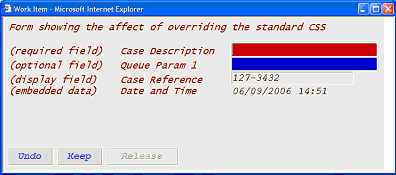
For example, to alter the background color for optional fields (only used if the field is empty), you could include the following in the iProcess Modeler Form definition:
<style>
<!--
.SPD_MARKING_OPT {background-color: #008800 }
-->
</style>
Embedded Customization Examples
The file IPCBrowserExamples.xpdl contains several example procedures illustrating embedded HTML. This file is located in the following directory:
InstallationHomeDir\iprocessclientbrowser\samples\IPCBrowserFormExamples
where InstallationHomeDir is the directory in which the installer places administrative files, such as the uninstaller, documentation, and sample code. This defaults to C:\tibco on Windows systems, and /opt/tibco on UNIX systems, but can be specified as a different directory when the iProcess Workspace (Browser) is installed.
The examples provided are described in the following subsections.
CHECKBOX
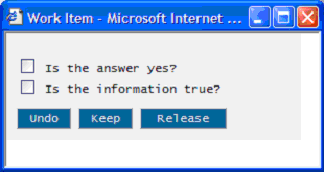
The CHECKBOX example uses check boxes to modify field data.
An input control of the type “checkbox” is included for each field. The onclick event of the check box calls the function spdSetFieldValue() with the appropriate value for the current checked state of the control.
A notification function is defined and is registered with the spdform.js code using the function spdSetFieldNotificationFunction().
RADIOBTN
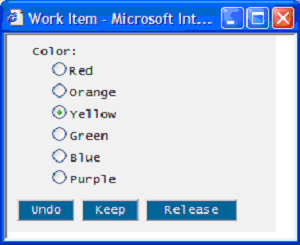
The RADIOBTN example uses radio buttons to modify field data. The setup of a set of radio buttons is very similar to the check box example, except that each field requires multiple input controls, one for each radio button.
SCRIPT
The SCRIPT example lets the user enter a URL on the initial step. The form for the second step shows the URL as an embedded field. The web page for the URL is displayed on the form inside an IFRAME. A button will let the user alter the URL, which will both change the IFRAME to the new page and set the new value for the URL field.
TABFIELD
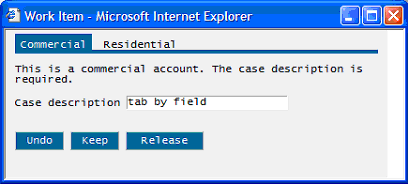
The TABFIELD example creates a set of tabs using HTML <span> elements. Clicking on the tabs will change the value of a hidden field, which in turn causes different conditional sections of the form to be displayed.
TABNOFLD
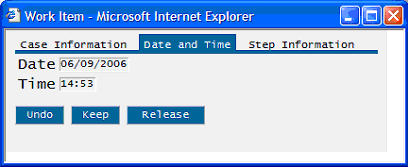
The TABNOFLD example also creates a set of tabs, but it does not use an actual field value or rely on conditional sections of the form.
CSSCHGS
The CSSCHGS example shows changing the appearance of the iProcess Modeler Form through a <style> tag embedded in the form definition.

Copyright © Cloud Software Group, Inc. All Rights Reserved