Copyright © Cloud Software Group, Inc. All Rights Reserved

Chapter 1 Introduction : Overview

Overview
All of the information in this guide can be used to configure and customize either of the following applications:
iProcess Client
The iProcess Client is an application that is provided with TIBCO iProcess Workspace (Browser) that allows you to perform functions such as start cases of iProcess procedures, display case history, view work items in their work queue, etc.
Note, however, the iProcess Client was not built using the TIBCO iProcess Workspace (Browser) components. Therefore, it cannot be opened in TIBCO® General Interface Builder, like a custom application built with components, nor can you use component-specific items like WCC methods (which are described in the TIBCO iProcess Workspace (Browser) Components Reference Guide), to customize the iProcesss Client.
The iProcess Client can be configured and customized only to the extent of what is described in this document.
Details about the functions available in this application can be found in the TIBCO iProcess Workspace (Browser) User’s Guide.
iProcess Client Launch Fragment
When the iProcess Client is installed, a launch fragment is provided that is used to launch the iProcess Client application. This launch fragment is located as follows:
InstallDir\iProcessClient.html
where InstallDir is the directory specified during the installation of TIBCO iProcess Workspace (Browser).
After all installation and configuration tasks are completed, and the Web Application Server hosting the iProcess Client and Action Processor has been started, the iProcess Client can be launched by pointing a browser at the iProcess Client launch fragment:
http://Host:Port/ClientDir/iProcessClient.html
where:
Host is the machine name on which the iProcess Client is being hosted.
This can also be the IP address (either an IPv4 or IPv6 address) of the host machine. Note, however, if it is an IPv6 address, it must be enclosed in square brackets when in a URL. For example:
http://[2001:db8:85a3:8d3:1319:8a2e:370:7348]:port/restOfURL
Port is the port number used by the Web server to communicate with web applications.
ClientDir is the directory (or virtual directory alias) in which you installed the iProcess Client files (which defaults to TIBCOiPClnt).
For example:
http://Roxie:8090/TIBCOiPClnt/iProcessClient.html
Cross-Domain Scripting
Cross-domain scripting is a security vulnerability of web applications. If you trigger cross-domain scripting, and your browser doesn’t allow it, the web application will not run (in the case of an iProcess Workspace (Browser) application, it will state that it is unable to establish a connection to the Action Processor).
Some browsers are more strict about enforcing cross-domain scripting than others; and newer versions of browsers tend to be more strict than older versions. Some browsers also provide methods to allow cross-domain scripting—see your browser’s documentation for more information.
Cross-domain scripting affects accessing iProcess Workspace (Browser) applications in the following ways:
URL used to launch the application - To prevent cross-domain scripting, it is best practice to ensure that the domain portion of the URL that is entered into the address line of the browser exactly matches the domain portion of the Action Processor URL specified in the application’s config.xml file.
The domain consists of the "http://Host:Port" part of the URL.
The domain used to launch the application cannot differ in any way from the Action Processor’s specified domain, otherwise cross-domain scripting may be triggered (depending on your browser). That is, you cannot use "http" in one and "https" in the other; you cannot use a host name in one and an IP address in the other; one host name cannot be unqualified and the other qualified; you cannot use "localhost" in one and "127.0.0.1" in the other.
To determine if cross-domain scripting is being used, the browser simply compares the URL domains as strings.
Running the application from the local file system - Because of the security risk of cross-domain scripting, some browsers will not allow you to run a web application (including the iProcess Client) from the local file system.
Note that you would typically only run the iProcess Client or a WCC application from the file system in a testing and development environment. In a production environment, it is expected that the application will be deployed to a Web server and run from there.
Launching the iProcess Client in an HTML Frame
To be able to launch the iProcess Client in an HTML frame (for example, an iframe in a portal), you must make some modifications to the launch fragment for the application.
Prior to launching the iProcess Client in a frame:
1.
2.
3.
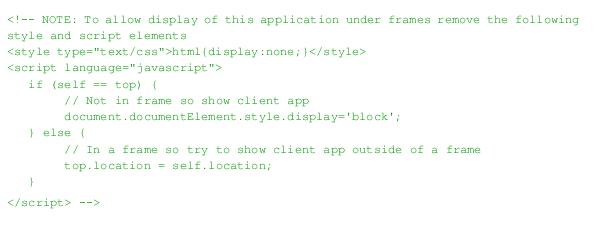
Remove (or comment out) the <style> and <script> elements immediately after the note. For example:


4.
5.
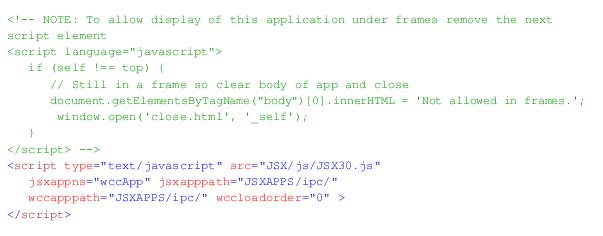
Remove (or comment out) the <script> element immediately after the note (do not, however, remove the second <script> element following the note). For example:


6.
Custom Application Built with Components
Custom applications that are built with TIBCO iProcess Workspace (Browser) components1 can be configured and customized using any of the parameters described in this document. Plus, they can further enhanced using things like WCC methods and the JavaScript Interface, which are described in the TIBCO iProcess Workspace (Browser) Components Reference Guide.
Also see the TIBCO iProcess Workspace (Browser) Components Concepts Guide for information about how to create a custom application using components.

1
Also commonly called “WCC” components.


Copyright © Cloud Software Group, Inc. All Rights Reserved