Copyright © Cloud Software Group, Inc. All Rights Reserved

Chapter 10 Localization : Localizing the iProcess Workspace (Browser)

Localizing the iProcess Workspace (Browser)
This chapter describes how to manually localize your TIBCO iProcess Workspace (Browser) client application.
Note that TIBCO has language packs available for selected languages, that when installed, localize your client application to the language for that language pack. For information about the available language packs, contact your TIBCO representative.

If the desired language is not available in a language pack, you can use the procedure described in this chapter to manually localize your client application.
Localizing the TIBCO iProcess Workspace (Browser) involves the following steps:
Modify an existing, or create a new, TIBCO® General Interface system locale file. These files contain localized resources utilized by the TIBCO® General Interface framework.
These steps are described in detail in the following subsections, using Spanish as an example of the new language being added to the iProcess Workspace (Browser).
Note that each localized language is represented by a two-letter code, in the format:
where ll is a lowercase, two-letter ISO 639 language code. For a list of language codes, visit the following web site:
http://www.loc.gov/standards/iso639-2/langhome.html
Each country is represented by a two-letter code, in the format:
where CC is an uppercase, two-letter ISO 3166 country code. For a list of country codes, visit the following web site:
http://www.iso.ch/iso/en/prods-services/iso3166ma/02iso-3166-code-lists/index.html
A locale key is a string representation of a locale that includes a language and a country code in the following format:
Create a New Localized Language Resource File
You must create a resource file that contains a collection of application text strings that have been translated to a specific language and may be localized for language variations used by individual countries.
Perform the following steps to create a new language resource file:
1.
a.
b.
c.
2.


3.
ClientInstallDir\JSXAPPS\ipc\locale\locale.xml

4.
Note - Only copy children of the <locale> elements that do not have a key attribute.
5.


6.
Translate the value of every jsxtext attribute in the newly created file to language-specific values.
Note - Any record elements that are deleted from the new language resource file will cause the iProcess Workspace (Browser) to “fallback” to the record that is defined in the default (English) locale file.
7.
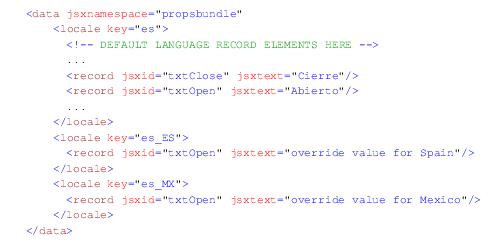
For each country-specific locale, create a <locale> element (within the root <data> element) and specify the locale key as the value of the key attribute. Insert record elements into each new <locale> element, that are to “override” default language records, with matching jsxid attribute values.


In the example above, the default Spanish language text of “Abierto” will be replaced with country-specific values when either the Spanish (Spain) or Spanish (Mexico) locales have been selected by the user as the language for the iProcess Workspace (Browser).
Any records not explicitly overridden in country-specific locales will “fallback” to the default language definition (e.g., “Cierre” in the example above).
8.
   ClientInstallDir\JSXAPPS\ipc\locale\locale.ll.xml
or (if of type c in step 1):
   ClientInstallDir\JSXAPPS\ipc\locale\locale.ll_CC.xml
where ll in the filename is the language code, and CC is the country code (e.g., locale.es.xml - for Spanish; locale.es_MX.xml - for a Mexico-only translation) and ClientInstallDir is the path to the directory in which the iProcess Workspace (Browser) is installed.
Configure the New Localized Language in the iProcess Workspace (Browser)
Perform the following steps to configure the new localized language in the iProcess Workspace (Browser):
1.
a.
Open ClientInstallDir\JSXAPPS\ipc\locale\locale.xml and edit the value of the locales attribute of the root <data> element.
b.


Adding the language code to locale.xml provides the necessary configuration to support the “override” and “fallback” relationship between the new file and the default language resource file.
Modify or Create a TIBCO® General Interface System Locale File
Some of the text that is displayed in the iProcess Workspace (Browser) application originates from the TIBCO® General Interface (GI) system locale files. Although several formats and text strings are defined in these GI locale files, only a few text items will ever display in the iProcess Workspace (Browser).
By default, GI is already localized for many languages and countries, however, some of the text displayed in the iProcess Workspace (Browser) is only defined in the default GI system locale file (English), and must be inserted and translated into other locale files as required.
For this version of the iProcess Workspace (Browser), TIBCO® General Interface supports the following languages and countries:
 
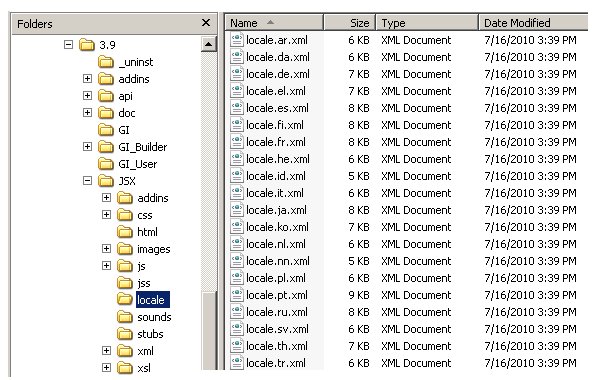
The language resource files for these locales are stored at the following path:
ClientInstallDir\JSX\locale\
where ClientInstallDir is the path to the directory in which the iProcess Workspace (Browser) is installed. For example:

As with the iProcess Workspace (Browser), the default GI language resource file is locale.xml (English). If the locale resource files already defined by TIBCO® General Interface do not support the desired localization being created for the iProcess Workspace (Browser), a new GI system locale file must be created using the following steps:
1.
2.
Perform Step 1 of the section, Configure the New Localized Language in the iProcess Workspace (Browser) of this document, substituting ClientInstallDir\JSX\locale\ as the file path.
If TIBCO® General Interface already provides a locale resource file for the desired localization, perform the following steps to add text resources, utilized by the iProcess Workspace, into the locale file:
1.
Open the XML file corresponding to the language of the new localization (e.g., ClientInstallDir\JSX\locale\locale.es.xml) and open the default GI system locale file: ClientInstallDir\JSX\locale\locale.xml.
2.
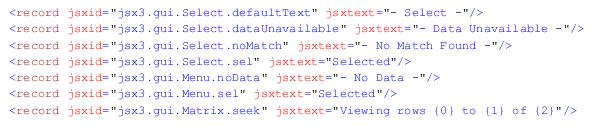
Copy the following record elements from locale.xml into the locale file of the new localization (under the <locale> element whose key attribute value matches the locale key of the new localization):


3.
Translate the value of the jsxtext attributes to the desired language.
4.
Save the locale file (e.g., ClientInstallDir\JSX\locale\locale.es.xml).
Translate User Access Profiles Descriptions
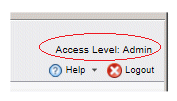
User access profiles define the functionality available to various types of iProcess Workspace (Browser) users. The description of the profile defined for the logged-in user is displayed in the upper-right part of the application:
In the example above, “Access Level: Admin” is defined as the user access profile description for Admin-level users.
To localize user access profile descriptions, locate the <Profile> elements in the ClientInstallDir\JSXAPPS\ipc\userAccessProfiles.xml file (where ClientInstallDir is the path to the directory in which the iProcess Workspace (Browser) is installed), and change the description attributes to the desired language.
Set the New Default Language for the iProcess Workspace (Browser)
Set the new default language using one of the following methods:
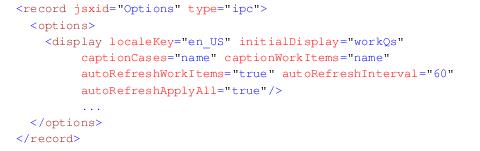
Modify the config.xml file to specify the default localeKey, as follows:


Or, specify the language on the Options dialog in the application. For information about setting options in the application, see the TIBCO iProcess Workspace (Browser) User's Guide.
Create a New Folder to Hold Localized Help Files
If you have help files that have been localized, they need to be copied to the appropriate folder so that the iProcess Workspace (Browser) can find them based on the locale under which the application is running.
Perform the following steps to create the folders necessary to hold the localized help files for the iProcess Workspace (Browser).
1.
ClientInstallDir\Help\language\ll
where ClientInstallDir is the path to the directory in which the iProcess Workspace (Browser) is installed, and ll is the two-letter language code for the help files.
If the help files are not country-specific and will be applicable for all locales of this particular language, proceed to Step 2 to store the files in this new language folder.
If your help files are localized for specific countries, create another folder beneath this new language folder, using the two-letter country code for the folder name (e.g. ClientInstallDir\Help\language\ll\CC). Proceed to Step 2 to store the files in this new country folder.
2.

Copyright © Cloud Software Group, Inc. All Rights Reserved