Copyright © Cloud Software Group, Inc. All Rights Reserved

Chapter 11 IPC Tools Methods : IPC Tools Methods Sample

IPC Tools Methods Sample
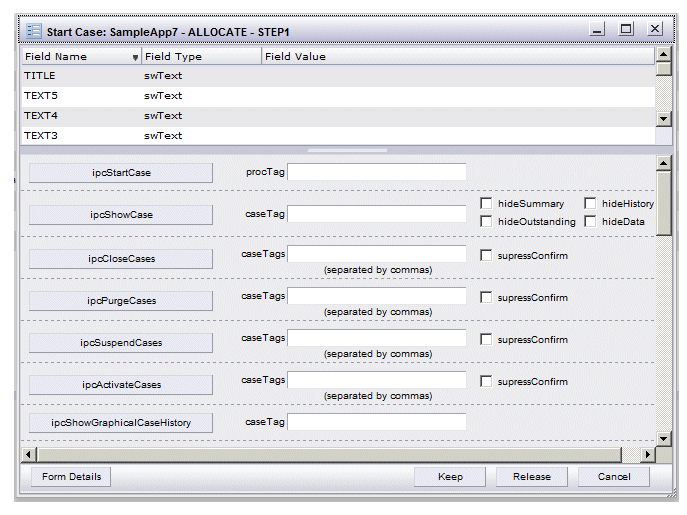
A sample custom GI form is provided that demonstrates how the IPC tools methods can be invoked from a custom GI form.
The sample custom GI form includes, a button for each of the IPC tools methods. The names on the buttons correspond to the method names:
After setting up the sample (which is described below), you can open the ipcToolsMethodsForm.js file in the following directory to see how the methods were implemented on the custom form shown above:
InstallDir\JSXAPPS\ipc\components\Forms\ipcToolsMethodsForm\
where InstallDir is the directory specified during the installation of TIBCO iProcess Workspace (Browser).
Note that this sample requires that you have a procedure deployed on your server. It can be any procedure; you will be using it to display the custom GI form shown above, for the purpose of demonstrating the IPC tools methods.
To set up and use the IPC tools methods sample:
1.
   InstallDir\Samples\ipcToolsMethodsForm\
And paste it into the following directory:
   InstallDir\JSXAPPS\ipc\components\Forms\
where InstallDir is the directory specified during the installation of TIBCO iProcess Workspace (Browser).
2.
Open the iProcess Client’s config.xml file, which is located in the following directory:
   InstallDir\JSXAPPS\ipc\
3.
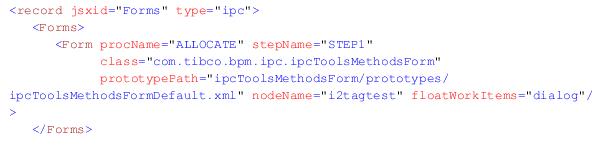
Locate the jsxid="Forms" record in the config.xml file, and add a <Forms> element for the custom GI form in the sample. An example is shown below:
The attributes in the <Forms> element are described below (note that optional attributes can be either omitted or set to a zero-length string).
procName (required) - The name of the procedure in which the custom GI form provided in the sample will be displayed.
stepName (required) - The name of the step on which you want the custom GI form provided in the sample to be displayed. Likely, this will be the first step in the procedure so that the custom form is displayed when a case of the procedure is started.
class (required) - The name of the class that defines the custom form. This is the sample ipcToolsMethodsForm class.
prototypePath (optional) - The path to the prototype for the custom form, relative to the forms root directory (which defaults to ‘JSXAPPS/ipc/components/Forms/’).
nodeName (optional) - The name of the TIBCO iProcess Objects Server on which the procedure specified in the procName attribute (see above) is defined. This attribute is optional. If it is not specified, any server will match.
major (optional) - The “major” portion of the procedure version number. For example, if the procedure version is 3.2, major = “3”. The default is the most recent.
minor (optional) - The “minor” portion of the procedure version number. For example, if the procedure version is 3.2, minor = “2”. The default is the most recent.
floatWorkItems (optional) - This attribute specifies whether the custom GI form is opened in a separate browser window or a dialog.
The valid entries are “browser” to open the form in a separate browser window, or “dialog” to open the form in a dialog within the browser running the application. If omitted, or set to any other value, the value selected in the "When opening a floating work item form, open it in" option on the application’s Options dialog is used.
4.
If there was already a custom GI form specified in the config.xml file for the procedure and step you added in step 3, comment out the original one until you are done using this sample. Once you are done with the sample, you can uncomment the original, then remove the <Form> element you added in step 3.
5.
Locate the mapping records in the config.xml file (search for ’type="map"’), and add the following new record, which maps to the ipcToolsMethodsForm class:
Note that the jsxid value for the map-type record (5 in this example) is arbitrary, that is, you can specify any value desired (the jsxid is not used in this context).
6.
Start the iProcess Client, then start a case of the procedure you specified in the <Form> element in step 3. If you specified the name of the first step in the stepName attribute, the custom form showing the IPC tools methods is displayed; if you specified a different step, you will need to progress the case to get to the step you specified.
Most of the IPC tools methods expect a tag of some sort (e.g., case tag, work item tag, etc.). Tags are intentionally opaque, that is, we do not provide the information needed to build them — you are expected to acquire them in one of the following ways:
Tags can be acquired through the iProcess Server Objects object model, specifically using the getTag and makeTag methods. For information, see the TIBCO iProcess Server Objects (Java or .NET) Programmer’s Guide.
For additional information about GI Forms, see the GI Forms Interface chapter in the TIBCO iProcess Workspace (Browser) Configuration and Customization guide.

Copyright © Cloud Software Group, Inc. All Rights Reserved