|
| Copyright © Cloud Software Group, Inc. All Rights Reserved |
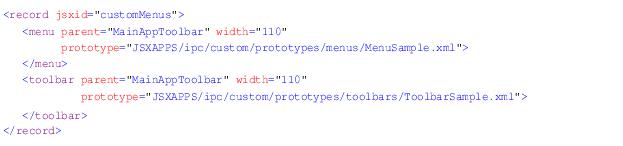
The record element that specifies a custom menu or toolbar button has a jsxid attribute value of customMenus:![]()

The <record jsxid="customMenus"> element can have either toolbar or menu child elements. Both the toolbar and menu elements have three attributes:
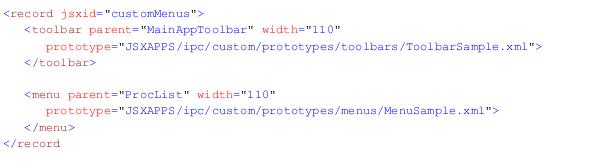
• parent - The name of the menu or toolbar location. The following values are valid:
• width - The display width in pixels.
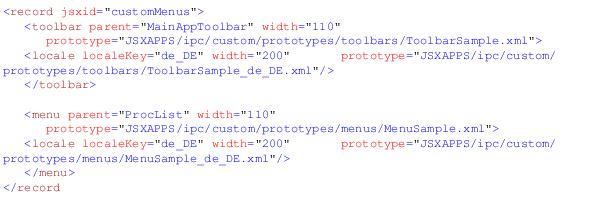
• prototype - The path to the default prototype XML file. This is the TIBCO® TIBCO® General Interface prototype that defines the GUI components for the menu or toolbar.ClientInstallDir\JSXAPPS\ipcThe following example shows a toolbar and a menu element taken from the samples given in config.xml:![]()
Both the toolbar and menu elements may also have optional locale child elements that define prototype XML files that are localized for specific languages. If a locale child element exists, and it corresponds to the language and locale currently selected by the user, the language-specific prototype is loaded, otherwise the default prototype is loaded. For more information on customizing the client application for language localization, see Localization.Each locale child element has three attributes:
• localeKey - Locale identifier. This value must correspond to one of the locale element key attributes defined in the JSXAPPS\ipc\locale\locales.xml configuration file. For example:
• width - The display width in pixels.
• prototype - The path to the prototype XML file containing language-specific data. This is the TIBCO® General Interface prototype that defines the GUI components for the menu or toolbar.ClientInstallDir\JSXAPPS\ipc![]()
There is an example entry in config.xml for each of the valid parent attribute values. These examples make reference to the sample files that can be found under the installation home directory:InstallationHomeDir\iprocessclientbrowser\samples\CustomMenuswhere InstallationHomeDir is the directory in which the installer places administrative files, such as the uninstaller, documentation, and sample code. This defaults to C:\tibco on Windows systems, and /opt/tibco on UNIX systems, but can be specified as a different directory when the TIBCO iProcess Workspace (Browser) is installed.The files in the ...\CustomMenus directory show examples of how to use both menu and toolbar prototype XML files and handle the events using a CustomEventHandler class.The sample custom menus and toolbars can be installed using the steps listed below. These same steps can be used to install actual custom menus and toolbars, substituting the actual custom prototype, JavaScript, and image files and config.xml entries. See the TIBCO® General Interface Builder documentation for details on creating custom menu or toolbar prototype files.
1. Create a custom directory under the application root:Any valid directory name can be used. The “custom” directory name is used in the sample entries shown in config.xml.Note that the custom directory structure, and the examples in config.xml, include samples for localizing the client application in German (locale de_DE). These files provide an example of the structure necessary to provide language-specific support, however, to utilize these localized files, the client application must be configured for German language support (see Localization).
3. In config.xml, add menu or toolbar elements under the <record jsxid=”customMenus”> element. (Uncomment the samples shown in the description for <record jsxid=”customMenus”>.)
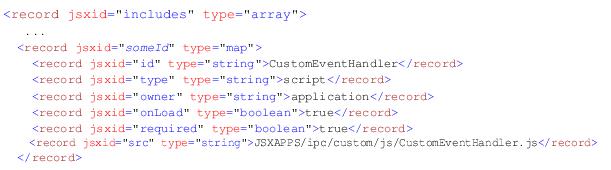
4. Add a new mapping record in the config.xml file as a child element under <record jsxid=”includes” type=”array”> for CustomEventHandler.js as shown below:![]()
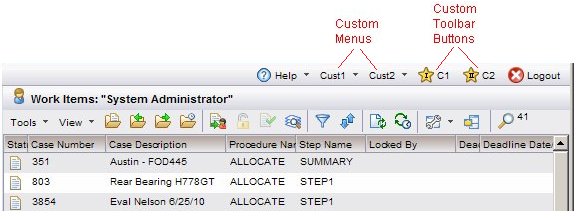
Note - The someId in the jsxid attribute can be any number as long as it’s unique among the mapping records in the config.xml file.InstallationHomeDir\iprocessclientbrowser\samples\CustomMenusTherefore, these instructions assume you have configured custom menus and toolbar buttons as described in Adding Custom Menu Items and Toolbar Buttons (i.e., you’ve copied the sample code to a custom directory in the ClientInstallDir\JSXAPPS\ipc directory).In this example, two custom menus and two custom toolbar buttons have been added to the main application toolbar by including the following record in the JSXAPPS\ipc\config.xml file:![]()
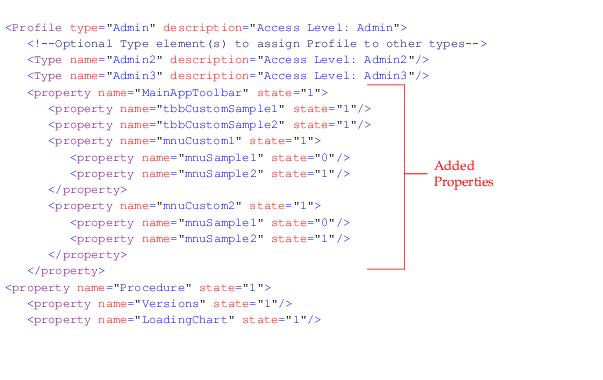
1. Add properties to the user access profiles that control custom menus and toolbar buttons. The user access profiles are defined in the UserAccessProfiles record in the following file:ClientInstallDir\JSXAPPS\ipc\userAccessProfiles.xml![]()
2. Set the state attribute for each new property to the desired state, where “1”= allow access, and “0” = deny access.The property state attribute controls access as follows:
3. Edit your custom event handler class (CustomEventHandler.js in the JSXAPPS\ipc\custom\js directory) to include methods for determining whether the logged in user has access to custom menus and toolbars and take action to either remove or disable items for which the user is not authorized.An example custom event handler is provided that contains a method named “authorizeMenus” for controlling the menus, and a method named “authorizeToolBar” for controlling the toolbar buttons. This example event handler is located in the following directory:InstallHomeDir\iprocessclientbrowser\samples\CustomMenus\jsTo JSXAPPS\ipc\custom\prototypes\menus\MenuSample.xml, add:To JSXAPPS\ipc\custom\prototypes\toolbars\ToolbarSample.xml, add:
− Your custom menus and toolbar buttons should now react to the access settings in the userAccessProfiles.xml file.
|
| Copyright © Cloud Software Group, Inc. All Rights Reserved |