|
•
|
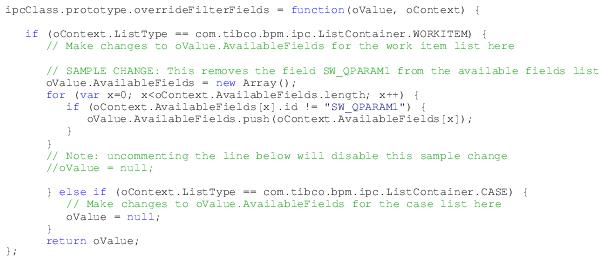
overrideFilterFields - Used to modify the filter fields that will appear in the Field drop-down list on the Filter dialog.
|
|
•
|
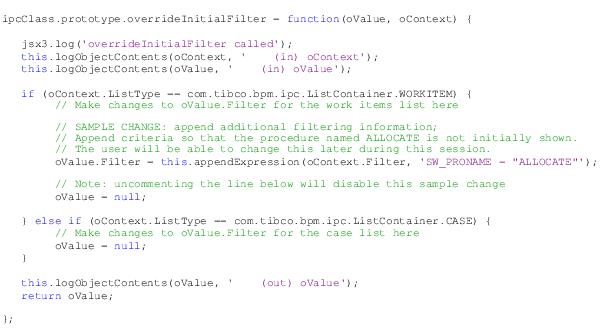
overrideInitialFilter - Specifies the initial filter for work item and case lists, i.e., it is applied only when the list is initially opened after a login.
|
|
•
|
overrideFilter - Specifies a filter to apply every time a work item or case list is opened.
|
|
•
|
overrideHistoryFilter - Specifies a filter to apply every time a case history list is displayed, refreshed, or has its filter changed.
|
|
•
|
overrideSortFields - Used to modify the sort fields that will appear in the Available Fields list on the Sort dialog.
|
|
•
|
overrideInitialSort - Specifies the initial sort for work item and case lists, i.e., it is applied only when the list is initially opened after a login.
|
|
•
|
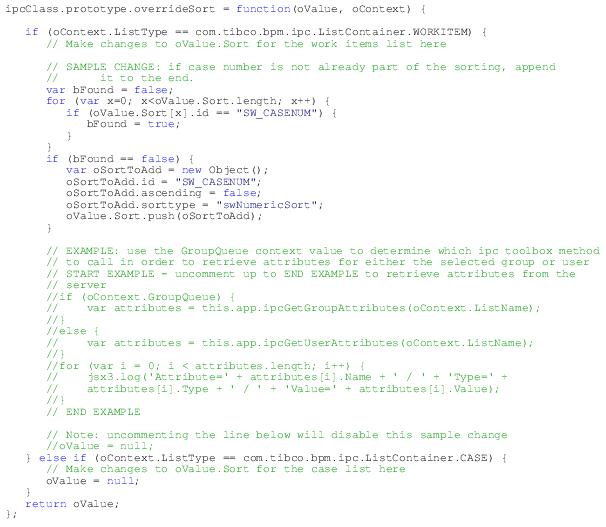
overrideSort - Specifies a sort to apply every time a work item or case list is opened.
|
|
•
|
overrideSelectColumns - Used to modify the columns that appear on the Column Selector dialog on various lists.
|
|
•
|
overrideColumns - Used to modify the columns that are displayed when a list is initially loaded, as well as when the columns are modified by the user with the Column Selector.
|
|
•
|
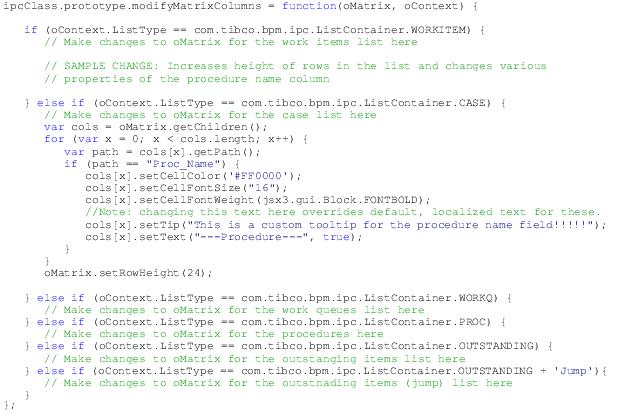
modifyMatrixColumns - Provides direct access to the Matrix control so that specific properties can be changed on the Matrix control and the individual columns.
|
The sample callout handler is named ‘SampleCalloutHandler.js’ and is located in the
InstallationHomeDir\iprocessclientbrowser\samples\Callouts directory, where
InstallationHomeDir is the directory in which the installer places administrative files, such as the uninstaller, documentation, and sample code. This defaults to
C:\tibco on Windows systems, and
/opt/tibco on UNIX systems, but can be specified as a different directory when the TIBCO iProcess Workspace (Browser) is installed.
|
−
|
oValue - This parameter provides the output to the method call. For example, for the overrideInitialFilter method shown above, this parameter provides the filter expression needed to modify the initial filter for the work item or case list.
|
|
−
|
oContext - This parameter provides all available input to the method. For example, it may provide information about the list upon which you are modifying the filter or sort (user name, list type, etc), or it may provide all of the available fields if you are modifying filter or sort fields.
|
|
•
|
Each of the callout methods contains if/else statements that provide a location to place code that modifies the oValue object for each of the list types for which the method applies.
|
The SampleCalloutHandler.js file also contains an
appendExpression helper function that appends a specified filter expression to the original filter expression. It requires two parameters:
filterExpression, the original expression, and
appendExpression, the expression you would like appended to the original.
|
1.
|
Copy the SampleCalloutHandler.js file into a directory you’ve created under the ClientInstallDir\JSXAPPS\ipc directory, where ClientInstallDir is the path to the directory in which the client application is installed. For example, ClientInstallDir\JSXAPPS\ipc\Callouts.
|
You may also want to rename the SampleCalloutHandler.js file to just ‘
CalloutHandler.js’, or to something more specific if that’s what its purpose is, for example ‘
ColumnsCalloutHandler.js’.
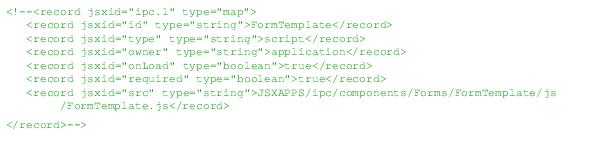
The <record jsxid=”customCallout” element specifies which classes will be loaded to handle custom callout methods. The
<Classes> element can contain any number of
<Class> elements whose
class attribute is set to the fully qualified name of the custom class to load. The class is loaded after the user is authenticated at login. This gives the custom class access to the logged-in user's session to query the Action Processor for initialization data, if required.
|
c.
|
Modify the id and src records to match the name and location of your callout handler, and change the number in the jsxid attribute in the first record to any number that is not already used in a mapping record. For example:
|

This method allows you to modify the filter fields that will appear in the Field drop-down list on the
Filter dialog. This is used to limit the fields on which the user can filter.
This filter can be applied to work item and case lists — the sample implementation in SampleCalloutHandler.js provides
if/else statements for applying the filter to each type of list.
To remove a field from the Field drop-down list, remove it from the array of available fields. Values in the properties of the AvailableFields array should not be changed.
|
•
|
oValue - An object that specifies the fields to include in the Field drop-down list. It has one property:
|
id (string) - Identifier for the field.
text (string) - Text description of the field.
type (string) - Type of data stored in the field. Possible values are:
length (string) - Maximum length of the field.
regex (boolean) - True or false, indicating whether a regular expression can be entered.
info (string) - Text providing information about the format for entering the value. This may be placeholder text that will be replaced by localized text.
lookup (string) - Text indicating there was a formatting problem and that a valid example of data follows. This may be placeholder text that will be replaced by localized text.
validation (string) - Identifies a method for validating the value entered for comparison. Leave null for text. Possible values are:
|
•
|
oContext - An object that provides information about the list being modified. It has the following properties:
|
|
−
|
oContext.ListTag (string) - Contains the procedure tag for case lists, and the work queue tag for work item lists.
|
|
−
|
oContext.AvailableFields[] (Array) - Contains information about each field that is available. For details, see oValue.AvailableFields [] above.
|
The modified oValue object, or null if no changes are to be made.
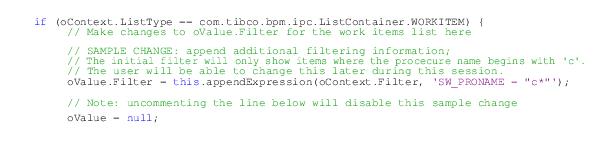
This method specifies the initial filter for a list, i.e., it is applied when the list is initially opened after a login and remains in effect until the user removes it or changes it.
An initial filter appears on the Filter dialog (and the
Filter icon has a red check mark), and can be changed by the user if they have access to the
Filter dialog.
An initial filter can be applied to work item and case lists — the sample implementation in SampleCalloutHandler.js provides
if/else statements for applying the filter to each type of list.
|
•
|
oValue - An object that specifies the filter expression to apply to the initial list. It has one property:
|
|
•
|
oContext - An object that provides information about the list being modified. It has the following properties:
|
|
−
|
oContext.ListTag (string) - Contains the procedure tag for case lists, and the work queue tag for work item lists.
|
id (string) - Identifier for the field.
text (string) - Text description of the field.
type (string) - Type of data stored in the field. Possible values are:
length (string) - Maximum length of the field.
regex (boolean) - True or false, indicating whether a regular expression can be entered.
info (string) - Text providing information about the format for entering the value. This may be placeholder text that will be replaced by localized text.
lookup (string) - Text indicating there was a formatting problem and that a valid example of data follows. This may be placeholder text that will be replaced by localized text.
validation (string) - Identifies a method for validating the value entered for comparison. Leave null for text. Possible values are:
The modified oValue object, or null if no changes are to be made.
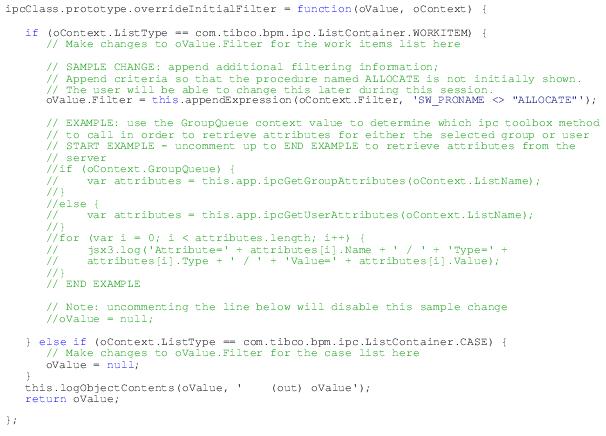
Note that in the example above, the appendExpression helper function is used to append the specified filter expression to the user’s specified filter expression. For more information about this helper function, see
Helper Function.
This filter can be applied to work item and case lists — the sample implementation in SampleCalloutHandler.js provides
if/else statements for applying the filter to each type of list.
|
•
|
oValue - An object that specifies the filter expression to apply to the list. It has one property:
|
|
•
|
oContext - An object that provides information about the list being modified. It has the following properties:
|
|
−
|
oContext.ListTag (string) - Contains the procedure tag for case lists, and the work queue tag for work item lists.
|
id (string) - Identifier for the field.
text (string) - Text description of the field.
type (string) - Type of data stored in the field. Possible values are:
length (string) - Maximum length of the field.
regex (boolean) - True or false, indicating whether a regular expression can be entered.
info (string) - Text providing information about the format for entering the value. This may be placeholder text that will be replaced by localized text.
lookup (string) - Text indicating there was a formatting problem and that a valid example of data follows. This may be placeholder text that will be replaced by localized text.
validation (string) - Identifies a method for validating the value entered for comparison. Leave null for text. Possible values are:
The modified oValue object, or null if no changes are to be made.
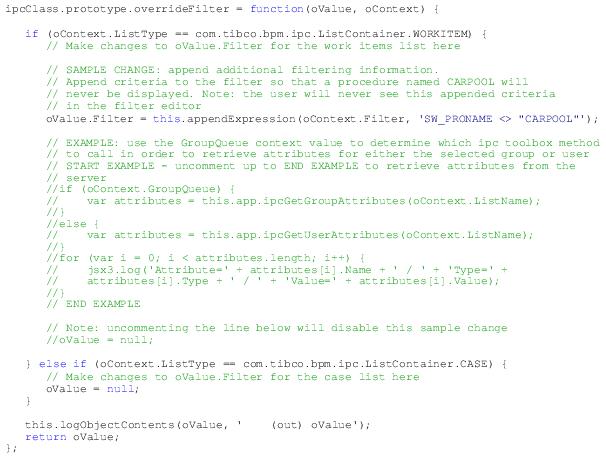
Note that in the example above, the appendExpression helper function is used to append the specified filter expression to the user’s specified filter expression. For more information about this helper function, see
Helper Function.
This method specifies the initial filter for case history lists, i.e., it is applied whenever case history is initially displayed.
|
•
|
oValue - An object that specifies the filter expression to apply to the initial list. It has one property:
|
|
•
|
oContext - An object that provides information about the list being modified. It has the following properties:
|
The modified oValue object, or null if no changes are to be made.
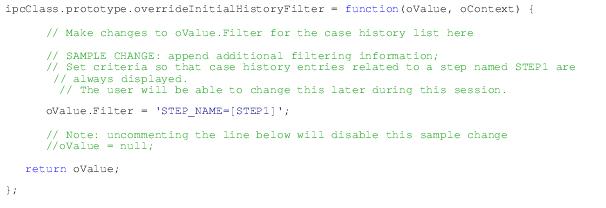
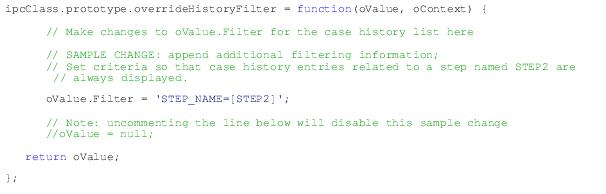
This method is called upon initial display of the case history list (like the overrideInitialHistoryFilter — see
overrideInitialHistoryFilter), plus it is called anytime the user refreshes the list or applies a new filter to the case history list.
The filter applied by this method is not visible to the user. It is forcibly applied without the user’s knowledge.
|
•
|
oValue - An object that specifies the filter expression to apply to the list. It has one property:
|
|
•
|
oContext - An object that provides information about the list being modified. It has the following properties:
|
The modified oValue object, or null if no changes are to be made.
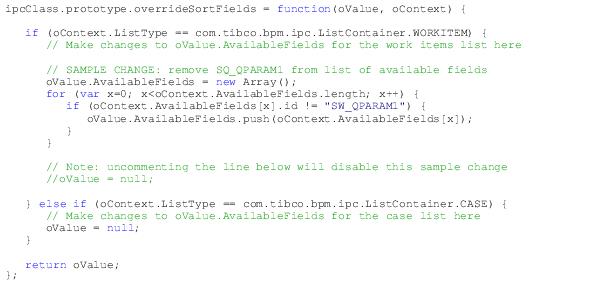
This method allows you to modify the sort fields that will appear in the Available Fields list on the
Sort dialog. This is used to limit the fields on which the user can sort.
To remove a field from the Available Fields drop-down list, remove it from the array of available fields. Values in the properties of the AvailableFields array should not be changed.
|
•
|
oValue - An object that specifies the fields to include in the Available Fields list on the Sort dialog. It has one property:
|
id (string) - Identifier for the field.
text (string) - Text description of the field.
defaultsorttype (string) - Default type of data on which this field is sorted. Possible values are:
sortas (boolean) - True or false, indicating whether or not this field can be sorted as a different data type.
|
•
|
oContext - An object that provides information about the list being modified. It has the following properties:
|
|
−
|
oContext.ListTag (string) - Contains the procedure tag for case lists, and the work queue tag for work item lists.
|
|
−
|
oContext.AvailableFields[] (Array) - Contains information about each field that is available to sort on. For details, see oValue.AvailableFields[] above.
|
The modified oValue object, or null if no changes are to be made.
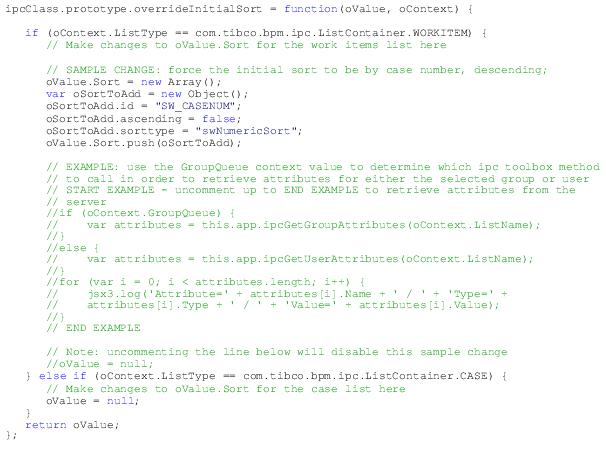
This method specifies the initial sort, i.e., it is applied when the list is initially opened after a login and remains in effect until the user removes it or changes it.
This sort specification appears on the Sort dialog after it is applied, and can be changed by the user if they have access to the
Sort dialog.
|
•
|
oValue - An object that provides the sort information for the list. It has one property:
|
|
−
|
oValue.Sort[] (array) - Each element identifies a field on which the list will be sorted, as follows:
|
id (string) - Identifier for the field used for sorting.
ascending (boolean) - True or false, indicating whether the sort order should be ascending (true) or descending (false).
sorttype (string) - Type of data on which to sort. Note that the
oContext.AvailableFields.sortas property identifies whether or not the field can be sorted as a different data type. Possible values are:
|
•
|
oContext - An object that provides information about the list being modified. It has the following properties:
|
|
−
|
oContext.ListTag (string) - Contains the procedure tag for case lists, and the work queue tag for work item lists.
|
|
−
|
oContext.Sort[] (array) - The original sort information (see oValue.Sort[] above).
|
id (string) - Identifier for the field.
text (string) - Text description of the field.
defaultsorttype (string) - Default type of data on which this field is sorted. Possible values are:
sortas (boolean) - True or false, indicating whether or not this field can be sorted as a different data type.
The modified oValue object, or null if no changes are to be made.
|
•
|
oValue - An object that provides the sort information for the list. It has one property:
|
|
−
|
oValue.Sort[] (array) - Each element identifies a field on which the list will be sorted, as follows:
|
id (string) - Identifier for the field used for sorting.
ascending (boolean) - True or false, indicating whether the sort order should be ascending (true) or descending (false).
sorttype (string) - Type of data on which to sort. Note that the
oContext.AvailableFields.sortas property identifies whether or not the field can be sorted as a different data type. Possible values are:
|
•
|
oContext - An object that provides information about the list being modified. It has the following properties:
|
|
−
|
oContext.ListTag (string) - Contains the procedure tag for case lists, and the work queue tag for work item lists.
|
|
−
|
oContext.Sort[] (array) - The original sort information (see oValue.Sort[] above).
|
id (string) - Identifier for the field.
text (string) - Text description of the field.
defaultsorttype (string) - Default type of data on which this field is sorted. Possible values are:
sortas (boolean) - True or false, indicating whether or not this field can be sorted as a different data type.
The modified oValue object, or null if no changes are to be made.
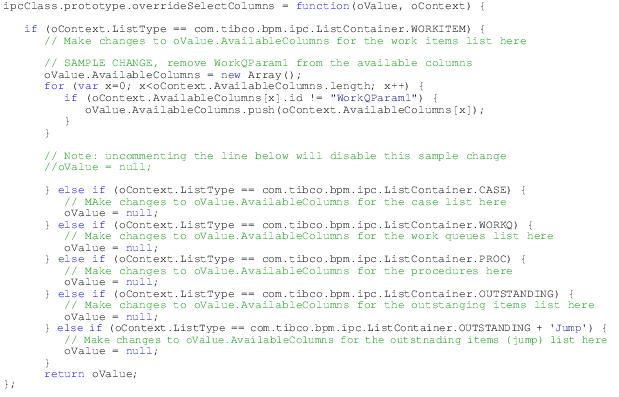
This method is used to modify the columns that appear on the Column Selector dialog. This allows you to specify what columns the user can display on a list through the use of the
Column Selector dialog.
The sample implementation in SampleCalloutHandler.js provides
if/else statements for applying the change to each type of list.
|
•
|
oValue - An object that specifies the columns to display. It has one property:
|
|
−
|
oValue.Columns[] (Array) - Contains one element for each column that can be selected, as follows:
|
id (string) - Identifies the column.
type (string) - TIBCO
® General Interface datatype for the
Matrix.Column component used to display the data:
find (boolean) - True or false indicating whether the column will appear in the find interface.
|
•
|
oContext - An object that provides information about the list being modified. It has the following properties:
|
|
−
|
oContext.ListTag (string) - Contains the procedure tag for case lists, the work queue tag for work item lists, and is empty for all other list types.
|
id (string) - Identifier for the column.
type (string) - TIBCO
® General Interface datatype for the
Matrix.Column component used to display the data:
find (boolean) - True or false indicating whether the column will appear in the find interface.
The modified oValue object, or null if no changes are to be made.
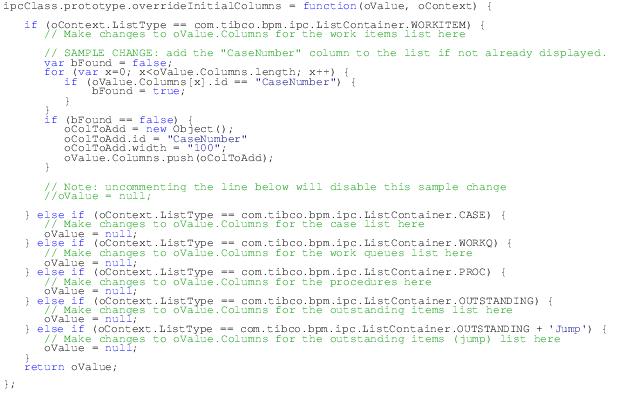
The sample implementation in SampleCalloutHandler.js provides
if/else statements for applying the change to each type of list.
|
•
|
oValue - An object that specifies the columns to display. It has one property:
|
|
−
|
oValue.Columns[] (Array) - Contains one element for each column to display, as follows:
|
id (string) - Identifies the column.
width (string) - The width of the column; a default will be used if this is null.
|
•
|
oContext - An object that provides information about the list being modified. It has the following properties:
|
|
−
|
oContext.ListTag (string) - Contains the procedure tag for case lists, the work queue tag for work item lists, and is empty for all other list types.
|
id (string) - Identifier for the column.
type (string) - TIBCO
® General Interface datatype for the
Matrix.Column component used to display the data:
find (boolean) - True or false indicating whether the column will appear in the find interface.
The modified oValue object, or null if no changes are to be made.
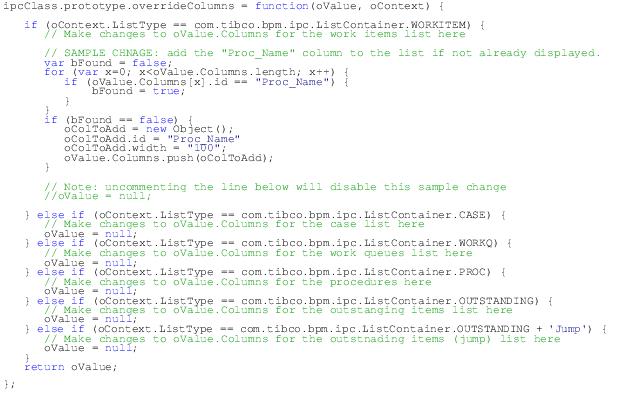
The sample implementation in SampleCalloutHandler.js provides
if/else statements for applying the change to each type of list.
|
•
|
oValue - An object that specifies the columns to display. It has one property:
|
|
−
|
oValue.Columns[] (Array) - Contains one element for each column to display, as follows:
|
id (string) - Identifies the column.
width (string) - The width of the column; a default will be used if this is null.
|
•
|
oContext - An object that provides information about the list being modified. It has the following properties:
|
|
−
|
oContext.ListTag (string) - Contains the procedure tag for case lists, the work queue tag for work item lists, and is empty for all other list types.
|
id (string) - Identifier for the column.
type (string) - TIBCO
® General Interface datatype for the
Matrix.Column component used to display the data:
find (boolean) - True or false indicating whether the column will appear in the find interface.
The modified oValue object, or null if no changes are to be made.
This method allows you to modify the Matrix.Columns control, which allows you to change specific properties of the columns appearing on the following lists:
The sample implementation in SampleCalloutHandler.js provides
if/else statements for applying the change to each type of list.
|
•
|
oMatrix (jsx3.gui.Matrix) - Matrix control that will be used to display the list.
|
|
•
|
oContext - An object that provides information about the list being modified. It has the following properties:
|
|
−
|
oContext.ListTag (string) - Contains the procedure tag for case lists, the work queue tag for work item lists, and is empty for all other list types.
|
id (string) - Identifier for the column.
type (string) - TIBCO
® General Interface datatype for the
Matrix.Column component used to display the data:
find (boolean) - True or false indicating whether the column will appear in the find interface.