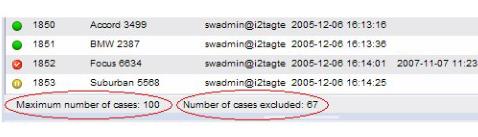
|
| Copyright © Cloud Software Group, Inc. All Rights Reserved |
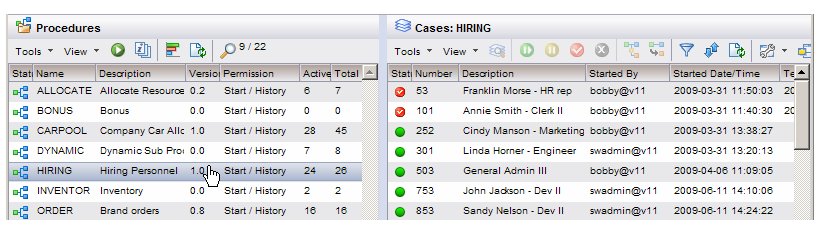
The window that is displayed depends on how your system has been set up. By default, the case list is displayed. However, there is a user options setting that allows you to specify that if the number of cases for the procedure exceeds a specified threshold, to automatically display the filter dialog first. This allows you to enter a filter expression to pare down the list before displaying it.
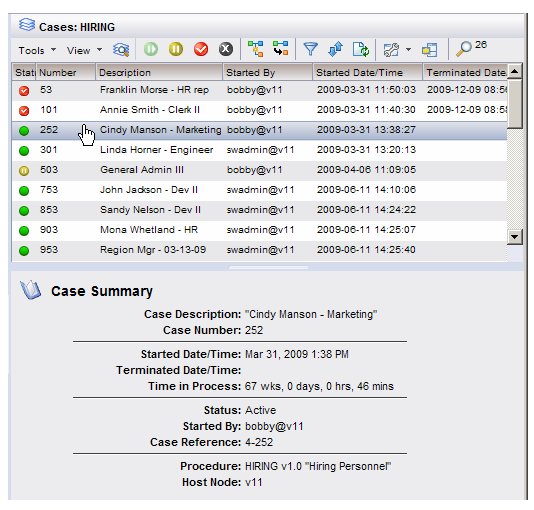
For information about specifying whether or not to display the filter dialog first, see Filter Options.If the case list is displayed, and the Filter icon on the case list toolbar has a green check mark next to it, the list is currently being filtered — the last filter expression applied to the case list is in effect. For more information, see Filtering a Case List.Also, if the Sort icon on the case list toolbar has a green check mark next to it, the list is currently being sorted — the last sort criteria applied to the case list is in effect. For more information, see Sorting a Case List.Information about each case is provided in the columns of the case list. The specific information that is displayed on your system will depend on how your system was set up — see Customizing Columns in a List.The effect of selecting a case from the case list (i.e., single-clicking an item, or moving the highlight bar with the keyboard arrow keys) depends on whether or not the preview feature is turned on:
• If preview is turned on, selecting a case from the case list causes the case summary to be displayed in the Preview Pane section, as follows:
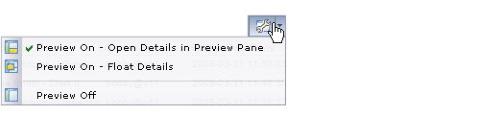
Double-clicking on a case in the case list constitutes opening the case. Opening the case causes the case details for that case to be displayed. For information about opening cases, see Opening Cases.The preview feature can be turned on and off clicking theicon on the toolbar, or by selecting Preview from the case list View menu.
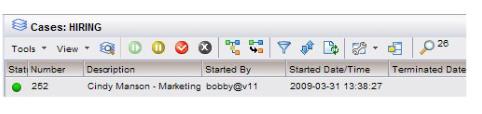
You can turn off the preview feature by selecting the Preview Off selection.For additional information about selecting items in general from lists, see Selecting Items in a List.By default, certain columns are displayed in a case list. You can easily customize the columns that are displayed by either using the Column Selector, or by changing them manually. For information, see Customizing Columns in a List.
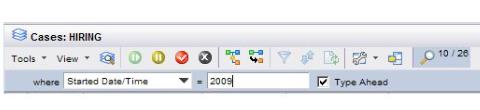
The name of the procedure that was started to create the case (a case is an instance of a procedure). There is an indicator in the header bar of the case list to tell you how many cases are in the list. This number is displayed to the right of the Find button. In this example, there are 26 cases.Note that this number may indicate the number of cases in the list after it has been filtered using the filter dialog — if the list has been filtered in this way, there will be a green check mark next to the Filter icon (for information about using the filter dialog to filter cases, see Filtering a Case List).If this number is displayed in the format “##/##” it means the list is being filtered using the Find button. In the example below, 10 of the 26 possible cases are listed.When using the find function on case lists, it is often used in conjunction with the filter function (for information about the filter function, see Filtering a Case List). When used on the case list, the intent is for the find function to refine the search that has already been done using the filter function. Typically, the filter function is used to present a list of cases that are of continual interest. You can then use the find function to further refine the search through the list of filtered cases. When you are done with the find function, and close it, the list returns to the list presented by the filter function. If you want a different list of cases that are of continual interest, the list should be filtered using the filter function.Note that the Filter, Sort, and Refresh icons and menu selections are disabled while the find function is being used — you must close the find function to change filter or sort criteria, or to refresh the list.When a list of cases is initially displayed, it is a snap shot of the cases at that point in time. You can refresh the list to get the most recent list of cases from the iProcess Engine by:
• Be aware that every time you refresh a list, it causes the entire list to be downloaded from the iProcess Engine. For information about the impact of this, see the note on page 142.Note that if you have defined filter and/or sort criteria for the case list, they will be applied on the refreshed list of cases — the case list is displayed if the number of cases does not exceed the specified number; the filter dialog is displayed if the number of cases exceeds the specified number. (For more information, see Filtering a Case List.)
|
| Copyright © Cloud Software Group, Inc. All Rights Reserved |