Copyright © Cloud Software Group, Inc. All Rights Reserved

Chapter 1 Introduction : The TIBCO iProcess Workspace (Browser) Screen Layout

The TIBCO iProcess Workspace (Browser) Screen Layout
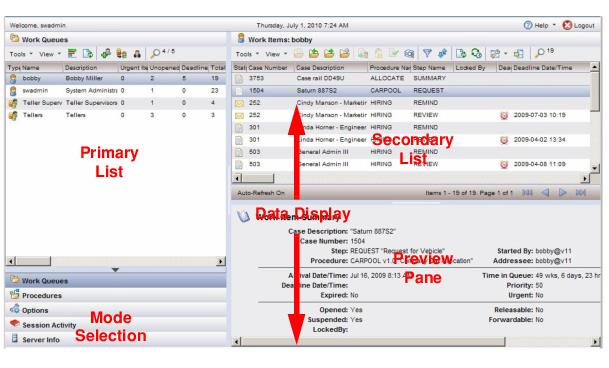
The TIBCO iProcess Workspace (Browser) screen consists of the following sections.
Each of these sections are described below.
Mode Selection
This section contains buttons/icons that allow you to select the type of information that is displayed in the other sections of the screen. The available selections are:
Work Queues - Displays the work queue list in the Primary List section.
Procedures - Displays the procedure list in the Primary List section.
Options - Displays user options in the Data Display section. User options allow you to specify settings such as display options, layout options, etc.
For more information about user options, see User Options.
Session Activity - Displays the session activity log in the Data Display section. The session activity log provides information about the activity that has taken place during the current login session.
For more information about the session activity log, see Login Session.
Server Info - Displays a server information window in the Data Display section. This provides technical information about the server, such as TCP port, IP address, etc.
For more information about the server information window, see Viewing Server Information.
Note that you can display either buttons with text on them, or icons, in the Mode Selection section by clicking on the arrow between the Primary List and Mode Selection sections:

This arrow acts as a toggle, switching between the buttons with text and icons.
Primary List
This section always contains either the work queue list or procedure list, depending on the selection made in the Mode Selection section. If one of the other mode selections are made (Options, Session Activity, or Server Info), this section will still display either the procedure or work queue list, whichever was most recently selected.
For information about the work queue list, see The Work Queue List.
For information about the procedure list, see The Procedure List.
Secondary List
This section lists either a work item list or a case list, depending on whether you’ve selected a work queue or procedure in the Primary List.
If you select a mode other than Work Queues or Procedures, this list is overlaid with the options, session activity, or server info, depending on which you select.
The work item and case lists provide a Preview icon that can be used to turn off the Preview Pane, which causes the Secondary List to encompass the entire right side of the screen.
For information about work item lists, see Work Item Lists.
For information about case lists, see Case Lists.
Preview Pane
This section displays summary information for the selected work item or case.
The Preview Pane can be turned on or off by:
by selecting Preview from the work item or case list View menu.
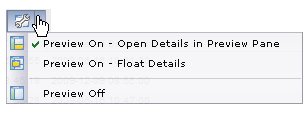
Both of these cause the Preview drop-down menu to be displayed:
Preview menu from the work item list:
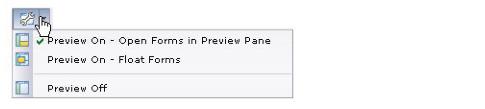
Preview menu from the case list:
The preview settings are as follows:
Preview On - Open Form/Details in Preview Pane: When you select (single-click) a work item or case in their respective list, the work item or case summary is displayed in the Preview Pane.
When you open (double-click) a work item or case, the work item form or case details are also displayed in the Preview Pane. (Note - You may not be able to open a work item form in the Preview Pane, depending on the type of work item form your application uses — for more information, see Work Item Form Location.)
Preview On - Float Form/Details: When you select (single-click) a work item or case in their respective list, the work item or case summary is displayed in the Preview Pane.
When you open (double-click) a work item or case, the work item form or case details are displayed in a separate floating window.
Preview Off: When the Preview Pane is turned off, single-clicking a work item or case in their respective lists has no effect.
When you open (double-click) a work item or case, the work item form or case details are displayed in a separate floating window.
If you are choosing to display the work item form in a separate floating window, the separate floating window may be either a dialog or a new browser window, depending on the setting of a user option for the logged-in user — for more information, see Floating Work Item Form Window. (Note - You may not be able to open a work item form in a separate dialog (it may have to be a separate browser window), depending on the type of work item form your application uses — for more information, see Work Item Form Location.)
If you are choosing to display case details in a separate floating window, the floating window will always be a separate dialog — case details cannot be displayed in a new browser window.
Selections you make on the Preview menu are not persistent; the next time you log in, the Preview menu setting defaults to the setting in user options. For more information, see Work Item Preview Default and Case Preview Default.
Resizing the Preview Pane
You can specify that the Preview Pane automatically resize when you open a work item or a case. For instance, you may want the Case Details to open so that the Preview Pane encompasses 80% of the Data Display area. It will then revert to its original size when you close the work item or case.
To configure the Preview Pane to automatically resize, see Layout Options.
Displaying a Floating Window
From the work item or case list, you can display a separate floating window containing whatever information is currently displayed in the Data Display section. This allows you to create multiple views of the same list, or to view details about multiple work items or cases from the same list simultaneously.
To display a separate floating window:
From the work item list, select Float Work Items List from the View menu.
From the case list, select Float Cases List from the View menu.
A separate floating window is displayed containing the same information currently in the Data Display section. This floating window is always opened as a separate dialog within the application (rather than as a new browser window).
Floating Window Task Bar
As windows are floated, an icon for that window is added to the task bar on the bottom of the screen:
The task bar allows you to select one of the floating windows without clicking on the window itself — when windows are floating, they can become hidden behind other floating windows.
Clicking on an icon in the task bar works as a toggle — successive clicks on an icon causes the window associated with that icon to alternately be brought to the foreground and background.
Moving a Floating Window
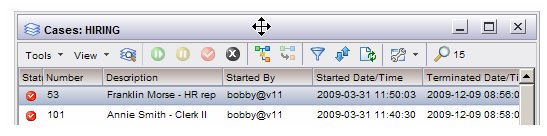
You can move a floating window around the screen by placing the cursor in the window’s header bar. When the cursor changes to an icon that contains multi-directional arrows (see the illustration), click and hold the left mouse button while moving the window to the desired location.
Resizing a Floating Window
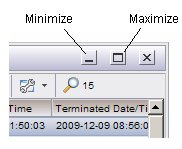
Floating windows provide the following methods of resizing the window.
Minimize Toggle - Clicking this button causes the window to minimize — the window is removed from the screen, and a button representing the window appears on the task bar. Click the button on the task bar to cause the window to reappear.
Maximize Toggle - Clicking this button toggles between the window expanding to cover the entire screen, and collapsing to its original size.
Dragging to Desired Size - Placing the cursor in the lower right corner of the floating window causes the cursor to change to a double arrow. Pressing and holding the left mouse button when the double arrow appears allows you to resize the window to the desired size.
Closing a Floating Window
To close a floating window, click in the x in the upper right corner of the floating window.

Copyright © Cloud Software Group, Inc. All Rights Reserved