Copyright © Cloud Software Group, Inc. All Rights Reserved

Chapter 2 Logging In and Out : Logging In

Logging In
Logging in to the TIBCO iProcess Workspace (Browser) validates your user name and password to ensure you are authorized to use the system. It also looks at your user access profile to determine how much functionality you are authorized to perform (for information about user access profiles, see User Access Profiles).
Your system administrator will determine how you actually start the iProcess Workspace (Browser). It may involve starting a browser and entering a URL (Universal Resource Locator — or “website address”), or you may click on a link on a specified web page.
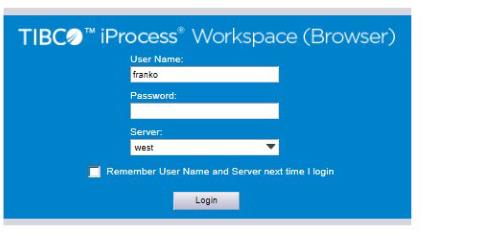
After the browser connects to the proper web site, you are presented with a login window:
To log in to the iProcess Workspace (Browser):
1.
2.
3.
Choose a server in the Server field. This field is a drop-down list that may contain one or multiple server names, depending on how your system is configured. (The names in this drop-down list are TIBCO iProcess Objects Servers, which in turn are connected to a TIBCO iProcess Engine.)
4.
If you would like your user name to be automatically entered in the User Name field the next time you login to the iProcess Workspace (Browser) on this computer, check the Remember User Name and Server next time I login box.
Note - The Remember User Name ... check box may or may not be displayed, depending on a configuration parameter set by the system administrator.
5.
If the login is successful, either the procedure list or the work queue list is displayed, depending on how your system is set up.
If your password has expired, a Change Password dialog may be displayed (this dialog is displayed only if the appropriate access element is enabled in your access profile). If the Change Password dialog is displayed, you must change your password before you can proceed.
If there is a problem with the login (e.g., you’ve entered an invalid user name or password, or the selected server is not running properly), an error dialog is displayed.
Login Session
The period of time between when you log in and log out is called a “login session”. At any time during your login session, you can display a log that shows all of your activity during the current login session.
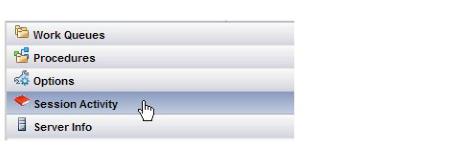
To display the login session log, click on the Session Activity button/icon:
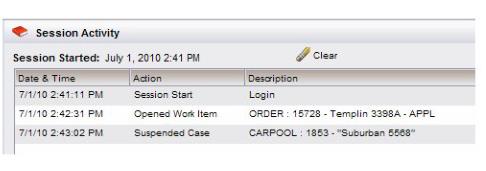
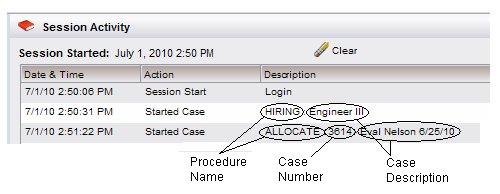
An example session activity log is shown below:
The session activity log is maintained locally — it is not returned from the iProcess Engine. The log is cleared when you log out.
Login Session Timeout
If there is no activity in the iProcess Client for a certain period of time, your login session may timeout.
A session timeout can be initiated by the following components:
These are described below.
iProcess Client Session Timeout
There is a configuration parameter (SessionMonitor) in the iProcess Client’s configuration file that allows the system administrator to specify a session timeout value.
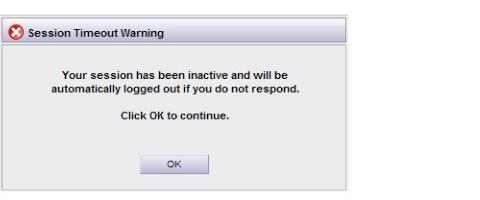
If this parameter is configured, and you are logged into the iProcess Client, but are inactive for a period of time that exceeds the timeout value, the following warning message is displayed first:
You can click OK to return to the iProcess Client.
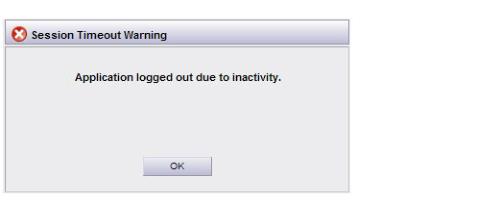
If you do not click OK in a specified period of time, you will be automatically logged out and the following message is displayed:
You can click OK to remove the message window and log back into the iProcess Client.
Application Server Session Timeout
There is also a configuration parameter on application servers that specify a timeout value.
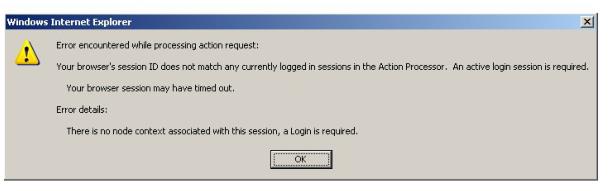
If this parameter is configured, and you are logged into the iProcess Client, but are inactive for a period of time that exceeds the timeout value, a message similar to the following is displayed (the message varies, depending on the application server you are using):
Click OK to return to the login window.
Viewing Server Information
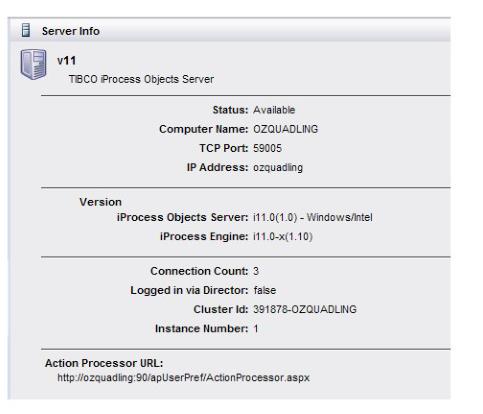
After logging in to a server, you can display a window that provides technical information about the server. (Technically, when you log in to the system, you are logging into a TIBCO iProcess Objects Server, which in turn is connected to a TIBCO iProcess Engine.)
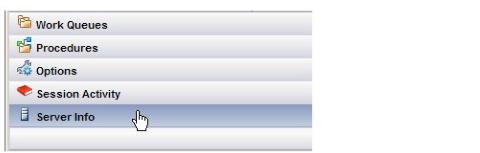
To display the server information window, click on Server Info button in the lower left part of the iProcess Workspace (Browser) screen:
An example Server Info screen is shown below:

Copyright © Cloud Software Group, Inc. All Rights Reserved