|
| Copyright © Cloud Software Group, Inc. All Rights Reserved |
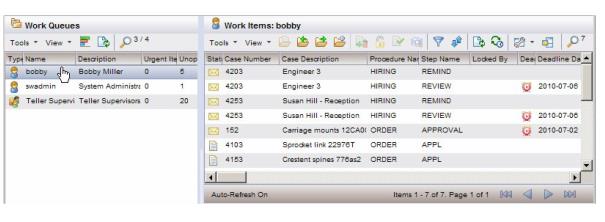
The window that is displayed depends on how your system has been set up. By default, the work item list is displayed. However, there is a user options setting that allows you to specify that if the number of work items in the queue exceeds a specified threshold, to automatically display the filter dialog first. This allows you to enter a filter expression to pare down the list before displaying it.For information about specifying whether or not to display the filter dialog first, see Filter Options.For information about using the filter dialog to filter the work item list, see Filtering a Work Item List.If the work item list is displayed, and the Filter icon on the work item list toolbar has a green check mark, the list is currently being filtered — the last filter expression applied to the work item list is in effect. For more information, see Filtering a Work Item List.Also, if the Sort icon on the work item list toolbar has a green check mark, the list is currently being sorted — the last sort criteria applied to the work item list is in effect. For more information, see Sorting a Work Item List.Information about each work item is provided in the columns of the work item list. The specific information that is displayed on your system will depend on how your system was set up — see Customizing Columns in a List.The effect of selecting an item from the work item list (i.e., single-clicking an item, or moving the highlight bar with the keyboard arrow keys) depends on whether or not the preview feature is turned on:
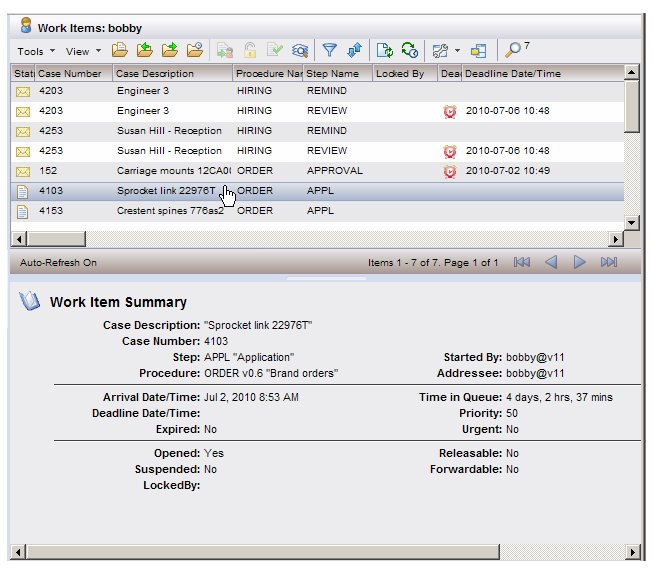
• If preview is turned on, selecting a work item from the work item list causes the work item summary to be displayed in the Preview Pane section, as follows:
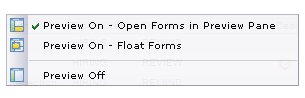
Double-clicking on a work item in the work item list constitutes opening the work item. Opening the work item causes the form for that work item to be displayed. For information about opening work items, see Opening Work Items.The preview feature can be turned on and off using theicon on the work item list toolbar, or by selecting Preview from the work item list View menu.
You can turn off the preview feature by selecting the Preview Off selection.For additional information about selecting items in general from lists, see Selecting Items in a List.By default, certain columns are displayed in a work item list. You can easily customize the columns that are displayed by either using the Column Selector, or by changing them manually. For information, see Customizing Columns in a List.
The user to whom the work item was sent. This is in the form username@node, where node is the name of the TIBCO iProcess Engine to which the iProcess Workspace (Browser) is connected (which is the same value in the Host Node column). False - The step definition in the procedure does not allow resulting work items to be forward.1 False - The work item is not currently locked by a user of an application other than the TIBCO iProcess Workspace (Browser) application.2 The user that started the case from which the work item was generated. This is in the form username@node, where node is the name of the TIBCO iProcess Engine to which the iProcess Workspace (Browser) is connected (which is the same value in the Host Node column). True - The work item is flagged as urgent. Whether or not a work item is urgent depends on a priority value given to the step when the procedure was created, as well as a configuration value specified in the server. That is, if the priority exceeds (is smaller than — with 1 being the highest priority) the configuration value, the work item is flagged as urgent.
Although the step definition does not allow resulting work items to be forwarded, some users may still be able to forward the work item (e.g., system administrators) — for more information, see Forwarding Work Items.
For more information about the difference between a “lock” and a “long lock”, see Opening / Locking Work Items Multiple Times.
There is an indicator in the header bar of the work item list to tell you how many work items are in the list. This number is displayed to the right of the Find button. In this example, there are 34 work items.Note that this number may indicate the number of work items in the list after it has been filtered using the filter dialog — if the list has been filtered in this way, there will be a red check mark on the Filter icon (for information about using the filter dialog to filter work items, see Filtering a Work Item List).
• ##(##) - This format (e.g., 60(466)) is displayed if you have clicked on the Find button, but you are not using the “server filter” feature with the find function. For more information about using the find function and the server filter feature, see Finding Work Items in the Work Item List.
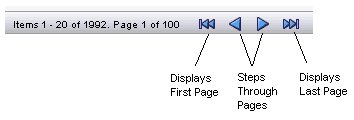
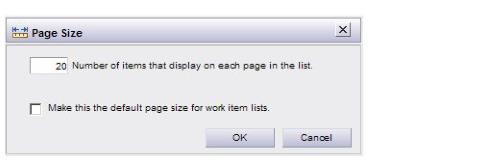
• #/##(##) - This format (e.g. 10/60(466)) is displayed if you have clicked the Find button and have entered search criteria to find work items in the list, but you are not using the “server filter” feature with the find function. For more information about using the find function and the server filter feature, see Finding Work Items in the Work Item List.When a list of work items is displayed on your screen, only a page of work items is displayed at one time. This is done to speed up the display, especially if there are a very large number of work items.The number of work items in a page defaults to 20. You can change this number by selecting Page Size from the View menu on the work item list (note that this function is disabled if the local find function is currently active — see Finding Work Items in the Work Item List). The following dialog is displayed:
If you click on a column header to sort the work items by that column, the sort is applied only to each individual page. It does not sort down through the entire work item list. For more information, see Sorting the Work Item List Using Column Headers. (If you need to sort through the entire list, make the page size large enough to encompass the entire list, or sort using the sort dialog. For information about the sort dialog, see Sorting a Work Item List.)The work item list contains a Find button that can be used to quickly find work items in the work item list.For general information about using the find function, see Finding Items in a List. Note, however, that the find function works somewhat different when used with the work item list because of the way in which work items are downloaded from the server.
• Local Find - When using the find function in this mode, the system only searches through the pages of work items that have been downloaded from the server so far. Work items are downloaded from the server only when you view the page on which the work items are listed. For instance, if you’ve viewed two pages each containing 20 work items, only those 40 work items have been downloaded — the find function in local mode will only search through those 40 work items.To perform a local find, ensure that the Server Filter check box is not checked before entering your find criteria:Also note that the Type Ahead feature is available to use if you are performing a local find (it is not available when using the server find mode). For information about using the Type Ahead feature, see Finding Items in a List.
• Server Find - When using the find function in this mode, the system actually performs the search on the server, looking through the entire work item list, not just the work items that have been downloaded to the client. Note, however, that if you have filtered the list using the filter dialog prior to using the find function, the find function will only search through the work items that have satisfied the filter criteria.To perform a server find, ensure that the Server Filter check box is checked before entering your find criteria:Also note that the Type Ahead feature is NOT available to use if you are performing a server find (it is available when using the local find mode).The state of the Server Filter check box will persist between work item lists, as well as between logins. That is, whenever you display a work item list, and click on the Find button, the Server Filter check box will be in the same state you left it the last time you used the find function (it is not checked by default the very first time you click Find). (Note that the server filter state is only saved locally; if you log into a different machine, it will likely be different.)When using the find function on work item lists, it is often used in conjunction with the filter function (for information about the filter function, see Filtering a Work Item List). When used on the work item list, the intent is for the find function to refine the search that has already been done using the filter function. Typically, the filter function is used to present a list of work items that are of continual interest. You can then use the find function to further refine the search through the list of filtered work items. When you are done with the find function, and close it, the list returns to the list presented by the filter function. If you want a different list of work items that are of continual interest, the list should be filtered using the filter function.Note that the Filter, Sort, Refresh, and Auto-Refresh icons and menu selections are disabled while the find function is being used — you must close the find function to change filter or sort criteria, or to refresh the list. Also, if you have the auto-refresh feature turned on, it is temporarily disabled while the find function is being used.When a work item list is initially displayed, it is a snap shot of the work items at that point in time. You can refresh the list to get the most recent list of work items from the iProcess Engine by:
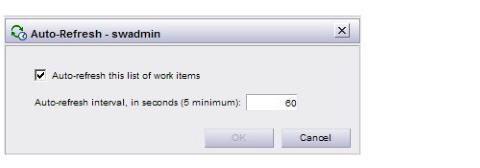
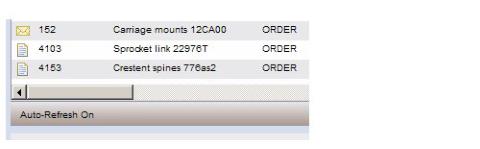
• If you have defined filter and/or sort criteria for the work item list, they will be applied on the refreshed list of work items — the work item list is displayed if the number of work items does not exceed the specified number; the filter dialog is displayed if the number of work items exceeds the specified number (for more information, see Filtering a Work Item List).To enable or disable the auto-refresh feature, either select Auto-Refresh from the work item list View menu, or click on theicon. The following dialog is displayed:
To enable auto-refresh, check the Auto-refresh check box, specify the number of seconds you would like between refreshes (the minimum you can specify is 5 seconds), then click OK.You can specify whether auto-refresh is enabled or disabled by default every time you log in. This is done on the Options dialog — see Auto-Refresh of Work Item Lists.
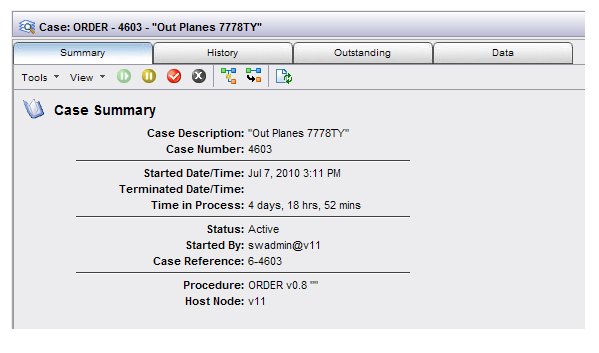
Opening a case causes the case details to be displayed. Case details are presented in a tabbed format that contains Summary, History, Outstanding, and Data tabs. As the names of the tabs imply, you can view a summary of the case, the case history details, information about the outstanding work items in the case, and view/modify the case data fields.
−
You cannot open a case for multiple work items from the work item list. If you select multiple work items, the Open Case function becomes disabled.
− right-click the mouse button on the desired case and select Open Case from the drop-down menu, or
|
| Copyright © Cloud Software Group, Inc. All Rights Reserved |