Copyright © Cloud Software Group, Inc. All Rights Reserved

Chapter 4 Working With Work Items : Sorting a Work Item List

Sorting a Work Item List
The iProcess Workspace (Browser) allows you to sort the information in the columns of the work item list so they are in the order you would like them listed.
For example, you may want to list all “new” (unopened) work items first, then sort those by arrival date/time, from oldest to most recent. This example requires you to sort on two fields: “Unopened” and “Arrival Date/Time ”.
To specify how work items in the work item list are sorted:
select Sort... from the work item list View menu.
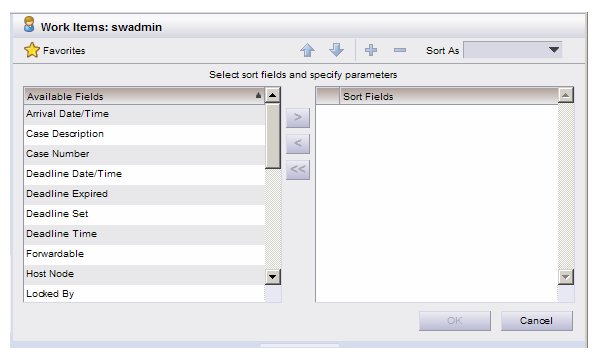
The following dialog is displayed:
The list on the left shows all of the fields that are available to sort on. To sort the work item list, you must move the desired fields from the list on the left to the list on the right, then arrange them in the desired priority (order). This is described in the following subsections.
By default, all work item lists are sorted by Procedure Name, followed by Case Number, then Step Name, all in ascending order. If you specify one or more sort fields using the sort dialog, the default sort fields are replaced by your specification. For example, if you specify to sort on case description only, that is the only field on which the list will be sorted.
Selecting Sort Fields
The Available Fields list on the sort dialog provides a list of the fields you can sort on. It consists of:
System Fields - These fields contain information that is provided by the system, e.g., the date and time the work item arrived in the work queue, the case number the work item is associated with, etc.
A comprehensive list of available system fields is provided in System Fields Used to Sort Work Items.
Case Data Fields - These fields contain case data that was entered into a field on the form associated with a work item, e.g., a customer name or invoice number.
A system administrator determines which case data fields are available to sort on, and in which work queues they are available.
There are two types of case data fields that you can use to sort the work item list:
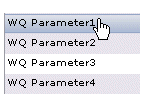
Work queue parameter fields - These are special fields that can be used to store work queue-specific data. Unless the system administrator assigned different names to these fields, they appear in the Available Fields list as WQ Parameter1 - 4, as follows:
Sorting on a work queue parameter field allows you to filter on the value in the work queue parameter field. For instance, if the system administrator assigned the “customer name” field to the “work queue parameter 1" field, you could then sort on “WQ Parameter1”.
Case Data Queue Parameter (CDQP) fields - These are similar to work queue parameter fields; they hold case data that was entered on a form associated with a work item.
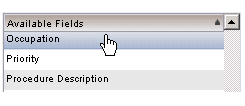
A system administrator must assign case data fields to CDQP fields to make those fields available for sorting (and filtering). If this has been done, the name of the field appears in the Available Fields list. In the following example, the Occupation field is a case data field that appears on a form and that has been designated a CDQP, causing it to appear in the list:
To specify sort fields:
1.
Multiple fields can be selected by holding down the Ctrl key while clicking on the desired names. A group of fields can be selected by clicking on one name, then holding down the Shift key and clicking on the last name in the desired group.
2.
You can also move an individual field to the other list by double-clicking on the field name.
All fields can be moved from the Sort Fields section by clicking on the “<<“ button.
Note that you can specify a maximum of 10 sort fields for a work item list.
Specifying Sort Priority
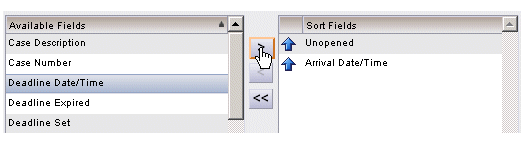
The order in which the sort fields are listed in the Sort Fields window specifies the priority of the sort. If you have multiple sort fields listed, all work items will first be sorted by the first sort field, then they will be sorted by the next sort field, and so on. For example, if you specified “Unopened” as the first sort field, then “Arrival Date/Time” as the second sort field (both ascending), the work items would be sorted in the following fashion:
 
In the example shown above, all unopened work items will be listed first, followed by the opened work items. Within each group of unopened and opened work items, they are sorted by arrival date/time.
To change the priority, select the desired sort field(s) in the Sort Fields window, then click on the “+” or “-” button to move the field(s) up or down in the list.
Specifying a Sort Direction
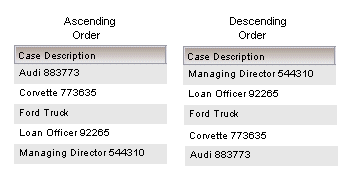
The list of work items can be sorted in either ascending or descending order:
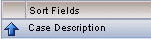
When a sort field is added to the Sort Fields list, it is ascending by default, which is denoted by the up arrow next to the field name:
To change the sort direction, select the desired sort field(s) in the Sort Fields list, then click on the up or down arrow buttons on the sort dialog:
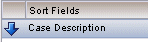
The arrow next to the field name will change to indicate the new sort direction:
System Fields Used to Sort Work Items
The following table lists the system fields available for sorting work items:
Note that the way in which the system sorts the values in the sort fields depends on the type of data in that field. For instance, since the “Procedure Description” field is text data, that field is sorted alphabetically; and since the “Arrival Date/Time” field is a DateTime data type, it is sorted chronologically according to the date/time.
Sort As Different Data Type
The way in which the system sorts the values in the sort fields depends on the type of data in that field (e.g., text data is sorted alphabetically, numeric data is sorted numerically, etc.).
You can, however, tell the application to sort the data in a field using a data type that is different than the field’s data type when sorting on the following fields:
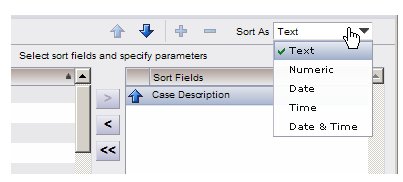
For instance, you can tell it to sort the data in the Case Description system field (which is a text field) as numeric data.
To sort one of these sort fields as a different data type, select the desired sort field in the Sort Fields list, then click on the desired data type in the Sort As field (note that the Sort As field is active only when you’ve selected one of the fields that can be sorted as a different data type):
The value of the sort field will be converted to the specified data type before doing the sorting. For example, text fields containing numeric information could be sorted as numbers by setting the sort type accordingly. Note, however, that if the sort field does not contain something readily convertible to the specified type, the sort results may not be what you expect. For example, if sorting text as a numeric field but some of the text fields contain non-numeric data, the results may not be what you expected.
Applying the Sort Criteria
After specifying the sort fields, priority, direction, etc., click on the OK button to apply the sort criteria you’ve specified.
Anytime you modify a sort criteria, and have not yet clicked the OK button to apply it, the following message is shown to notify you that the changed sort criteria has not been applied:
Whenever the message shown above is displayed, the OK button will be active.
When you click the OK button, a green check mark appears on the Sort icon to indicate sort criteria has been applied.
Sorting the Work Item List Using Column Headers
You can quickly and easily sort the work item list on any one of the columns in the list. To sort on a column, click on the column header. If the column contains text, it is sorted in alphabetical order; if it is numeric, it is sorted in numerical order; if it is a date, time, or DateTime, it is sorted in chronological order.
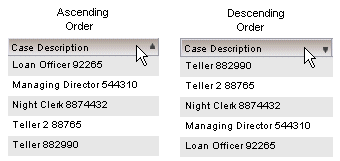
Once you click on a column header, a small arrow head appears in the column header, which indicates the order of the sort — if the arrow head is pointing up, the sort is in ascending order; if it’s pointing down, the sort is in descending order:
Each successive click on the column header, toggles between ascending and descending order.
If the work item list consists of multiple “pages” (see Work Item List Page Size), each page is individually sorted on the column you’ve clicked on.
Note that the ability to sort using column headers is controlled through user access privileges — if you do not have the authority to sort using column headers, the arrow head does not appear in the header when you click it.

Copyright © Cloud Software Group, Inc. All Rights Reserved