|
| Copyright © Cloud Software Group, Inc. All Rights Reserved |
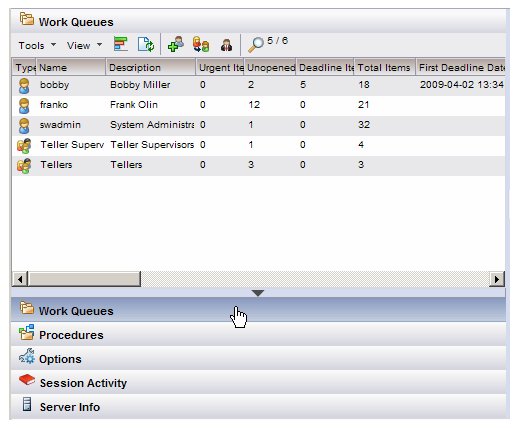
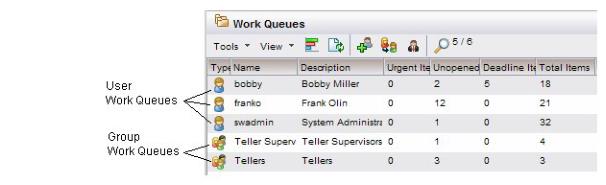
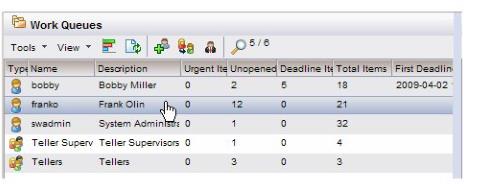
Display the work queue list by clicking on the Work Queues button (or icon) in the lower left portion of the iProcess Workspace (Browser) screen:
Information about each work queue is provided in the columns of the list. In the example shown above, the number of urgent work items and the number of new (unopened) work items in the work queue is shown. The specific information that is displayed on your system will depend on how your system was set up — see .
• User Access - All work items that are sent to you appear in your personal work queue. Note, however, depending on how the system has been configured by the system administrator, you may or may not have access to your personal work queue.
• Group Access - Every user who is a member of a group has access to the work items in that group’s work queue. All work items that are sent to a group are accessible by all members of the group.User and group work queues are denoted by the icon in the Type column on the work queue list (these icons may not be displayed if the columns on your system have been changed from the default — see ). See the example below.
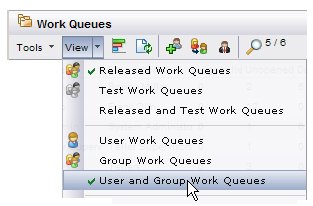
You can list the user and/or group work queues to which you have access by making selections from the View menu on the Work Queues window:
• Participation Access - You may be given temporary “participation access” to another user or group work queue. A work queue supervisor must set up a “participation schedule” that specifies the duration of the participation access. During that period, the work queue to which you have been given participation access will appear in the work queue list, and you will have access to the work items in that work queue. For more information about participation, see Participation Access to a Work Queue.
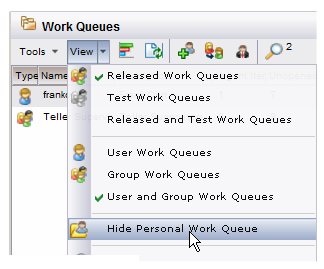
• Redirection Access - Although this does not give you direct access to another work queue, it causes work items that were originally destined to another work queue to be redirected to your work queue instead. A work queue supervisor must set up a “redirection schedule” that specifies the duration of the redirection. For more information about redirection, see Redirecting Work Items to Another Work Queue.If you have the authority to change the default, the work queue list View menu will contain either the Hide Personal Work Queue or Show Personal Work Queue selection (depending on its current state):
• Work items that result from cases of procedures with a status of Released are sent to the released work queue for the user/group.
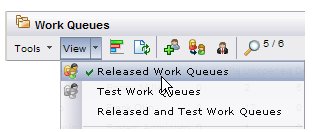
• Work items that result from cases of procedures with a status of Unreleased (a new procedure being tested for release) or Model (a procedure that has been imported) are sent to the test work queue for the user/group.To display released and/or test work queues, make the appropriate selection from the View menu on the work queue list:Either the list of work items in the selected work queue is displayed, or the work items list filter dialog is displayed because the number of work items in the list exceeds the specified threshold. For more information, see Work Item Lists.By default, certain columns are displayed in a work queue list. You can easily customize the columns that are displayed by either using the Column Selector, or by changing them manually. For information, see Customizing Columns in a List.
Redirected / Redirected Image1 The number of work items in the work queue that have been flagged as urgent. Whether or not a work item is urgent depends on a priority value given to the step when the procedure was created, as well as a configuration value specified in the server. That is, if the priority exceeds (is smaller than — with 1 being the highest priority) the configuration value, the work item is flagged as urgent.
There is an indicator in the header bar of the work queue list to tell you how many work queues are in the list. This number is displayed to the right of the Find button. In this example, there are 9 work queues.
• The Find button has been used to filter the list. (For information about using the find function, see Finding Items in a List.)
• Only “Released Work Queues” or “Test Work Queues” has been selected from the View menu. (For information about displaying released and/or test work queues, see Released vs. Test Work Queues.)
• Only “User Work Queues” or “Group Work Queues” has been selected from the View menu. (For information about displaying user and/or group work queues, see Work Queue Access.)
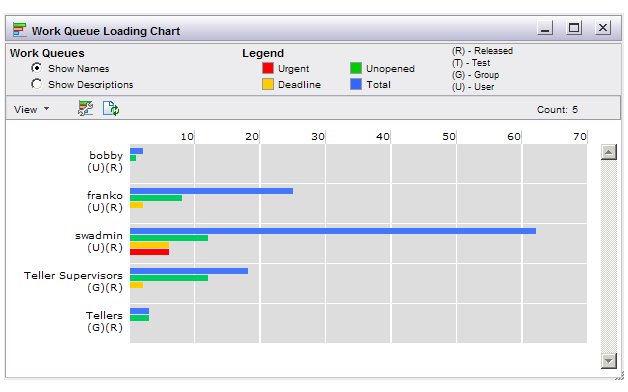
• Select Work Queue Loading Chart from the Tools menu, or click theicon, on the work queue list toolbar.
This displays a work queue loading chart that shows you all of the work queues to which you have access. Note that the very first time you display the work queue loading chart in this way, it lists all work queues to which you have access. If you pare down the list using the Select Work Queues function (see Displaying a Subset of Work Queues in the Work Queue Loading Chart), from then on the list only contains the subset you have chosen.
• Right-click on one of the work queues in the work queue list, then select Work Queue Loading Chart from the context menu.
If your personal work queue is hidden by default on the work queue list and you do not have the authority to change the default via the Show / Hide Personal Work Queue selection on the work queue list View menu, your personal work queue is also hidden on the Work Queue Loading Chart. For more information about hidden work queues, see Hidden Personal Work Queues.Selections are available on the View menu that allow you to display only the released work queues, only the test work queues, or both the released and test work queues. You can also use selections on the View menu to display only user work queues, only group work queues, or both user and group work queues.The work queue loading chart can be refreshed at any time by either selecting Refresh Work Queues on the View menu, or by clicking on theicon on the toolbar.
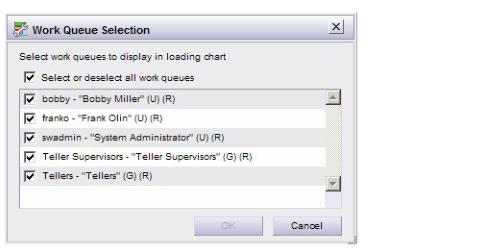
The first time you display the work queue loading chart, it will list all work queues to which you have access. You can, however, choose to display only a subset of the available work queues by selecting Select Work Queues from the View menu, or by clicking theicon on the Work Queue Loading Chart dialog. The following dialog is displayed:
The work queue loading chart will list only the work queues that you’ve selected on the Work Queue Selection dialog. This selection will persist until you change it again.To invoke the Find function, either select Find from the View menu or click on theicon on the work queue list toolbar.
As the Find function works the same on all lists, it is described in the Introduction chapter — see Finding Items in a List.When the work queue list is initially displayed, it is a snap shot of the work queues at that point in time. You can refresh the list to get the most recent list of work queues from the iProcess Engine by selecting Refresh Work Queues from the View menu, or by clicking on theicon on the work queue list toolbar
|
| Copyright © Cloud Software Group, Inc. All Rights Reserved |