Configuring iProcess Workspace (Browser) to Use the ASP Form
Perform the following steps to configure the iProcess Workspace (Browser) to use the ASP form:
| 1. | Set the ExternalFormURI parameter in the Action Processor’s configuration file, apConfig.xml. This specifies the base URL of the Web Application Server (IIS in this case) that is hosting your ASP Forms. For information about this parameter, see External Form URI . |
| 2. | Create a procedure and define a normal step, or import ASPForm.xfr (which is included in the ASPFormExample project). |
| 3. | Set the form type of the normal step to “FormFlow Form”.
|
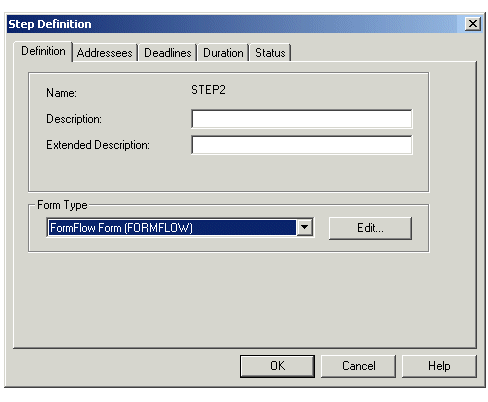
| 4. | Click the Edit button on the Step Definition dialog. The FormFlow Form dialog is displayed. |
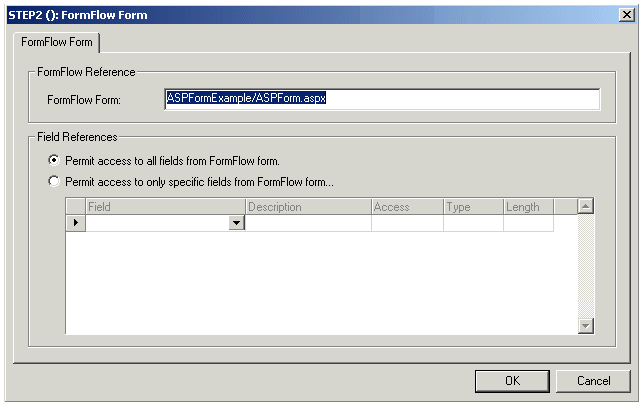
| 5. | Enter the location of the ASPForm.aspx file. Don't enter the full URL, as the base URL location is defined in the ExternalFormURI parameter (see step 1). Only enter the portion of the URL that is unique to the step.
|
| 6. | Start a case of the procedure. The ASP form example should look as follows.
|
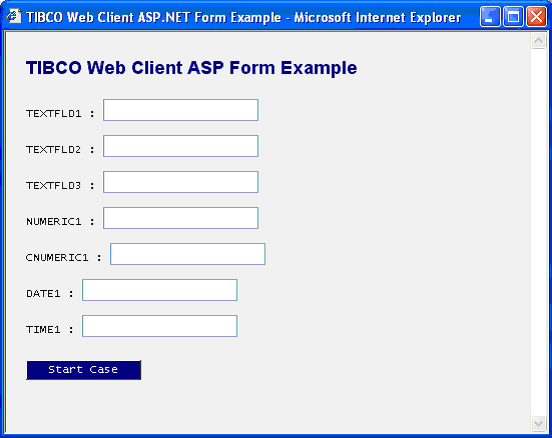
| 7. | Edit the ASPFormExample example project for the desired form layout and fields to be displayed. |
Define the field names in the fieldNames array, the types in the fieldTypes array, and the date format in the dateFormat string.
The field names should correspond to the iProcess Engine procedure field names. The arrays are defined in ASPForm.aspx, as follows:
String [] fieldNames = {"TEXTFLD1", "TEXTFLD2", "TEXTFLD3",                        "NUMERIC1", "CNUMERIC1", "DATE1", "TIME1"};
String [] fieldTypes = {"swText", "swText", "swText", "swNumeric",                        "swComma", "swDate", "swTime"};
String dateFormat = "MDY";
The dateFormat variable can be set to “MDY”, “DMY”, or “YMD”, to indicate the order of the day, month, and year in date fields. (Time fields will be displayed in the hh:mm format.)
The position and look of these fields can be defined in the ASPForm.css cascading style sheet. For example:
#TEXTFLD1marking {
   position:relative;
   left:75px;
   top:0px;
   width:240px;
}