Create a New Localized Language Resource File
You must create a resource file that contains a collection of application text strings that have been translated to a specific language and may be localized for language variations used by individual countries.
Perform the following steps to create a new language resource file:
| 1. | Determine whether the new language file will contain translations that are: |
Generic for all locales - for instance, Spanish is sufficient without regard to variations for the specific dialects or alphabets of Spain or Mexico.
Language defaults, with variations for specific locales - for instance, Spanish is the default, however, some words or phrases are defined specifically for the dialects or alphabets of Mexico and Spain.
Locale specific - for instance, if the Spanish of Mexico did not have any words or phrases in common with the Spanish of Spain, you would create a separate language resource file for each country.
| 2. | Open a new XML file and insert the following XML elements, using the proper language code (if of type a or b above), or locale key containing both language and country codes (if of type c), as the value for the key attribute:
|

| 3. | Open the default (English) locale file: |
ClientInstallDir\JSXAPPS\ipc\locale\locale.xml
| 4. | Copy all record elements that are direct children of the <locale> element in locale.xml. |
Note - Only copy children of the <locale> elements that do not have a key attribute.
| 5. | Paste all copied record elements into the newly created file as direct children of the <locale key=”es”> element.
|

| 6. | Translate the value of every jsxtext attribute in the newly created file to language-specific values. |
Note - Any record elements that are deleted from the new language resource file will cause the iProcess Workspace (Browser) to “fallback” to the record that is defined in the default (English) locale file.
| 7. | Optionally, localize the new language resource for specific countries. The purpose of localizing for specific countries is to provide a mechanism for overriding default language text values (translated in Step 6) with text values that are specific for a country and that differ from the default (type b above). |
For each country-specific locale, create a <locale> element (within the root <data> element) and specify the locale key as the value of the key attribute. Insert record elements into each new <locale> element, that are to “override” default language records, with matching jsxid attribute values.
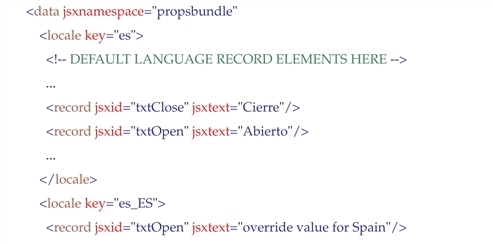
In the example above, the default Spanish language text of “Abierto” will be replaced with country-specific values when either the Spanish (Spain) or Spanish (Mexico) locales have been selected by the user as the language for the iProcess Workspace (Browser).
Any records not explicitly overridden in country-specific locales will “fallback” to the default language definition (e.g., “Cierre” in the example above).
| 8. | Save the newly created locale resource file as follows: |
ClientInstallDir\JSXAPPS\ipc\locale\locale.ll.xml
or (if of type c in step 1):
ClientInstallDir\JSXAPPS\ipc\locale\locale.ll_CC.xml
where ll in the filename is the language code, and CC is the country code (e.g., locale.es.xml - for Spanish; locale.es_MX.xml - for a Mexico-only translation) and ClientInstallDir is the path to the directory in which the iProcess Workspace (Browser) is installed.