Define Basic EAI Step Information
|
1.
|
Start the TIBCO iProcess Modeler, click the EAI Step tool  then place it on your procedure definition. then place it on your procedure definition. |
|
2.
|
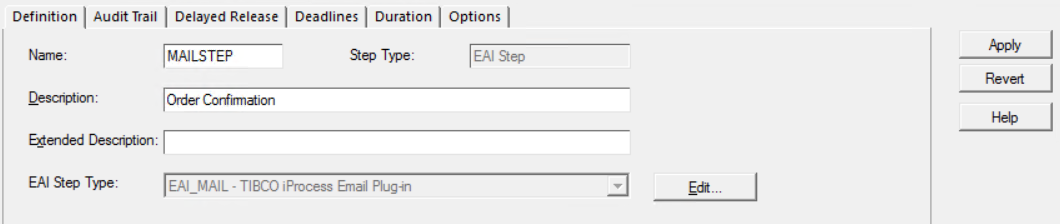
In the Properties pane, enter the Name and Description for the step. |
|
3.
|
In the EAI Step Type drop-down list, select EAI_MAIL - TIBCO iProcess Email Plug-in. |
You must select this entry when you first create the step; it cannot be changed later. The list box displays EAI step types that have been installed as client EAI plug-ins. This name is used as the link between the EAI step and the run-time plug-in registered on the iProcess Engine(s).
Note: If the iProcess Email step type does not appear in the drop-down list, you need to ensure that the plug-in is installed. For details of installing the client, see the TIBCO iProcess Workspace Installation Guide.
|
4.
|
(Optional) On the Options tab, click the Ignore Case Suspend check box if you want the Email step to still be processed as normal while a case is suspended by an iProcess Objects or SAL application. |
If Ignore Case Suspend is not checked (the default option), the Email step is not processed while the case is suspended. Deadlines on the step are not processed, but the date and time at which deadlines are due are not affected, so the deadlines continue to expire. However, no actions are processed when a deadline expires. When the case is re-activated, any expired deadlines are immediately processed.
|
5.
|
(Optional) Click the Don’t delete work items on withdraw check box. Email steps are completed so quickly that this option will only have any effect if a step is suspended - that is, if the Ignore Case Suspend field is not checked. If this option is selected, and the deadline on an outstanding step expires as a result of such suspension: |
|
—
|
the step remains outstanding. |
|
—
|
the deadline actions are processed (once the case ceases to be suspended). |
|
—
|
when the step completes, the normal release actions are not processed but any data in the return status fields is applied to the main case data. |
Note: Cases can only be suspended and re-activated from an iProcess Objects or SAL application. Audit trail messages indicate whether a case is active or suspended. Refer to the iProcess Objects documentation for more information about suspending cases.
|
6.
|
Click the Audit Trail tab to define custom audit trail entry expressions. |
This enables you to define text expressions that are evaluated when the step is processed and inserted (as the value of the %USER variable) to identify the user in the audit trail entries:
|
—
|
In the Call-out Initiated field, enter a valid text expression that will replace the %USER value in the audit trail when the call out is initiated. |
|
—
|
In the Call-out Complete field, enter a valid text expression that will replace the %USER value in the audit trail when the call out is complete. |
Note: Custom audit trail entry expressions must be enclosed in double quotation marks.
|
7.
|
Click the Deadlines tab if you want to enter deadline information for this step. You can also enter the step duration if you are using case prediction. For an explanation of defining deadlines and using case prediction, see “Using Deadlines” in the TIBCO iProcess Modeler Basic Design. |
Note: Delayed Release is not supported by the iProcess Email Plug-in, so the fields on the Delayed Release tab are not available.