|
| Copyright © Cloud Software Group, Inc. All Rights Reserved |
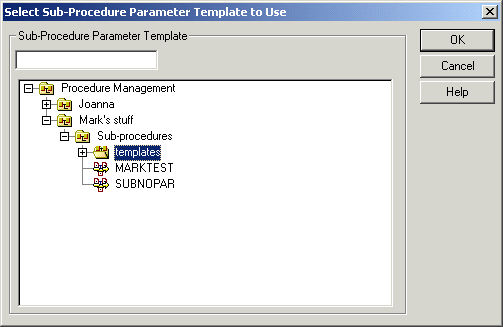
The Select Sub-Procedure Parameter Template to Use dialog is displayed.
2. Select the template you want to use for the sub-procedure parameters. This defines which sub-procedures you will be able to call from this graft step. See "Defining Sub-procedure Parameter Templates" in TIBCO iProcess Modeler Advanced Design for more information about templates.
3.
4.
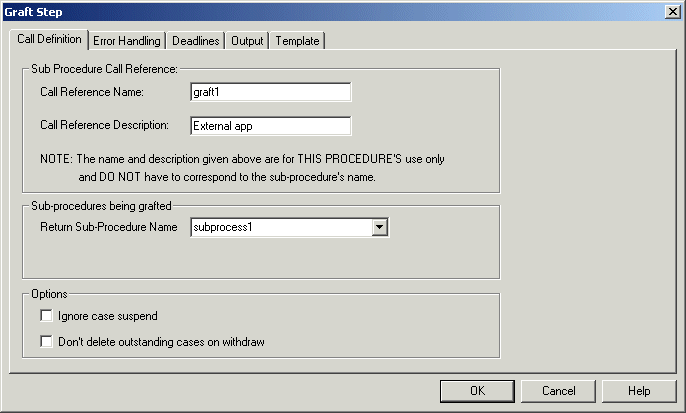
5. (Optional) Enter a description (up to 24 characters) for the call in the Description field.
These names do not have to match the sub-procedure’s name and description as they are only for use in this procedure.
6. In the Return Sub-Procedure Name field, select an array field that will be used to list both the sub-procedures and external processes that have been grafted. See "Using Array Fields" in TIBCO iProcess Modeler Advanced Design for more information about arrays.
This array field must have been previously defined in your procedure as a text field. The procedure has to be set up so that the array field can be populated with the names of the sub-procedures that need to be started before this graft step call is made.
7. Click the Ignore case suspend check box if you want the step to be processed as normal while a case is suspended by a TIBCO iProcess Objects or SAL application.If Ignore case suspend is not checked (the default option), the step is not processed while the case is suspended.
Cases can only be suspended and re-activated from a TIBCO iProcess Objects or SAL application. Audit trail messages indicate whether a case is active or suspended. See TIBCO iProcess Objects Programmer’s Guide for more information about suspending cases.
8. (Optional) Select the Don’t delete work items on withdraw option. If this option is selected, and the deadline on an outstanding step expires or it is withdrawn as an action (release or deadline expire) of another step:
− the step remains outstanding (the step remains in the workqueue or the sub-procedure case is not purged).
− when the step is released (or the sub-procedure case completes) the normal release actions are not processed but the case field data associated with the release step (e.g. the field values set in a normal step whilst in a work queue or the output parameters of a sub-case) is applied to the main case data.
9. (Optional) Click the Error Handling tab to define the error handling conditions that will apply to this graft step. See Troubleshooting Graft Steps for more information.
10. (Optional) Click the Deadlines tab if you need to define a deadline for this graft step. See "Defining Deadlines" in TIBCO iProcess Modeler Basic Design for more information. If you are using deadline withdrawals on graft steps, see Using Deadline Withdrawals on Graft Steps for an explanation of when the Graft step is withdrawn.
11. Click the Output tab to define the output parameter mappings. See Defining Output Parameter Mappings.
Only output parameter mappings need to be defined because the input parameters are provided by the external application calling the graft step (via SPO calls).
12. (Optional) Click the Template tab if you want to check which template is currently associated with this graft step call. You can also select a different template to associate to this call.
If you do change templates, you will need to remap all of your parameter mappings for dynamic sub-procedure calls and graft steps that use this template.When defining the graft step, the Graft Step dialog enables you to select the sub-procedures you want to start and then define the output mappings. To define the output mappings:
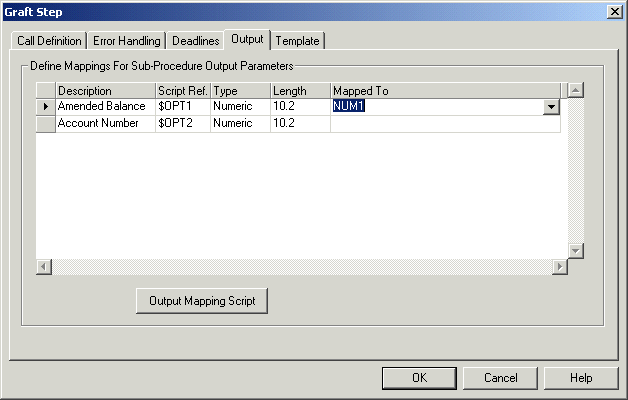
1. The Output tab is displayed. A list of the pre-defined sub-procedure output fields is displayed. You need to map these to fields in the main procedure. You can also create a private script that you can execute after the mappings have been processed to further manipulate the output values.
2. Select a sub-procedure parameter and then select the main procedure field to map it to from the Mapped To column. Only fields of the same type as the one selected are displayed e.g. numeric or text.
3. Click OK to save your settings.To provide extra manipulation of output values, you have the option to execute a private script on completion of the output mappings. The script can refer to the sub-procedure output values using keywords with the format $OPn or $OPTn where:
• n is a positive integer that is automatically assigned by iProcess to each output parameter.The script can also refer to, and assign to, the main procedure fields. See "Using Scripts" in TIBCO iProcess Modeler Advanced Design for more information about creating private scripts.If you have steps that become redundant during the running of a case, you can define the procedure so that those steps are withdrawn from the work queues. You do this by defining a withdraw action on the step. However, if you want to withdraw a graft step in this way, you must ensure that all of the following pre-requisites are met before doing so:
• An external application must inform the graft step how many tasks it needs to complete (using the SetGraftTaskCnt SPO method and TaskCnt property).
• The graft step's task count (TaskCnt) must reach zero (the task count is decremented when a task has completed or if you delete a task).
• This means that even if a graft step receives the withdraw notification, it is not withdrawn until such time that the task count is received and enough tasks are grafted (or decrement task counts called) to end up with a task count of 0.Because a graft step is closely linked with an external application, please note the following points when using a deadline with a withdraw on your graft step:
• The withdraw can only happen when all required graft step elements have been received i.e. the previous step has been released, the graft count is set and the correct number of tasks have been grafted. A withdraw audit trail entry will not be shown until the above elements have been completed.
• This means that even if the graft step has started and the sub-procedures have started, you will not get outstanding sub-procedures when the graft step withdraws because the entire graft step will still be outstanding.
• Once the graft step has been withdrawn, iProcess will stop processing along that part of the procedure definition branch.
|
| Copyright © Cloud Software Group, Inc. All Rights Reserved |