Copyright © Cloud Software Group, Inc. All Rights Reserved


Chapter 5 Using Public Steps & Events

Chapter 5
This is a feature that enables iProcess to publish information about case start and event trigger steps to an external process (or application) via SAL/TIBCO iProcess Objects interfaces.
To do this, you specify steps or events in a procedure which you want to be public (via the TIBCO iProcess Modeler). The result is a subset of events or steps that are now available to external processes or applications.
For each public step or event, you can specify a list of expected input fields and define the URL of the document describing the purpose of the public step.
This feature is provided so that an external process (or application) can limit itself to perform case start at step / trigger events to only those defined as Public Steps or Events. The public steps/events are not enforced by iProcess/TIBCO iProcess Objects. (This also affects sub-procedures. The list of steps displayed in the Select Step to Start Sub-procedure At: can be restricted to those steps defined as Public steps. See TIBCO iProcess Modeler Advanced Design for more information about sub-procedures).
Defining Public Steps
To create a new public step:
1.
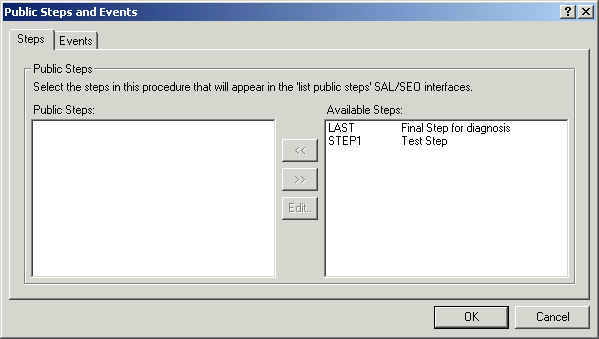
The Public Steps and Events dialog is displayed.
2.
The Steps pane shows the available steps in the procedure (as per the last save of that procedure) on the right. The steps shown are those that match the type of step that can be published as case start or close case public steps. It is sorted by step name.
3.
The Step/Event Properties dialog is displayed.
4.
Enter the Public Description and Usage URL for the public step. Note that:
The information the external process (or application) will see is the Step Name, the Public Description, the Usage URL and the list of available fields.
If you are working on a sub-procedure, the list of available fields is grayed out for all step types except Event steps. You should use IO parameters if you need to restrict the list of fields available when mapping sub-procedure fields - see TIBCO iProcess Modeler Advanced Design for more information about defining IO parameters.
The Public Description defaults to the current Step’s Description but you can change this if you wish.
You can use the Usage URL to point to a web page or a local file. For example, \\www.abc.com\webpage.htm or file:///c:/usage.txt. Alternatively, you can use this field to enter text to contain more information about the public step. This is useful to provide information about how the step is to be used.
Defining Public Events
To create a new public event:
1.
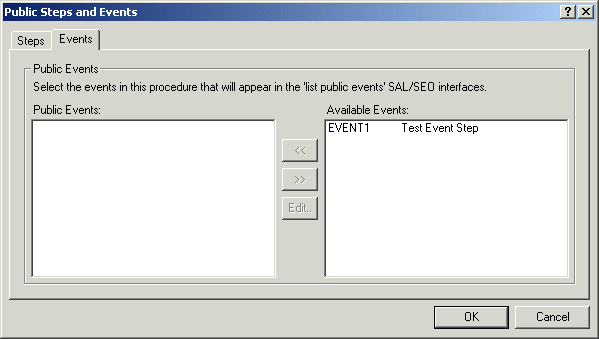
The Public Steps and Events dialog is displayed.
2.
Click the Events tab. The Events pane shows the available events in the procedure (as per the last save of that procedure) on the right. The events shown are those that match the type of event that can be published. It is sorted by event name.
3.
4.
The Step/Event Properties dialog is displayed. Enter the Public Description and Usage URL for the public event. Note that:
The information the external process (or application) will see is the Event Name, the Public Description, the Usage URL and the list of available fields.
The Public Description defaults to the current Event’s Description but you can change this if you wish.
You can use the Usage URL to point to a web page or a local file. For example, \\www.abc.com\webpage.htm or file:///c:/usage.txt. Alternatively, you can use this field to enter text to contain more information about the public step. This is useful to provide information about how the step is to be used.
Defining the Field Data
To define the list of fields for the currently selected public step or event:
1.
The Field Data pane in the Step/Events Properties dialog shows the available fields in the procedure (as per the last save of that procedure) on the right. It is sorted by field name.
If you are defining Public Steps for a sub-procedure, you can only define public fields for Event steps. All other step types have the list of fields grayed out.
2.
From the Field Data box, click the field you want added to the public step/event and then click .
3.
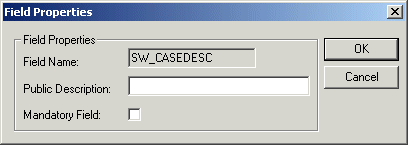
The Field Properties dialog is displayed.
4.
Enter the Public Description and if you want the field to be mandatory, select the Mandatory Field check box. Note that:
The Public Description is blank by default. You can enter a description or leave it blank.
Select the Mandatory Field option if the user must complete this field before the step can be released.
Importing a Staffware 2000 Procedure
Use the swutil utility to import procedures. See TIBCO iProcess swutil and swbatch Reference Guide for more information about using the swutil utility to import procedures.
There are two elements to a sub-procedure:
When you import a Staffware 2000 procedure with a sub-procedure into iProcess Version 10.6, it will remain in the Staffware 2000 format. Therefore, to take advantage of the public steps/events feature you have to change the Staffware 2000 sub-procedure into iProcess Version 10.6 format. To do this:
1.
Use the iProcess Modeler to open the sub-procedure in iProcess Version 10.6 and save it. The Staffware 2000 sub-procedure will be saved in the new format.
2.
Open the parent procedure in iProcess Version 10.6, delete the existing sub-procedure call and define a new one. See TIBCO iProcess Modeler Advanced Design for more information about defining procedures.
If you make any changes to the Staffware 2000 sub-procedure in iProcess Version 10.6, you have to change the sub-procedure call in the parent procedure. A Staffware 2000 sub procedure call will not work with an iProcess Version 10.6 sub-procedure definition.

Copyright © Cloud Software Group, Inc. All Rights Reserved