Copyright © Cloud Software Group, Inc. All Rights Reserved


Chapter 3 Using Transaction Control Steps : Defining a Transaction Control Step

Defining a Transaction Control Step
To define a transaction control EAI step in your procedure:
1.
In the TIBCO iProcess Modeler, click the Transaction Control EAI Step tool then place it on your procedure definition.
2.
The Step Definition dialog is displayed.
3.
Enter the Name and Description for the step.
4.
See Types of TC Steps for more information about the differences between the TC types.
Defining a Commit and Continue TC Step
After completing the general TC step definition, complete the following steps to create a Commit and Continue TC step:
1.
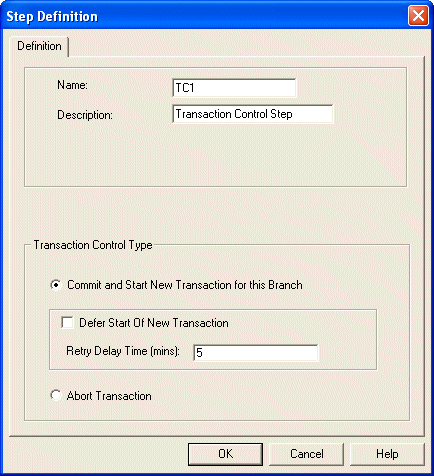
In the Transaction Control Type area of the dialog, choose Commit and Start New Transaction for this Branch.
2.
You have the option of entering a Retry Delay Time value (in minutes). The default value is set to 5 minutes but values between 1 and 10080 are allowed - (1 minute to 1 week). This means if the continuing transaction fails, it will be retried after the time you specified in the Retry Delay Time box has elapsed. The benefit of this is that it enables you to handle the behavior of the EAI steps following the transaction control step. For example, the following EAI sequence will take a specific period of time to complete. This means you do not want it to retry too quickly because the EAI sequence may be still going or you may not have had a chance to correct the fault that caused it to fail. Setting the Retry Delay Time value enables you to specify an appropriate period for the retry of the failed EAI step.
This is the initial retry value only. If the EAI step is re-tried again then the iProcess Background (BG) process uses the IQL_RETRY_DELAY process attribute to generate the instructions to retry the EAI step, whose default is 5 minutes. See TIBCO iProcess Engine Administrator’s Guide for more information about the IQL_RETRY_DELAY process attribute.
3.
Defining a Commit and Concede TC Step
After completing the general TC step definition, complete the following steps to create a Commit and Concede TC step:
1.
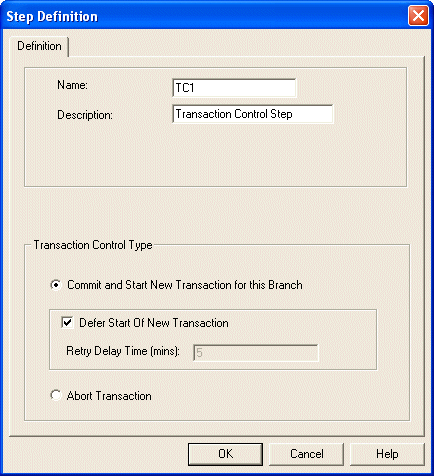
In the Transaction Control Type area of the dialog, choose Commit and Start New Transaction for this Branch.
2.
Click Defer Start of New Transaction.
3.
Defining an Abort TC Step
After completing the general TC step definition, complete the following steps to create an Abort TC step:
1.
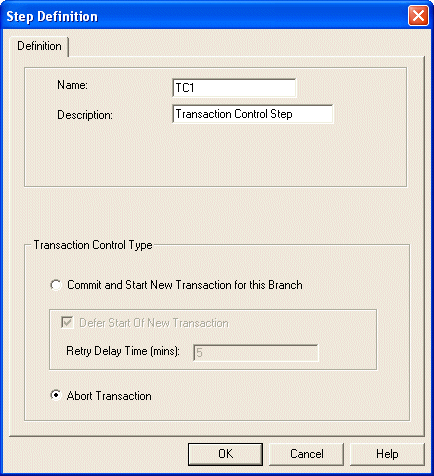
In the Transaction Control Type area of the dialog, select Abort Transaction.
2.

Copyright © Cloud Software Group, Inc. All Rights Reserved